Get Started
Visor Studio is a headless CMS platform that separates content management from frontend presentation. Before you begin, make sure you have the required access, then continue to the guide that matches your role.
Prerequisites
Before you begin, make sure the following are installed on your machine:
- Node.js v18 or later
- npm v10 or later (bundled with Node.js)
- Visor Studio access
- git configured in your local environment
Setup & Local Development
After you have access to Visor Studio, log in to your account and you will see this dashboard. Detailed information about the Visor Studio interface can be found in the User Guide.
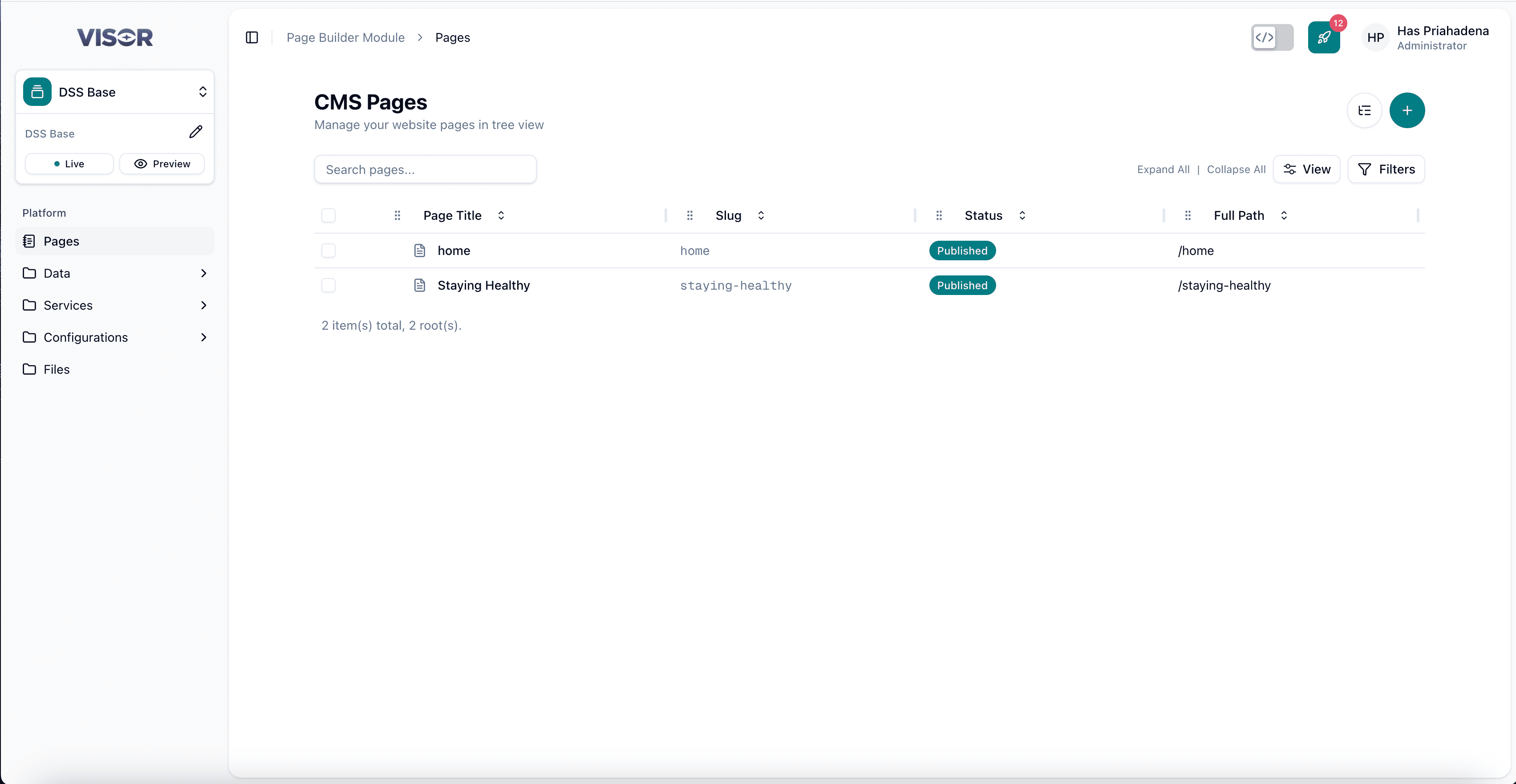
From here you will need to follow the steps (Download the Template, Initiate Local Environment, Verify Your Setup) below to set up your local development environment:
Download the Template
If you are starting from scratch, download the official starter template.
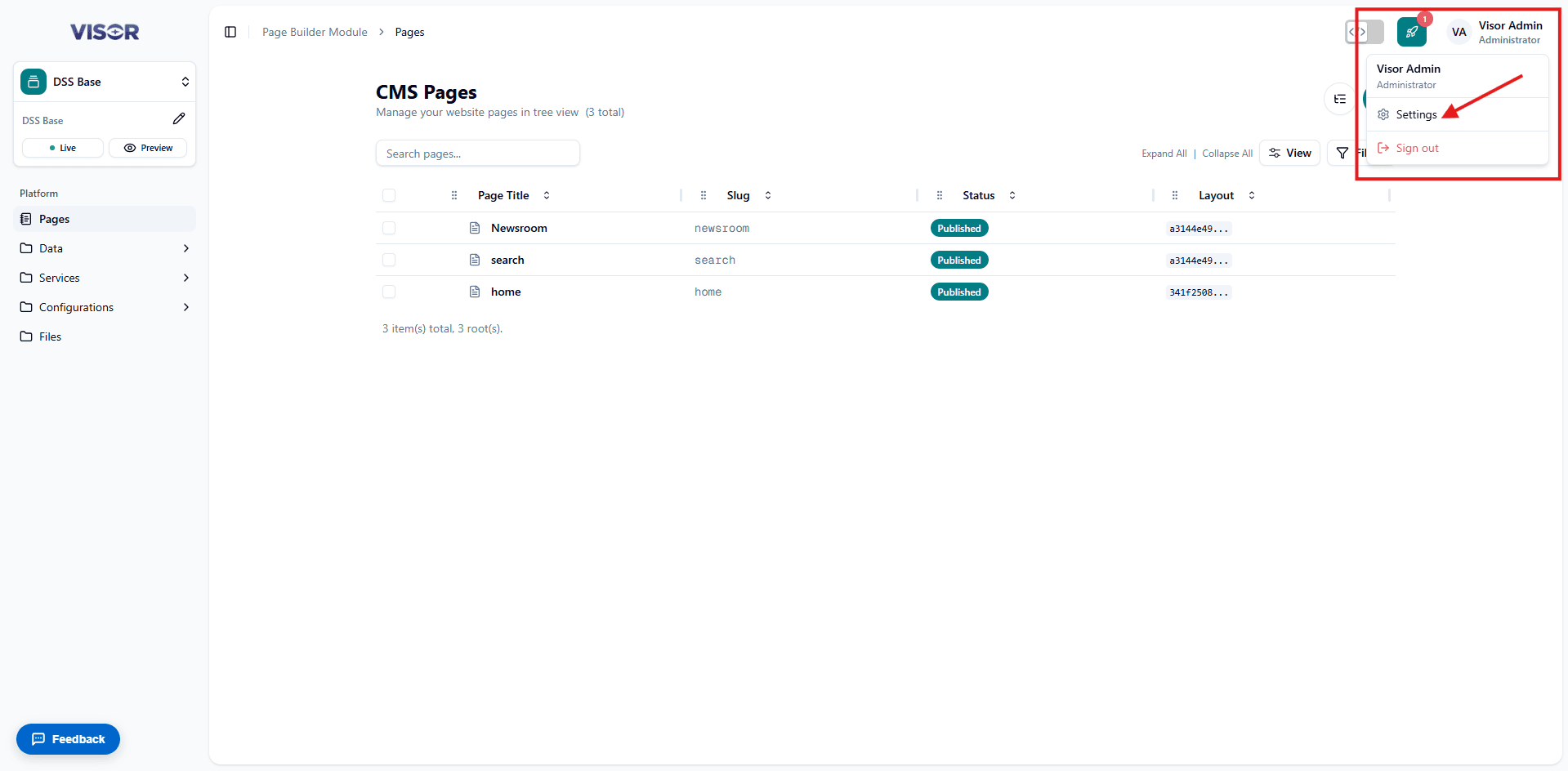
Access Settings menu
The Settings menu is located in the top-right corner of the Visor Studio interface. Click on your profile picture to open the dropdown menu, then select Settings.
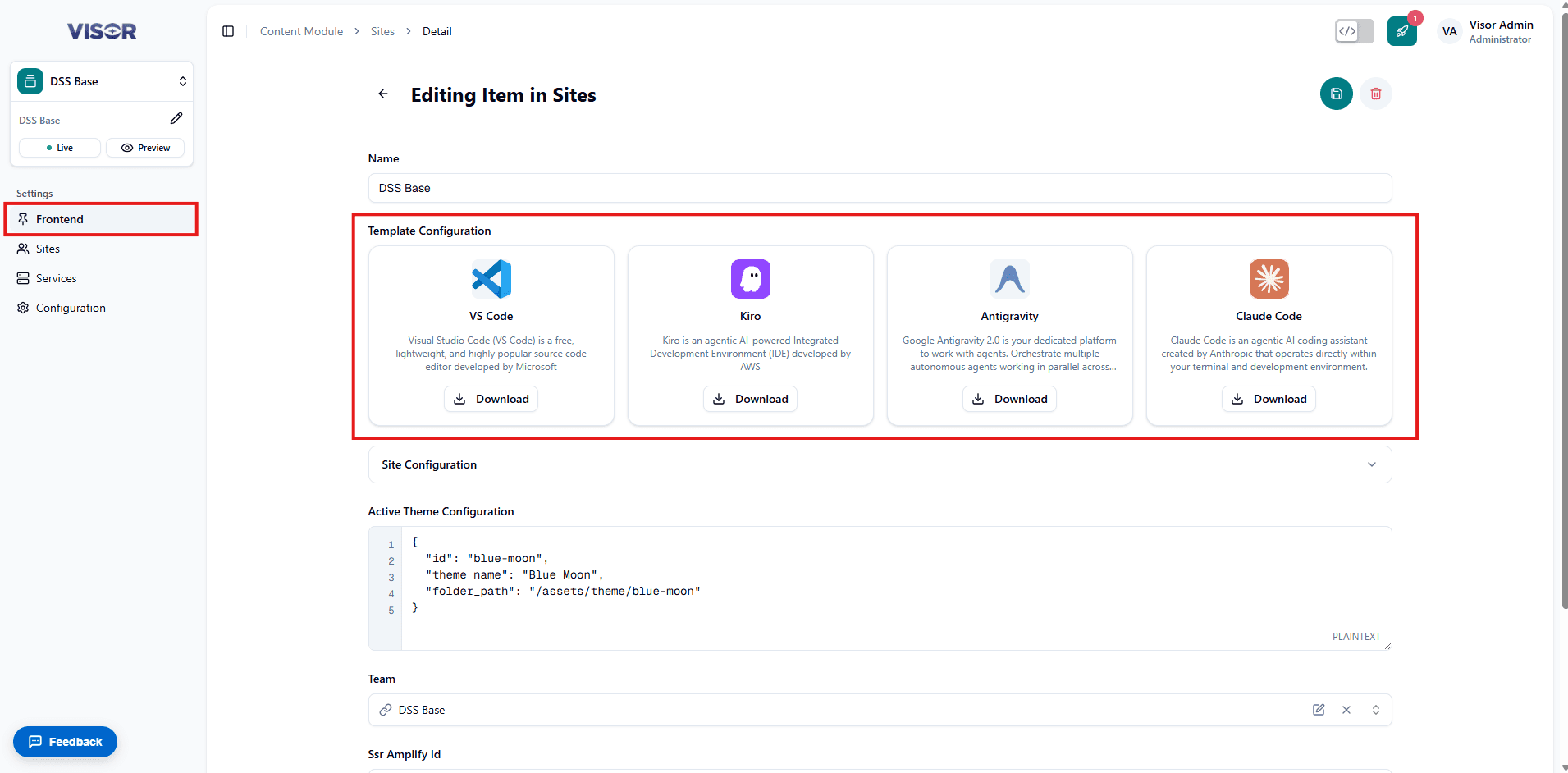
Access Frontend page
Navigate to the Frontend section that is located in the sidebar and then find the Download Template button that is located under the Site Configuration section.
Verify the downloaded template
After downloading the template, extract the contents of the zip file to a folder on your local. Open it on your IDE and confirm that the files have this structure after extraction:
.git— Git configuration folder to sync with remote history and configurationenv.sample— Environment variables sample file- initiator skill — Skill that will automate local setup
Initiate Local Environment
Setup is automated by the initiator skill bundled with the downloaded template. Run it from any of the supported tools — Antigravity, Claude Code, VSCode, or Kiro — and it takes care of the rest.
To be able to run the initiator skill, you must have a subscription to AI assistants.
Head to one of the following guides to learn how to run the initiator skill in your preferred IDE:
Verify Your Setup
Local Environment
To confirm that your local environment is set up correctly, in your IDE terminal, run the following commands:
Verify you are in the correct branch
When you execute git status in your terminal, you should see that you are in the newly created branch (onboarding/[today’s date])
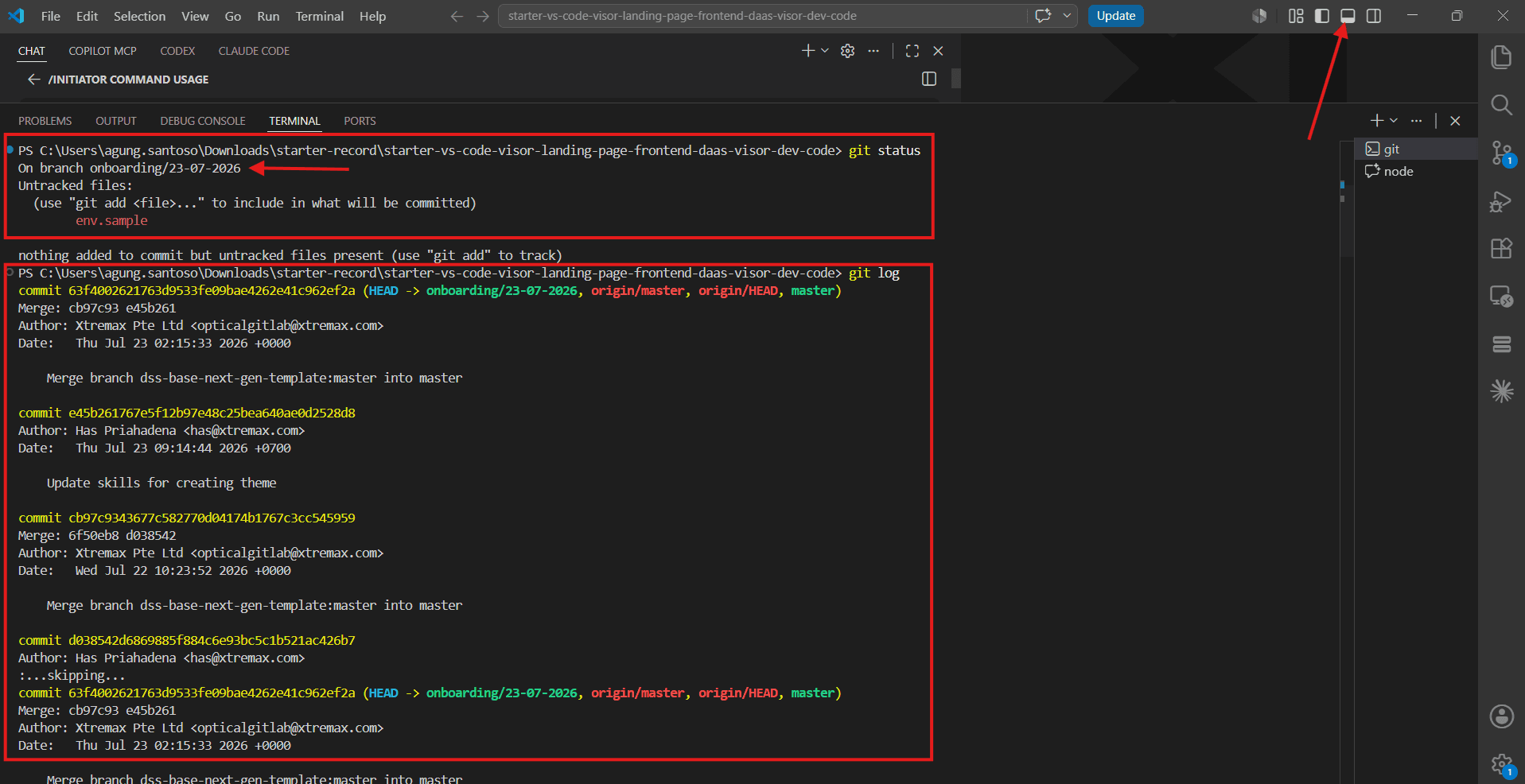
Verify commit history is present
When you execute git log in your terminal, you should see the commit history from the remote repository.
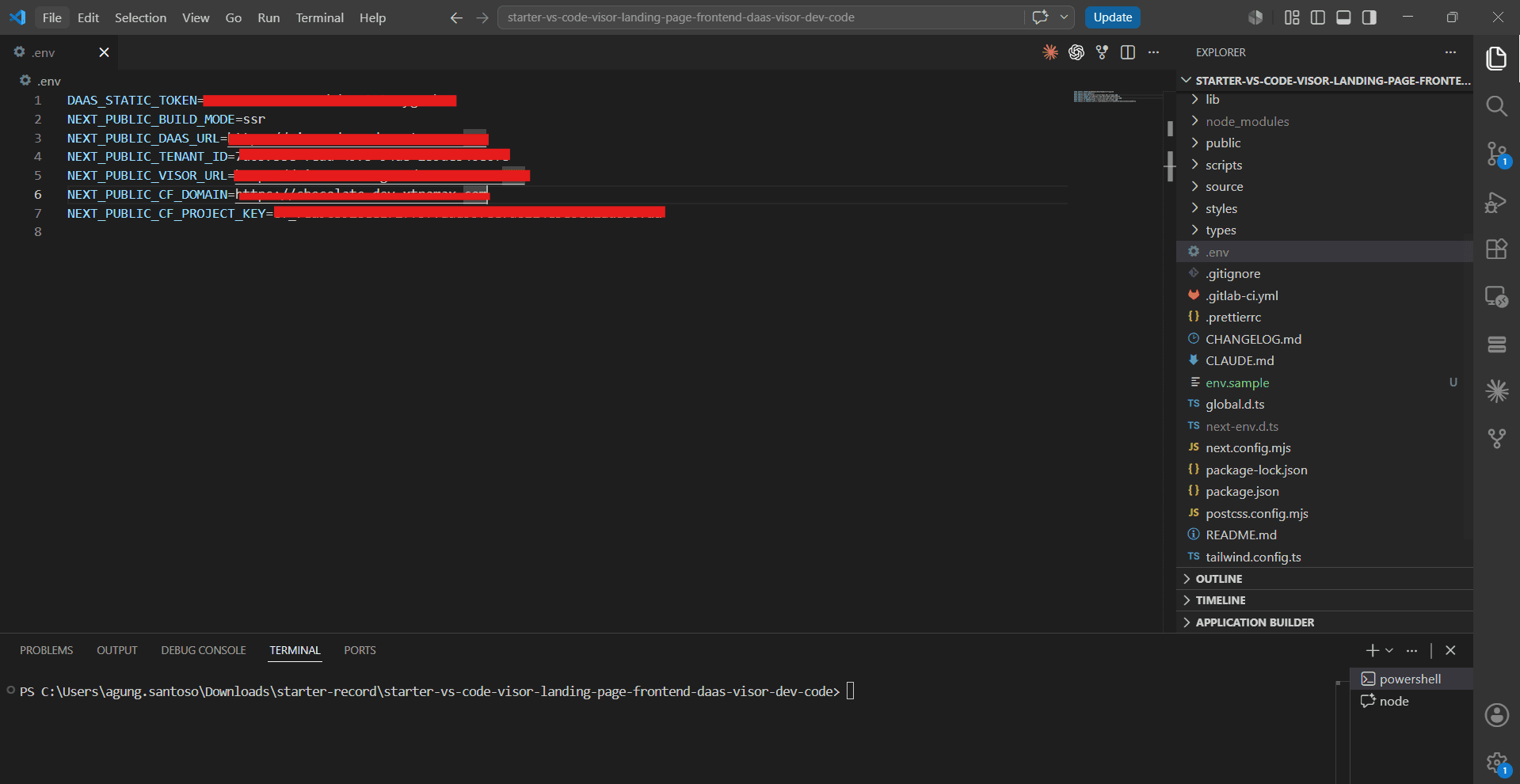
Verify variables inside .env have values
Check that the .env file has been generated correctly from .env.sample.
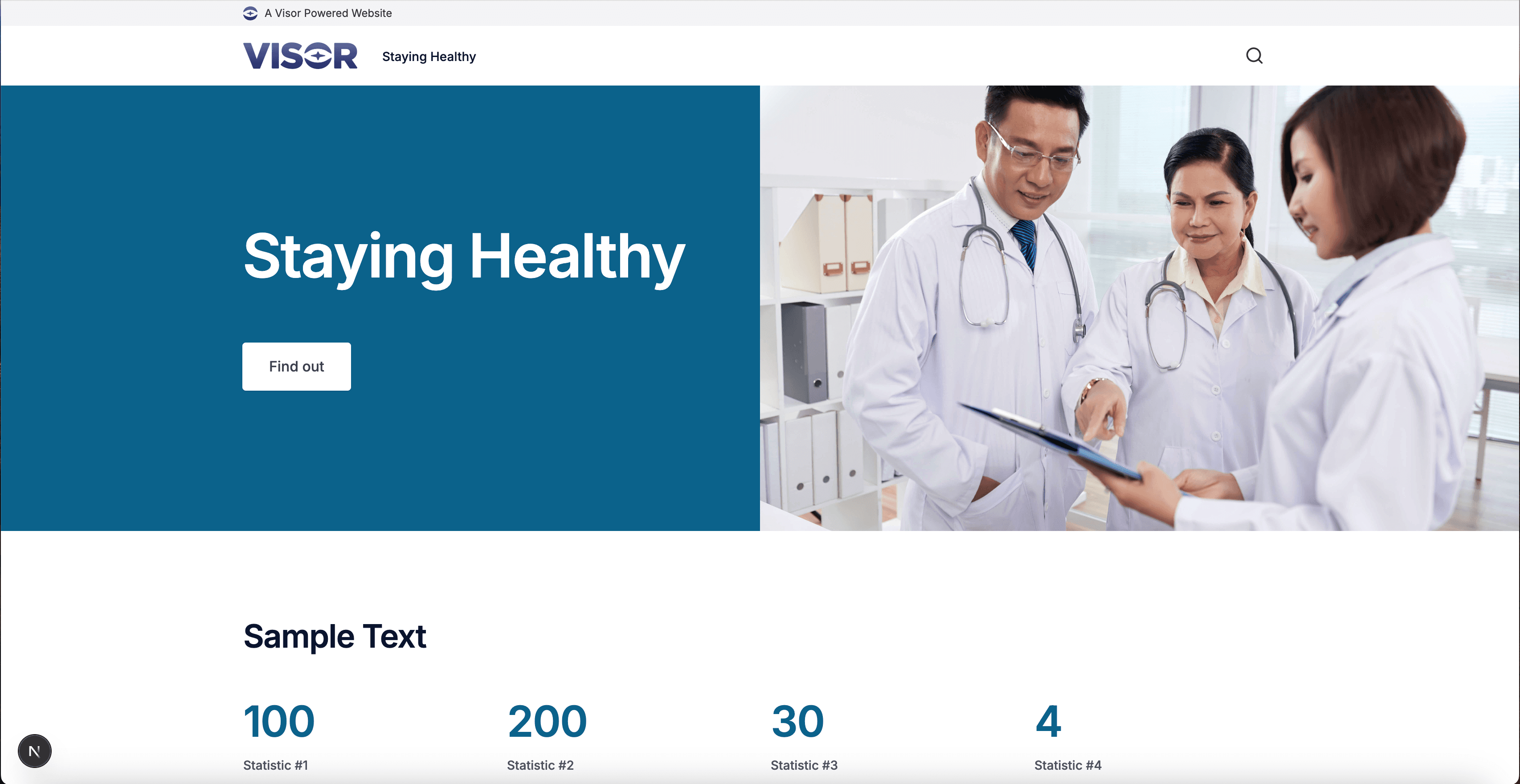
Verify the development server is running
The development server should be running on http://localhost:3000. Open it in your browser and you should see the homepage rendered from Visor content.
Visor Studio Integration
Dev Mode routes the Visor Studio preview to your local Next.js server instead of the live deployment. This lets you see content changes reflected in real time during development.
To confirm that the local development server is accessible in Visor Studio, follow these steps:
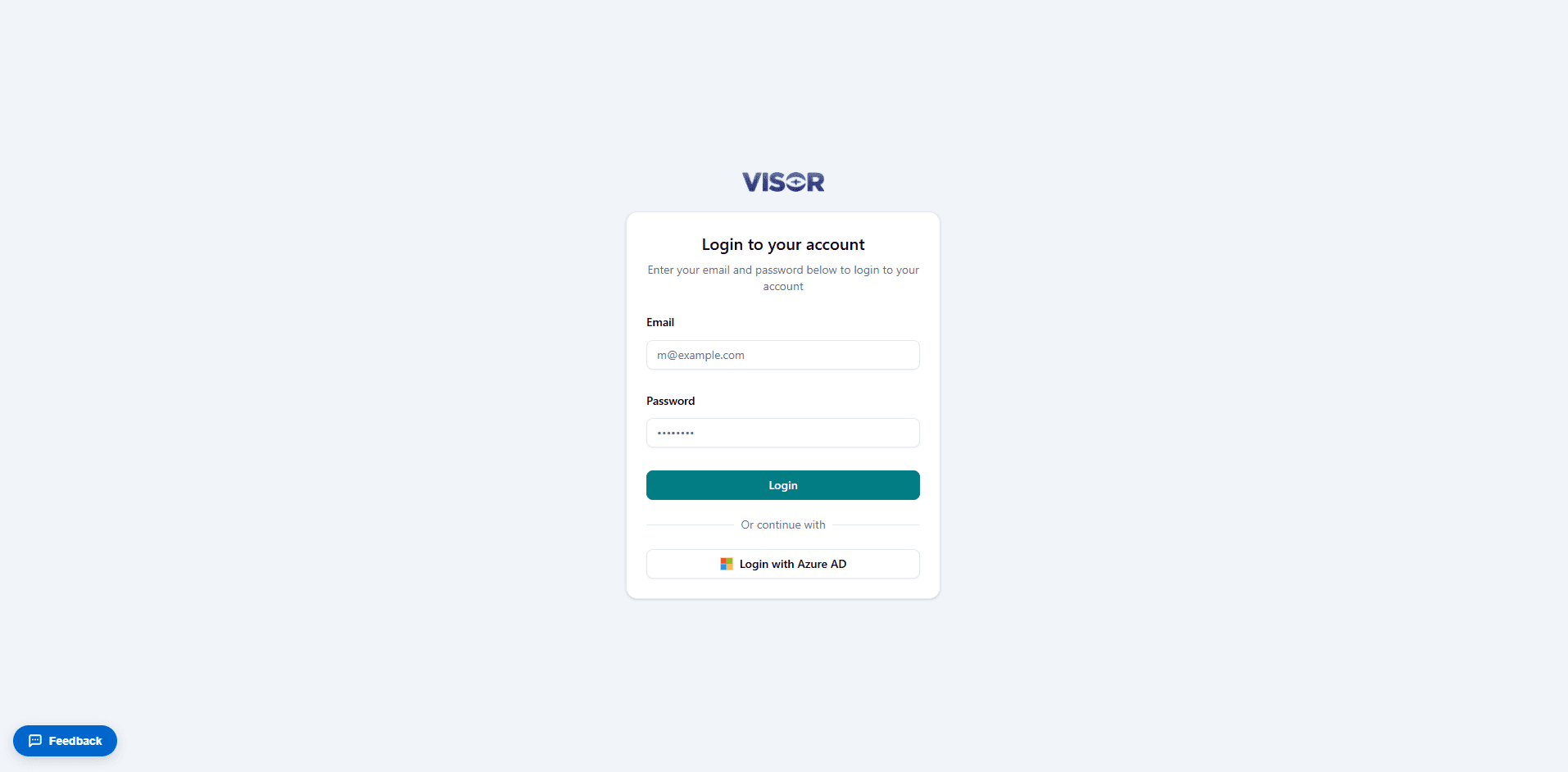
Log in to Visor Studio
Log in to Visor Studio using your credentials
Navigate to the Page Builder module
Page Builder module is accessible from the left sidebar.
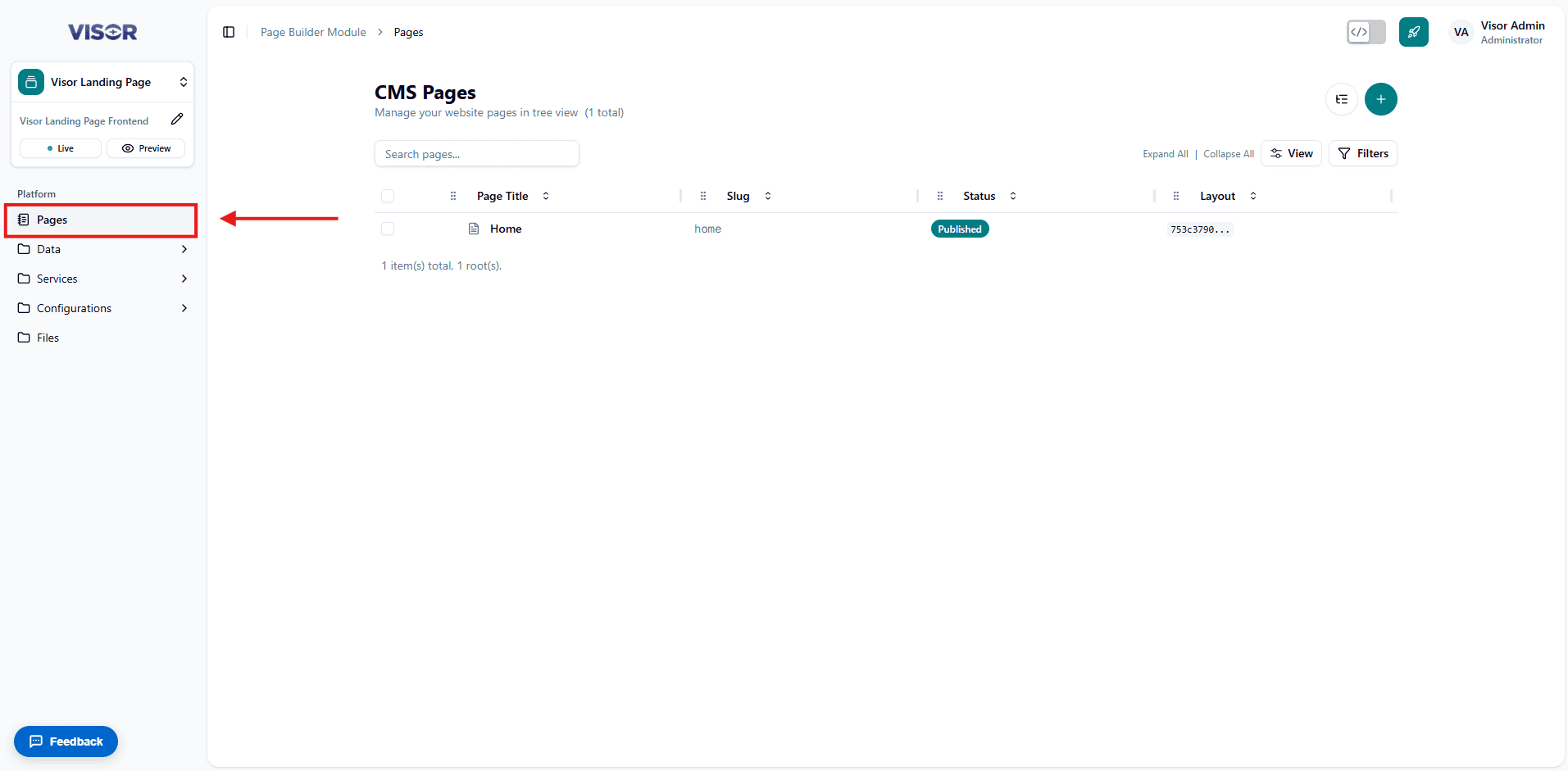
Select a page
Select the Pages list and select the home page to enter the detail view.
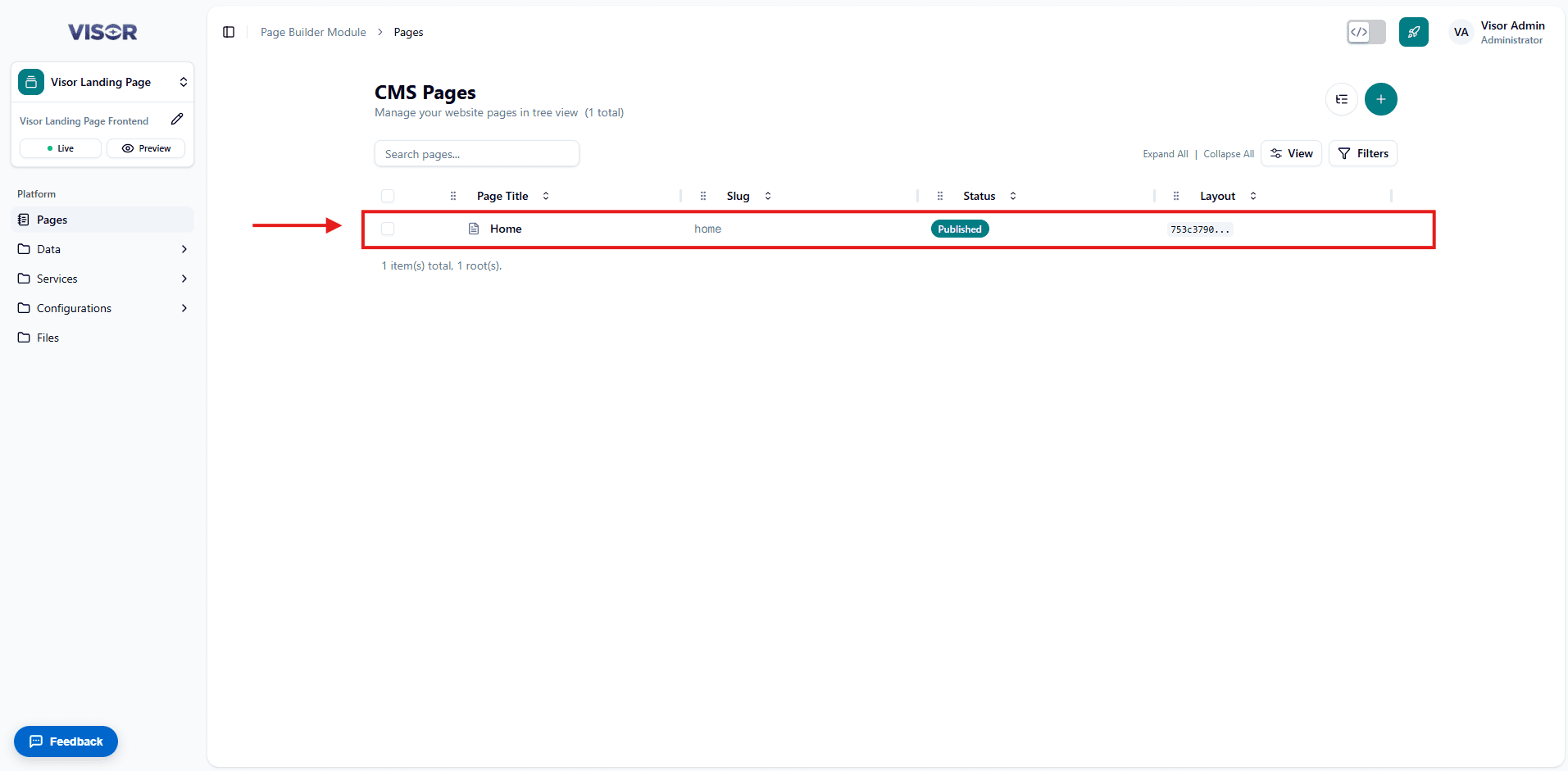
Turn on Dev Mode
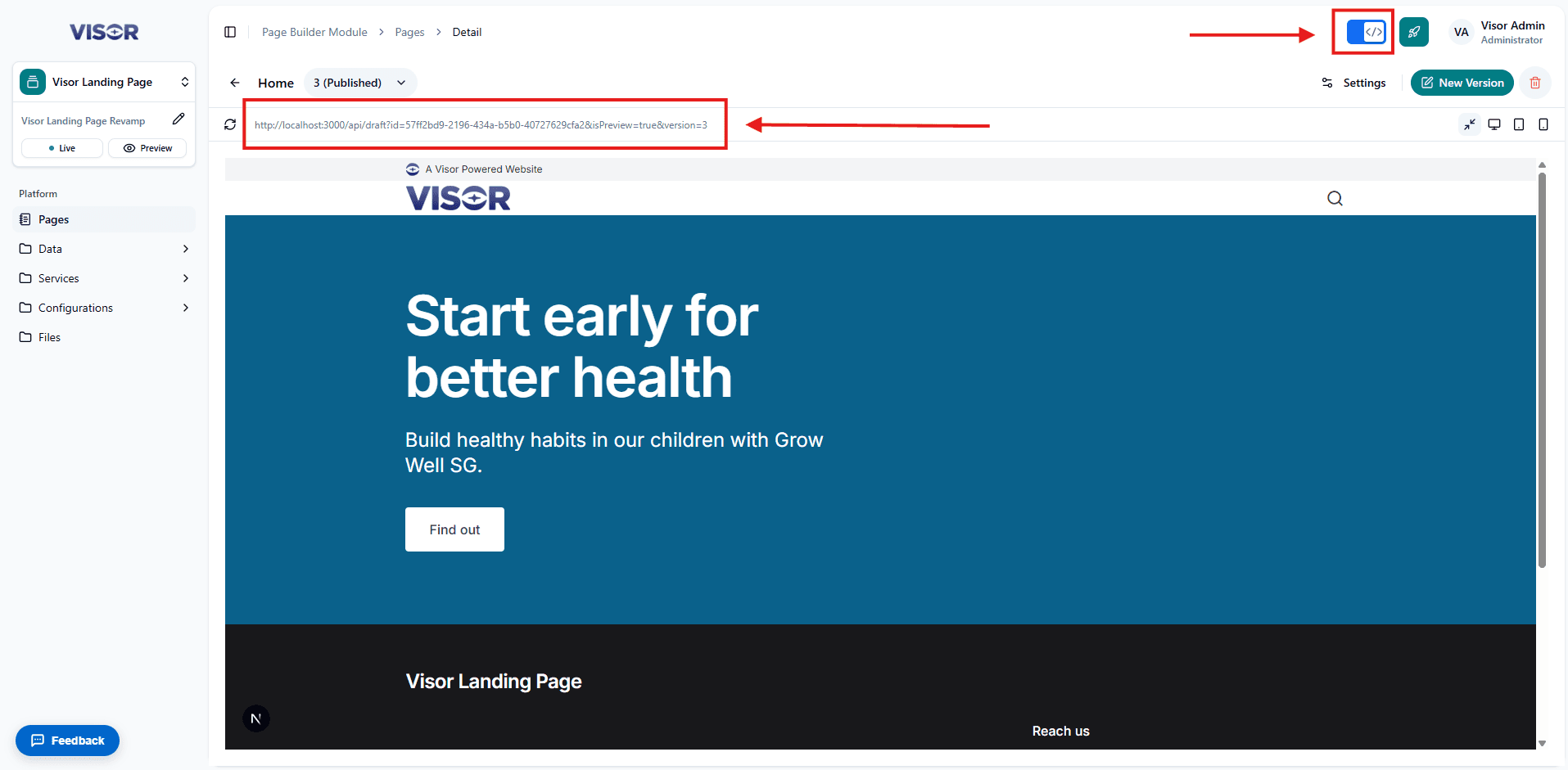
In the top-right area of the editor, toggle on Dev Mode (the </> icon).
Visor will switch the preview iframe to your local URL (http://localhost:3000). You should see your locally running head rendered inside Visor Studio.
That’s it! You are now ready to start developing with Visor Studio and the local template.
Where to Go Next
Let’s convert your slicing / project into code and register it in Visor Studio.