Tokens and Connections
Personal tokens
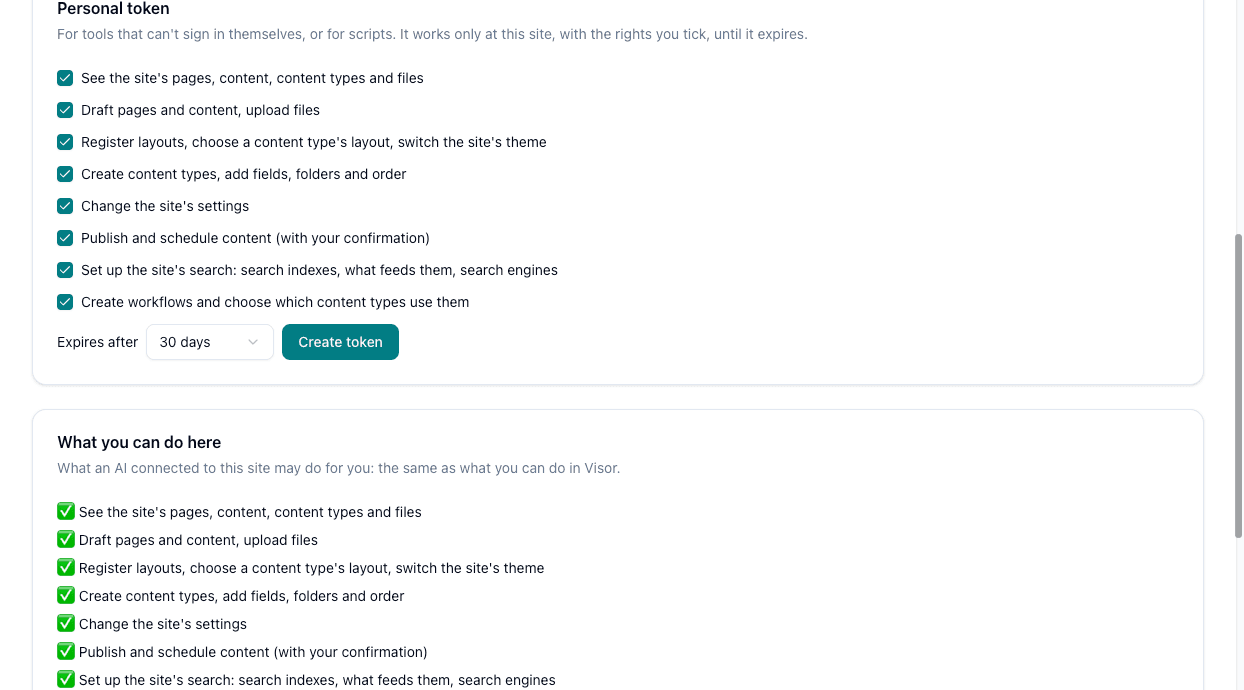
A personal token lets a tool connect without signing in through a browser. Kiro and Antigravity need one, and so do scripts. It works only at this site, as you, with the rights you tick, until it expires.
Open the card
Go to Settings → AI tools → Personal token.
Tick what it may do
Tick only what the tool needs. Only your own rights are offered.
Choose when it expires
Under Expires after, choose 7, 30 or 90 days, and click Create token.
Copy it now
The token is shown once. The settings in Connect your AI tool now include it, so you can copy them as they are.
Treat a token like a password. Keep it out of git and out of chats. If you think one has leaked, disconnect it straight away.
See and disconnect connections
AI tools lists connections under two cards:
| Card | Who sees it | What it lists |
|---|---|---|
| Your connections | Everyone | Your own tools and tokens. |
| All AI connections at this site | People who manage the site’s members | Everyone’s. |
Each row shows the App, Rights, Last used, Expires and Status. Click Disconnect to stop one. Its access ends at once, and it can connect again later.
Starter kits appear here as Git (starter kit), with a 90-day token used for git sign-in. See Set Up Locally.
When rights change
Your AI always follows your live rights at the site. If a role is removed, it loses those rights too. If you gain a role, reconnect or make a new token, and allow the new rights.
If someone leaves a site, their connections to it stop working.
Connect to the whole organization
An Organization Admin can connect an AI tool to every site in an organization. It can then work on any site and create new sites as microsites. It stops working if you stop being an Organization Admin.
Open the organization’s AI tools
Go to the organization level with the switcher, and click AI tools under Access. From a site’s AI tools, Organization AI tools takes you there.
Connect
The page works like a site’s, with its own address:
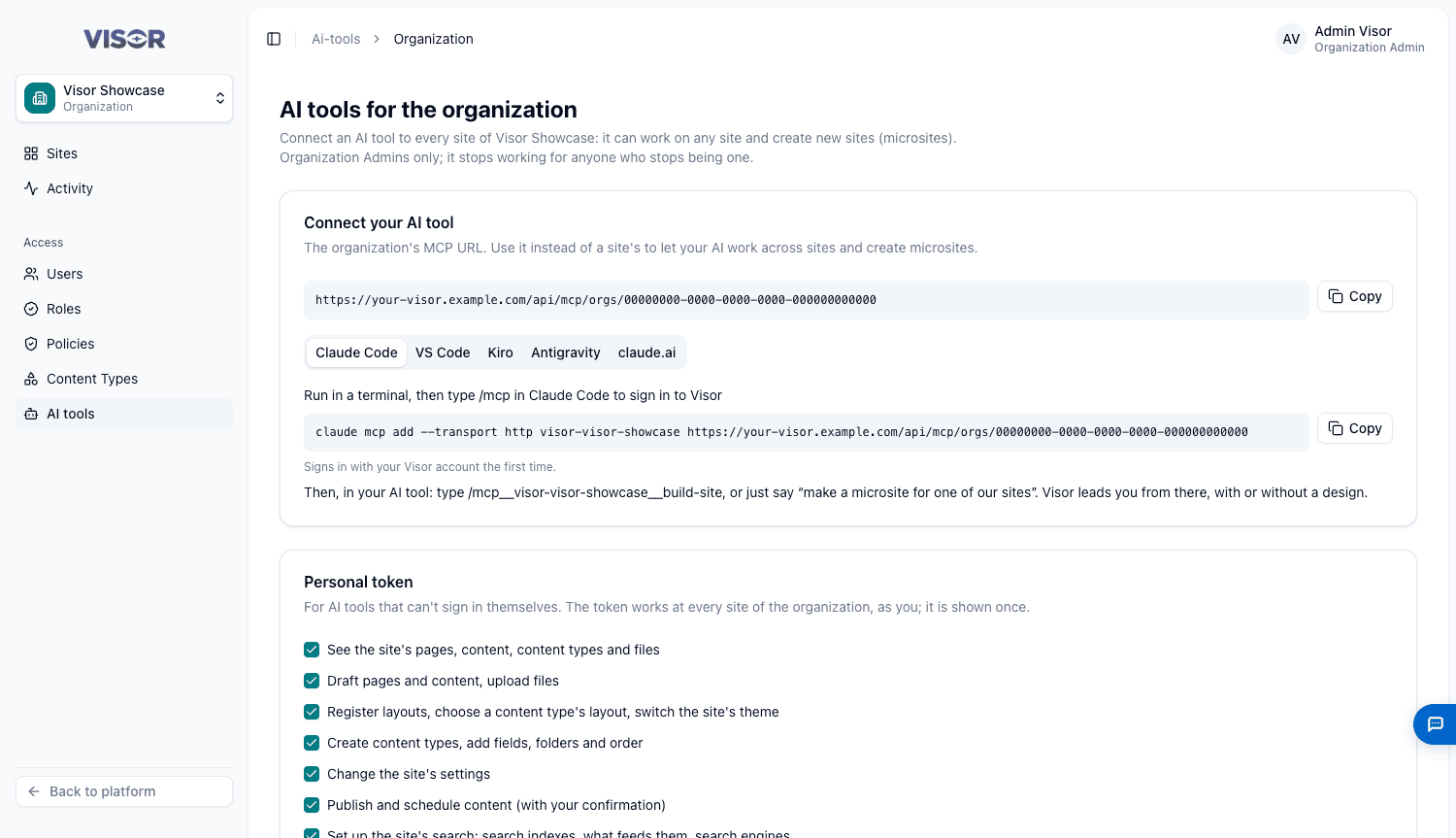
https://<your-visor-address>/api/mcp/orgs/<organization-id>Name the site in your requests
Say which site you mean each time, for example “make a microsite for one of our sites”. The AI asks if it isn’t clear.
Personal tokens made here work at every site in the organization. AI connections in this organization lists every connection to the organization or its sites, and shows where each one works.
Troubleshooting
| What you see | What it means | What to do |
|---|---|---|
| AI connections aren’t available on this Visor yet. | They aren’t turned on for your Visor. | Ask your Visor administrator. |
| This organization hasn’t enabled site admin tools | The organization needs them for AI connections. | Ask an Organization Admin to enable them. |
| You don’t work at this site, so your AI can’t connect to it. | You have no role there. | Ask a Site Admin to add you. |
| This organization requires two-factor authentication. | The connection needs your second factor. | Sign in again with it, then reconnect. |
| Only Organization Admins of this organization can connect an AI to the whole organization. | You used the organization’s address. | Use the site’s address from its AI tools. |
| ”Connect to Visor first” or “isn’t valid any more” | The token or connection ended. | Reconnect, or make a new token. |
| ”This connection wasn’t given this” | You have the right but didn’t allow it when connecting. | Reconnect and allow it. |
| ”…: not allowed.” | You don’t have that right. | Ask the person it names. |
| ”Slow down” | Too many requests in a short time. | The AI waits and continues. |
| A new tool or right is missing | Your connection was made before it was available. | Reconnect. |