Slug → Layout
What is Slug → Layout?
Slug → Layout allows you to override the default layout configuration for individual pages by mapping a specific URL slug to a layout. This gives you fine-grained control — where Content Type → Layout sets a layout for an entire collection, Slug → Layout lets you override it for a single page.
Slug → Layout takes precedence over the Content Type → Layout mapping. Use it when a specific page needs a different layout from the rest of its collection.
Navigating to Slug → Layout
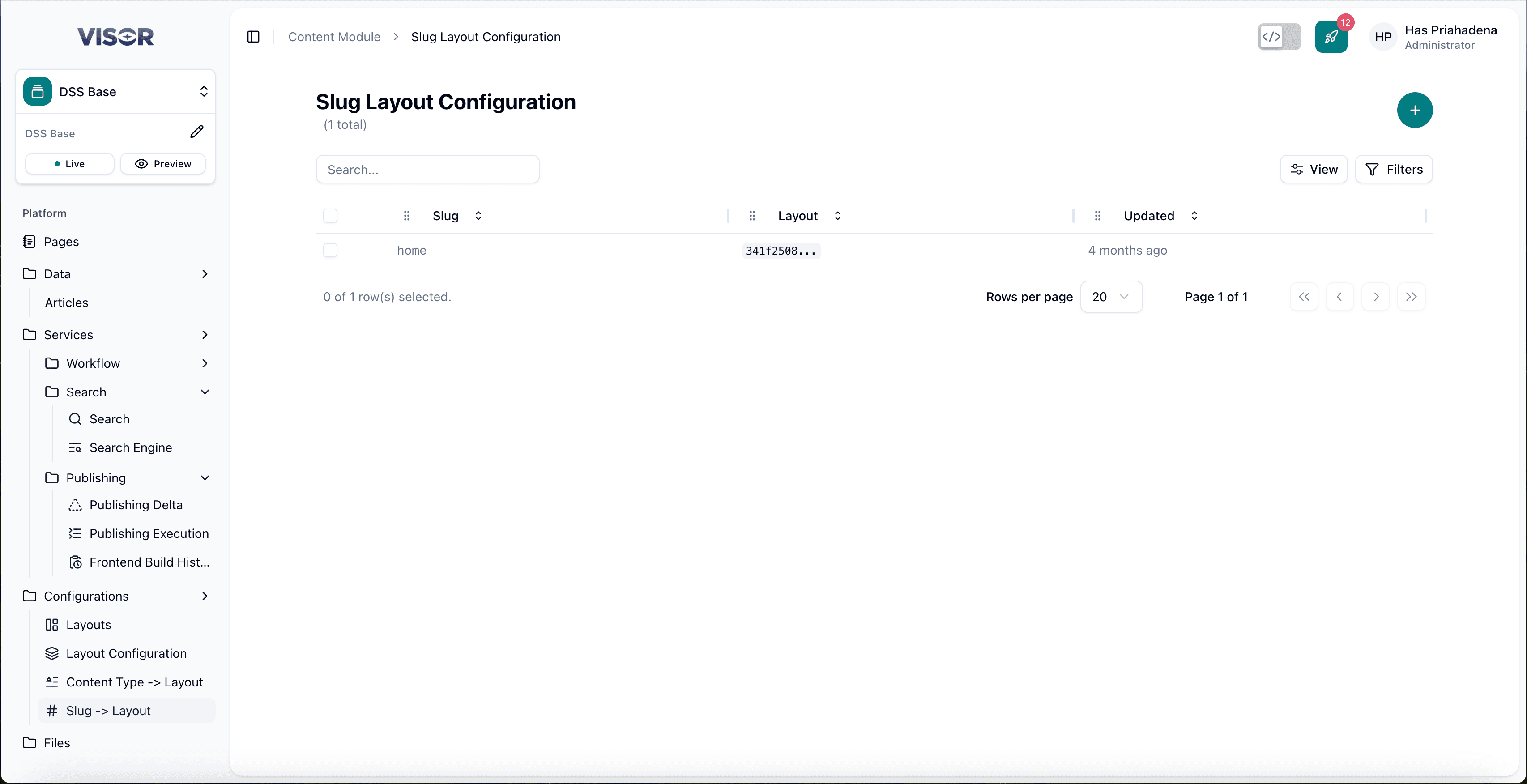
In the left sidebar, go to Configurations → Slug → Layout. This opens the listing page showing all existing slug-to-layout mappings.
Create a Slug → Layout Mapping
Navigate to Slug → Layout
In the left sidebar, go to Configurations → Slug → Layout. You will be taken to the listing page.
Click the + button
In the top-right corner of the listing, click the + button. You will be redirected to the creation form.
Fill in the form
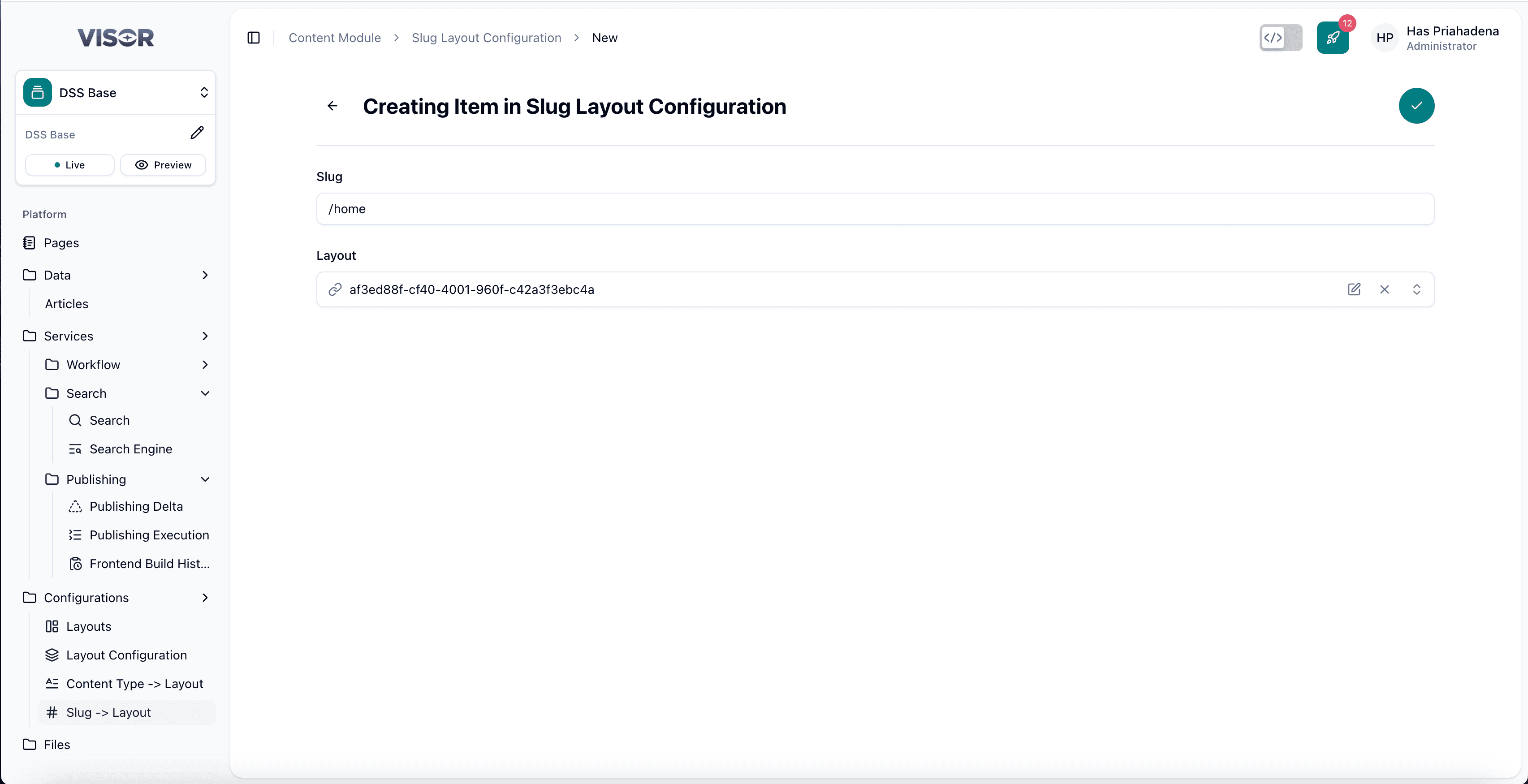
| Field | Required | Description |
|---|---|---|
| Slug | Yes | The URL slug of the page to override (e.g., /about or /news/my-article). |
| Layout | Yes | The layout to assign to this specific page. |
Save the mapping
Click the ✓ (check) button in the top-right corner to save. The specified page will now use the selected layout, overriding any collection-level layout assignment.
Edit a Slug → Layout Mapping
Open the mapping from the listing
From the Slug → Layout listing, click the entry you want to edit. This opens the form.
Update the fields
Change the Slug or Layout as needed.
Save the changes
Click the ✓ (check) button in the top-right corner to save.
Delete a Slug → Layout Mapping
There are two ways to delete a mapping.
Deleting a slug mapping means the page will fall back to its collection-level layout assignment (Content Type → Layout), or the default layout if none is set.
Method 1: Delete from the listing page
From the Slug → Layout listing, tick the checkbox next to the entry you want to delete.
Click the trash icon in the top-right toolbar (Delete selected), then confirm the delete action.
Method 2: Delete from the form
Open the entry from the listing. In the top-right action bar, click the trash icon (Delete item), then confirm the delete action.