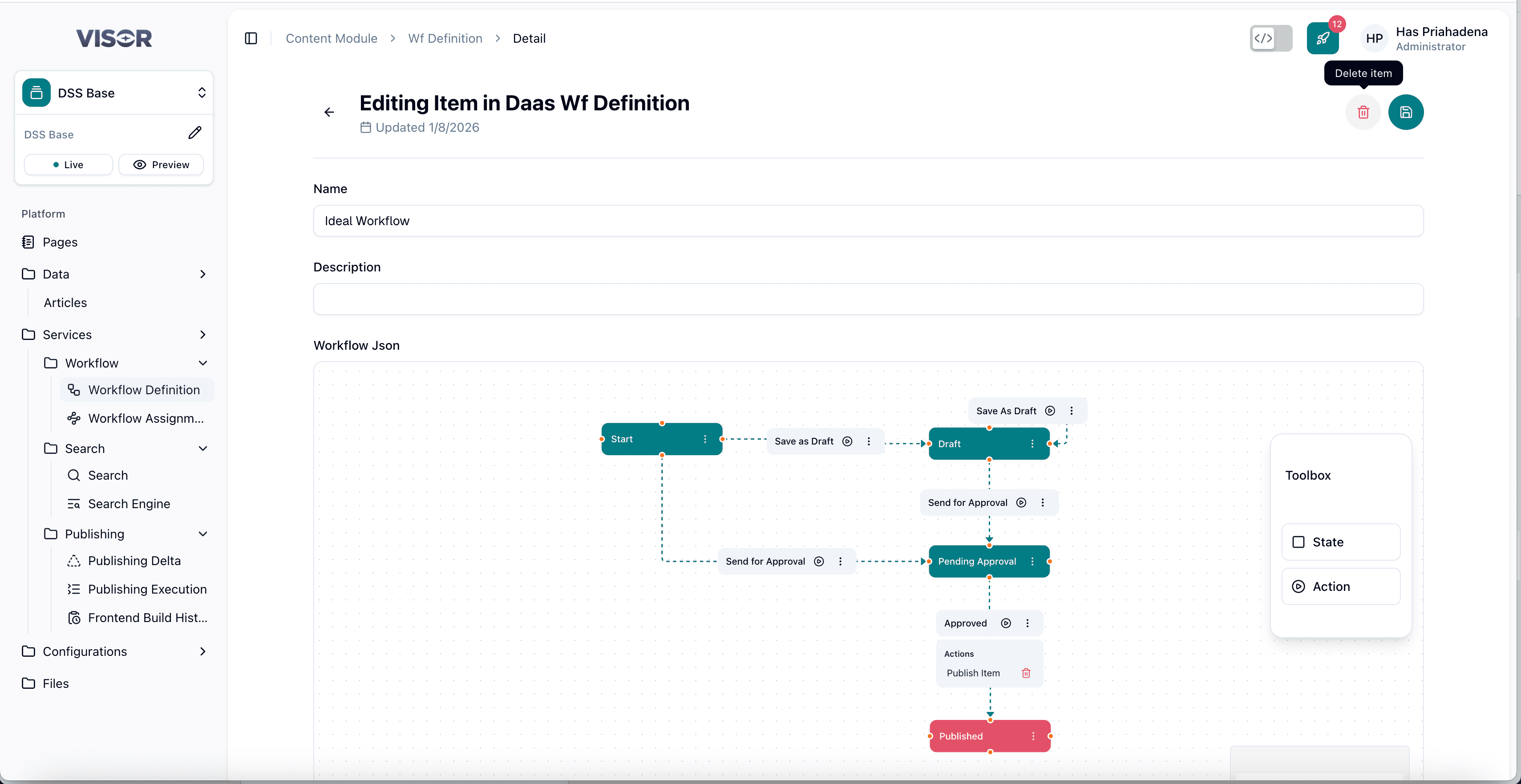
Workflow Definition
What is a Workflow Definition?
A Workflow Definition is a JSON-based configuration that describes the states and transitions a piece of content can go through — for example, Draft → Review → Approved → Published. Each definition acts as a reusable template that can later be assigned to one or more content collections.
Workflow definitions are flexible: you can model any process your team follows, from a simple two-step approval to a complex multi-stage editorial pipeline. Once a definition is created, editors working with an assigned collection will be guided through the states you configure.
Workflow Definitions only describe the structure of a workflow. To activate a workflow for a collection, you need to create a Workflow Assignment after the definition is set up.
Navigating to Workflow Definition
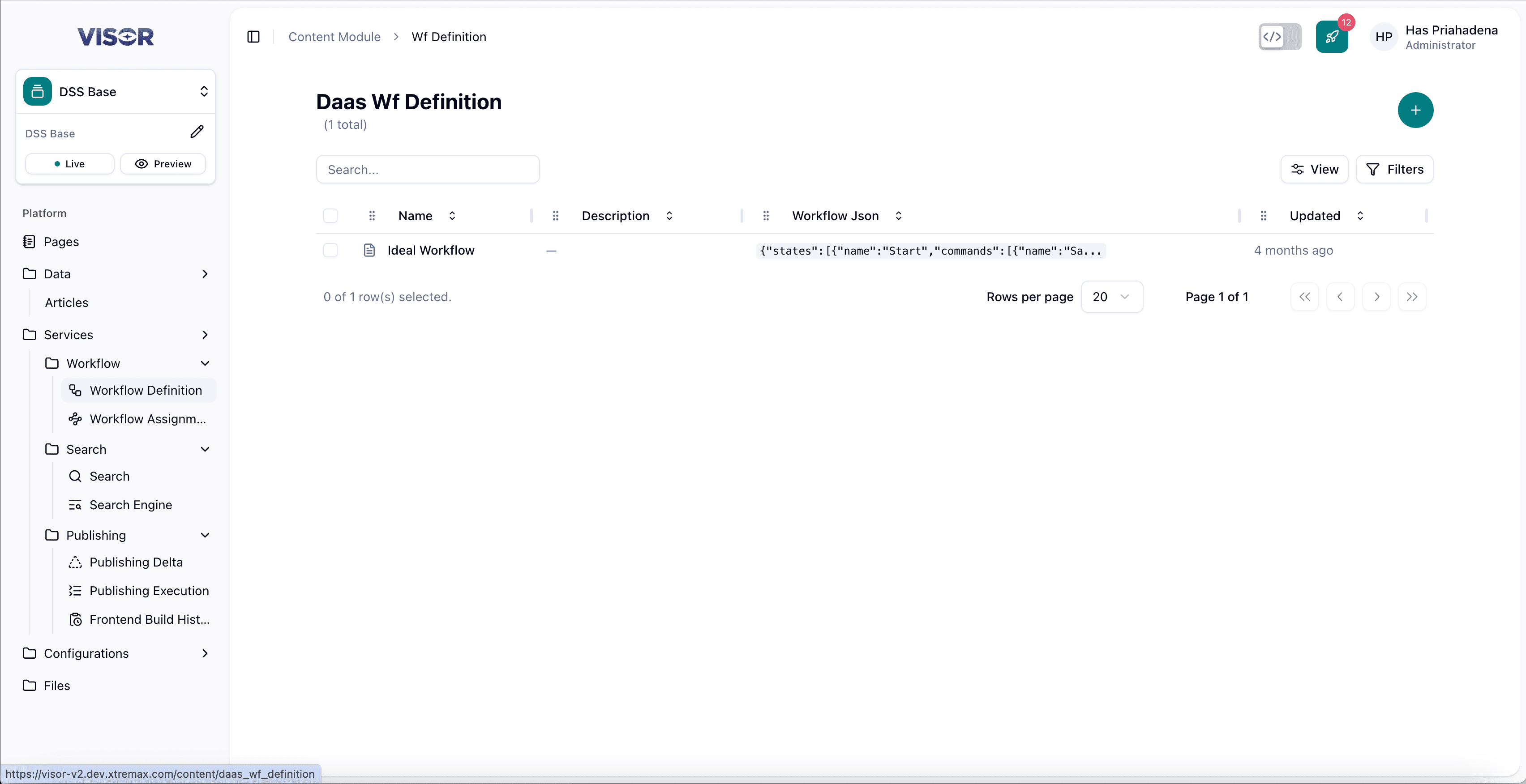
In the left sidebar, go to Services → Workflow → Workflow Definition. This opens the listing page where all existing workflow definitions are displayed.
Creating a Workflow Definition
Open the create form
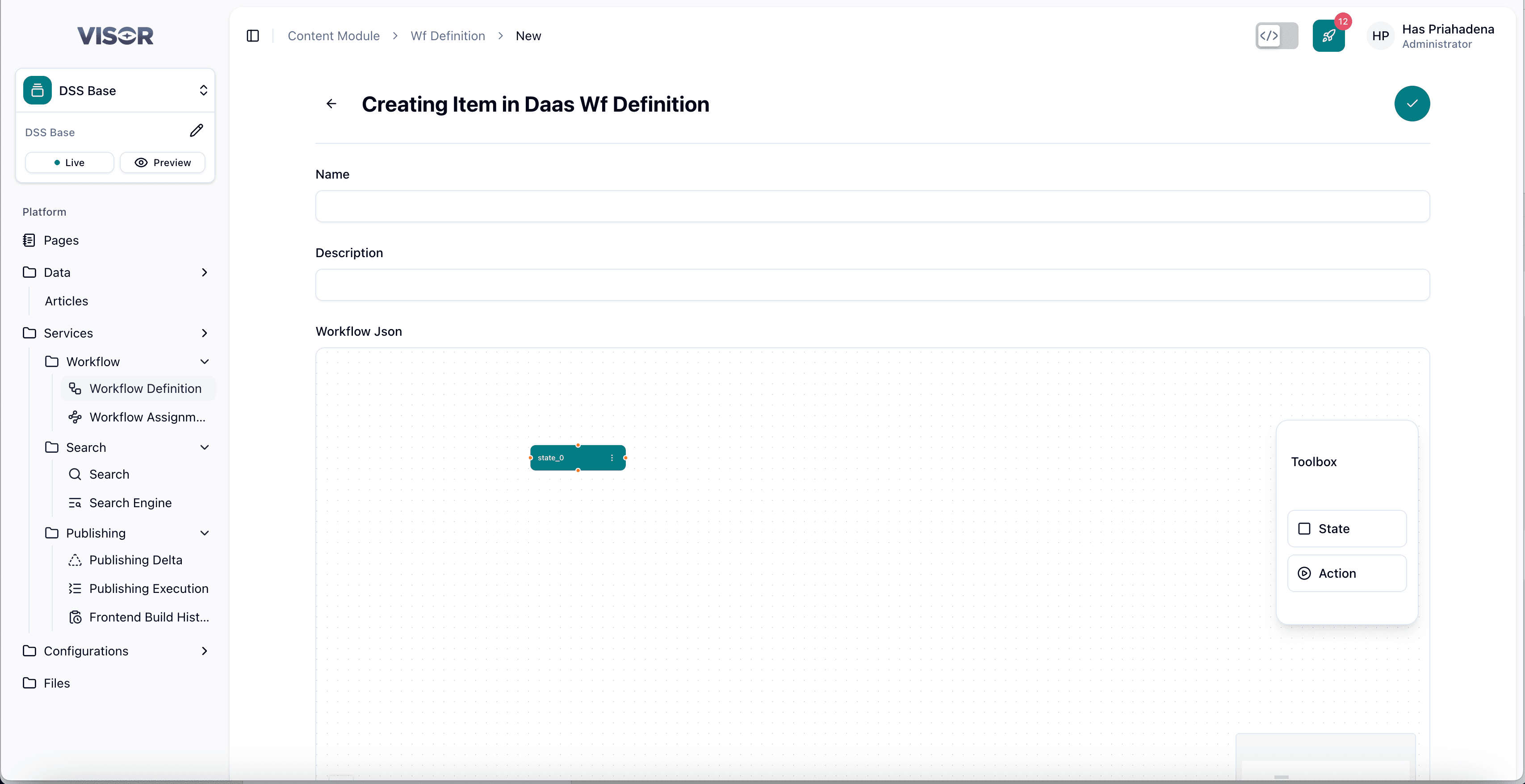
On the Workflow Definition listing page, click the + (plus) button in the top-right corner of the page. You will be redirected to the creation form.
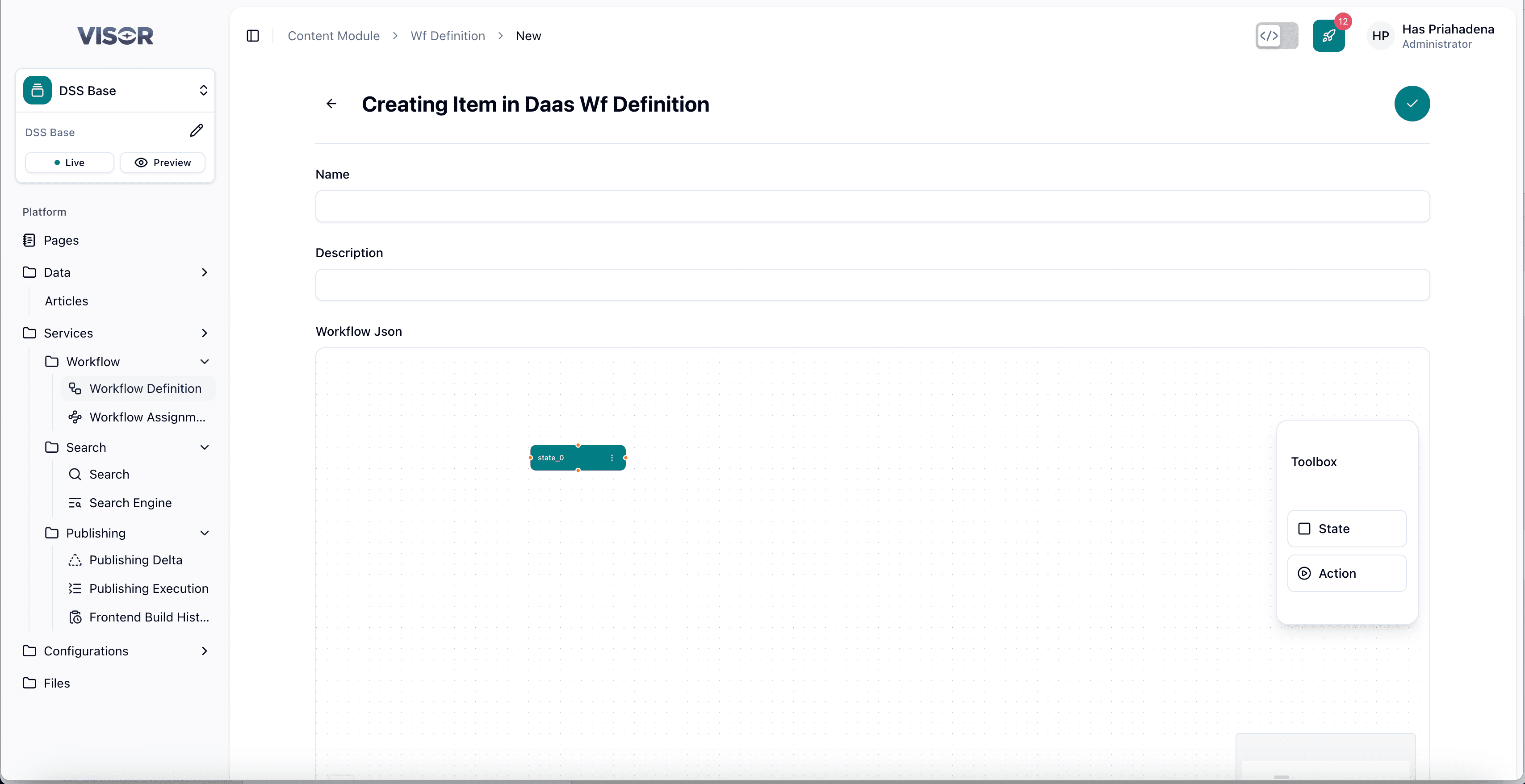
Fill in the details
Complete the following fields:
| Field | Description |
|---|---|
| Name | A unique, descriptive name for this workflow definition (e.g., Editorial Approval). |
| Description | An optional summary of what this workflow is for and which teams or collections it is intended to serve. |
Configure the Workflow JSON
The Workflow JSON field defines the states and actions of your workflow. Use the drag-and-drop builder to compose your workflow:
- States represent a stage in the workflow (e.g., Draft, In Review, Published).
- Actions represent the transitions between states (e.g., Submit, Approve, Reject).
Drag states and actions from the panel into the transition canvas to build the flow visually. The builder will generate the corresponding JSON automatically.
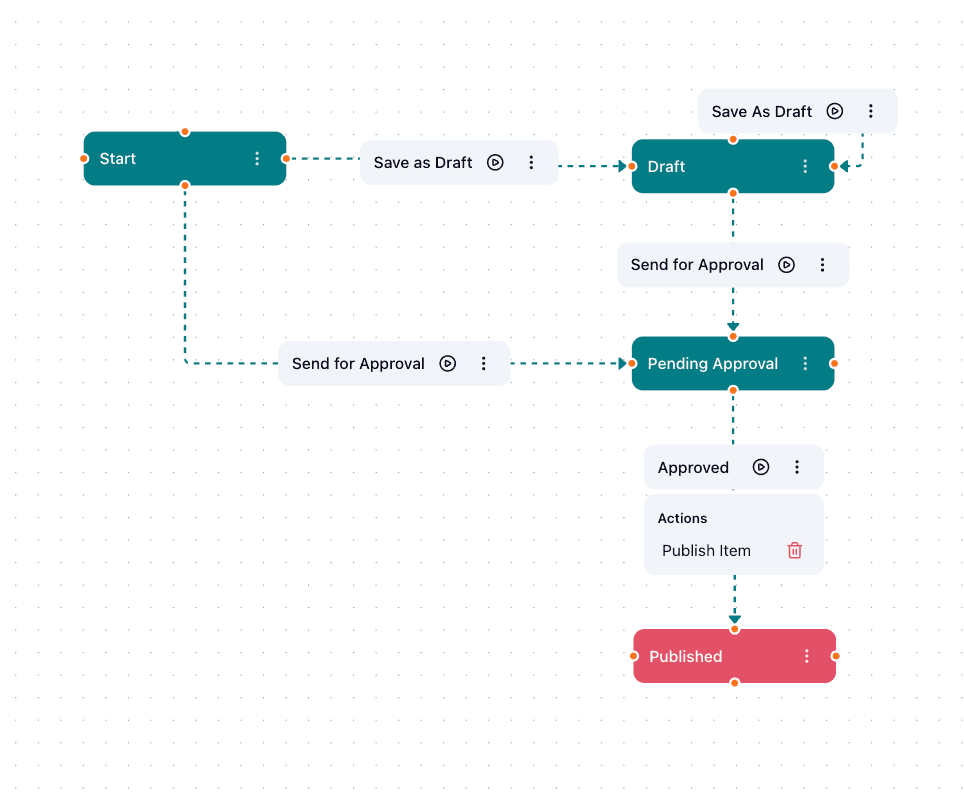
A sample workflow is provided in the builder as a reference. You can use it as a starting point and modify the states and actions to match your process.
Save the definition
Once all fields are filled and the workflow JSON is configured, click the checkmark (✓) icon in the top-right corner of the form to save the workflow definition.
After saving, the new definition will appear in the Workflow Definition listing and will be available to assign to content collections via Workflow Assignment.
Edit a Workflow Definition
Open the definition from the listing
From the Workflow Definition listing, click the definition name you want to edit.
This opens the definition detail form.
Update the fields
Edit the Name, Description, or Workflow JSON as needed.
Save the changes
Click the ✓ (check) button in the top-right corner of the form to save.
Delete a Workflow Definition
There are two ways to delete a workflow definition.
Deleting a workflow definition is permanent. Ensure no active Workflow Assignments are using it before deleting.
Method 1: Delete from the listing page
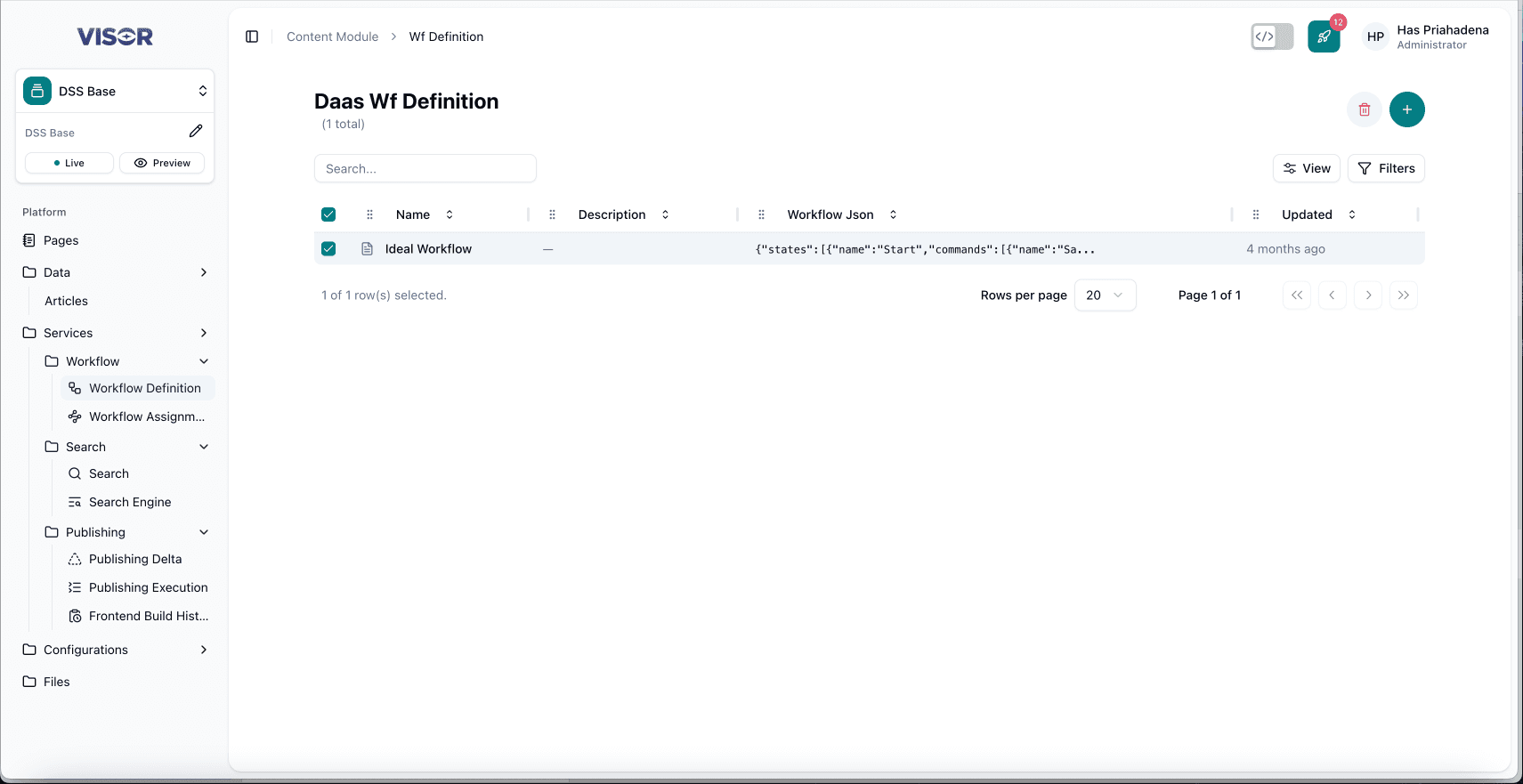
From the Workflow Definition listing, tick the checkbox next to the definition you want to delete.
Click the trash icon in the top-right toolbar (Delete selected), then confirm the delete action.
Method 2: Delete from the definition form
Open the definition from the listing. In the top-right action bar, click the trash icon (Delete item), then confirm the delete action.