Signing In
Sign in with email and password
Open your Visor address, enter your Email and Password, and click Login.
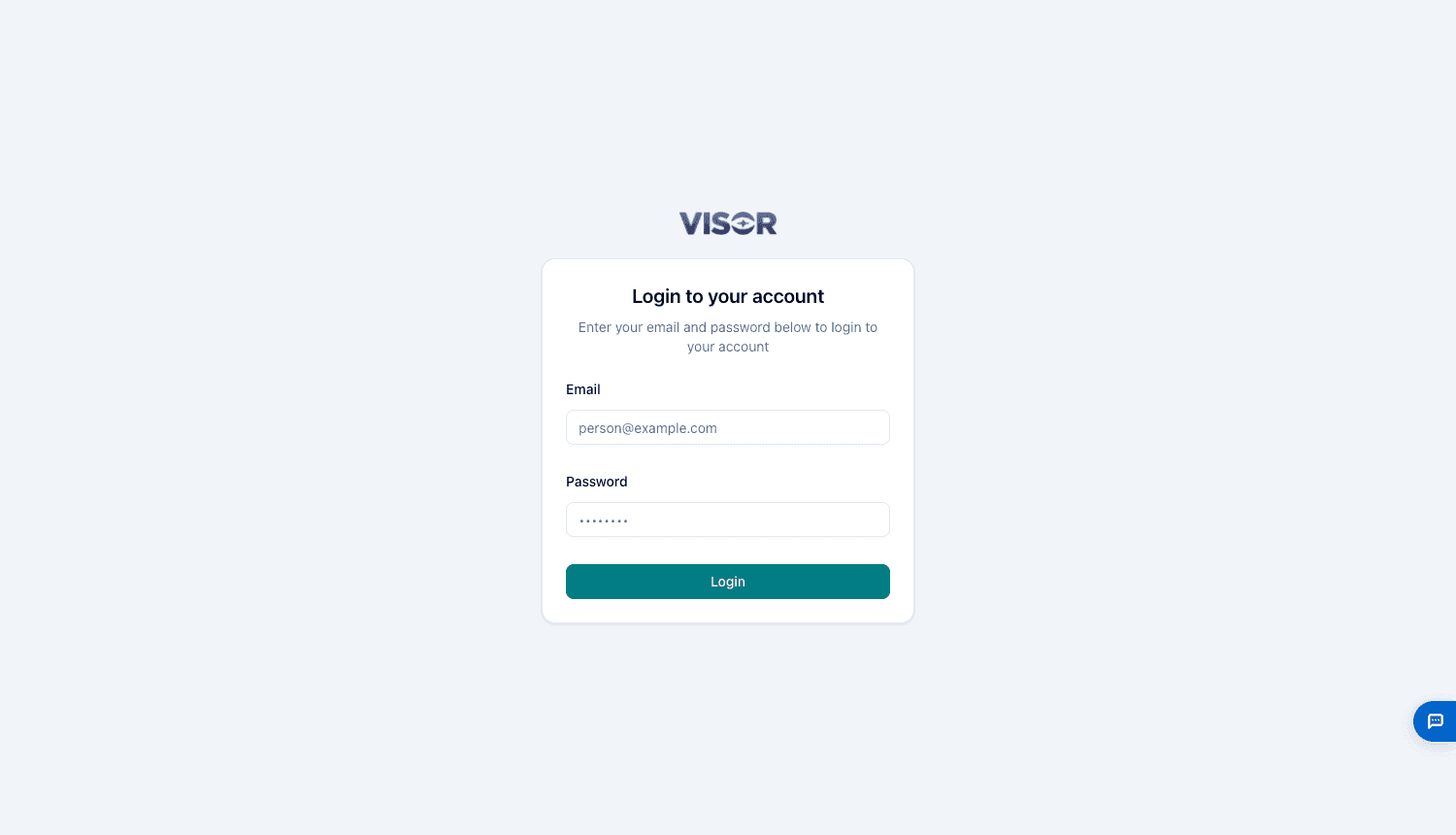
Visor has no self sign-up and doesn’t send invitation emails. An administrator creates your account and gives you a temporary password. Change it under My profile after you first sign in.
Sign in with Microsoft or XAppHub
Each organization has its own sign-in page, and your administrator can give you its link. It looks like this:
https://<your-visor-address>/login/<organization-id>If your organization has turned these methods on, that page shows Sign in with Microsoft or Sign in with XAppHub above the email form. They don’t appear on the general login page.
Organization Admins always sign in with their password, even when other methods are on.
| Message | What to do |
|---|---|
| Your email address can’t use Microsoft sign-in in this organization. | Your email domain isn’t allowed. Use your password, or contact your administrator. |
| Your account is ready. Ask your organization admin for access. | You can sign in but have no role yet. Ask an administrator to give you one. |
| Your access is ready. Sign in with Microsoft again to open Visor. | Your default access was just given. Sign in once more. |
| We couldn’t sign you in with Microsoft. | You may be an administrator, or you may have first signed in another way. Use that way, or contact your administrator. |
Administrators can set these methods up in Sign-in Methods.
Forgotten your password?
Visor has no reset link. Ask an Organization Admin to set a new password for you, under Users. If you are still signed in, you can change it yourself under My profile.
Two-factor authentication
Two-factor authentication adds a 6-digit code from an authenticator app, such as Microsoft Authenticator or Google Authenticator, to your sign-in. Your organization may require it, in which case Visor asks you to set it up when you sign in.
To turn it on yourself:
Open Security
Click your name in the top-right corner and choose Security.
Enable it
Click Enable MFA and scan the QR code with your authenticator app. If you can’t scan it, enter the key by hand.
Confirm
Enter the 6-digit code and click Verify & enable.
From then on, Visor asks for an Authentication code after your password.
Visor has no recovery codes. If you lose your device, contact your administrator.
Your profile
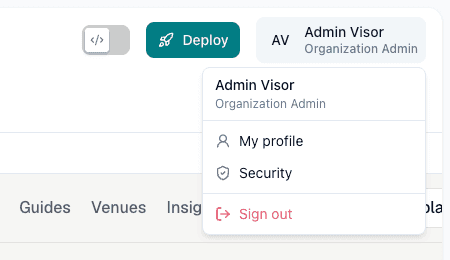
Click your name in the top-right corner and choose My profile to change your first name, last name or password. Only an Organization Admin can change your email address.
Your session
If your session ends, Visor shows Session Expired. Click Log In to sign in again.
Visor keeps one workspace across your browser tabs. If you switch site or organization in one tab, the others ask you to catch up.
Sign out
Click your name in the top-right corner and choose Sign out, then confirm.