Layouts
What are Layouts?
Layouts are the structural templates registered by the connected Next.js frontend. Visor reads the available layouts directly from the frontend’s API, so the list of layouts is determined by what is defined on the Next.js side — you cannot add or remove layouts from within Visor Studio itself.
Each layout acts as a shared shell that one or more pages can use. Widgets added to a layout will automatically appear on every page that uses that layout.
To add a new layout to the list, it must first be created and registered in the Next.js template on the frontend side.
Each time a layout is edited and saved in Visor Studio, the corresponding Layout Configuration entry is updated automatically. See Layout Configuration for details.
Layouts Listing
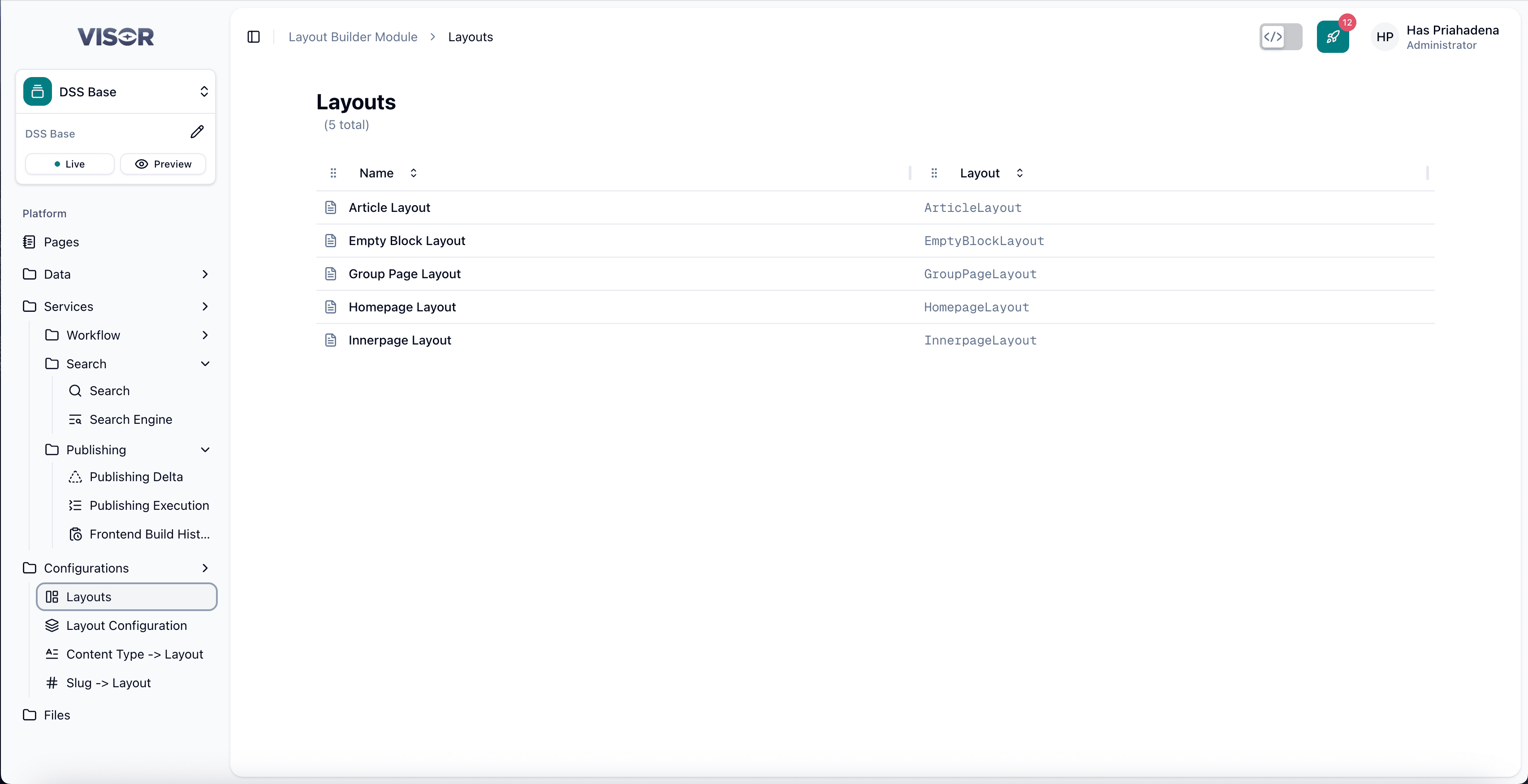
Navigate to Configurations → Layouts in the left sidebar. This opens the Layouts listing page, which displays all layouts available from the connected Next.js template.
Editing a Layout
Open the layout
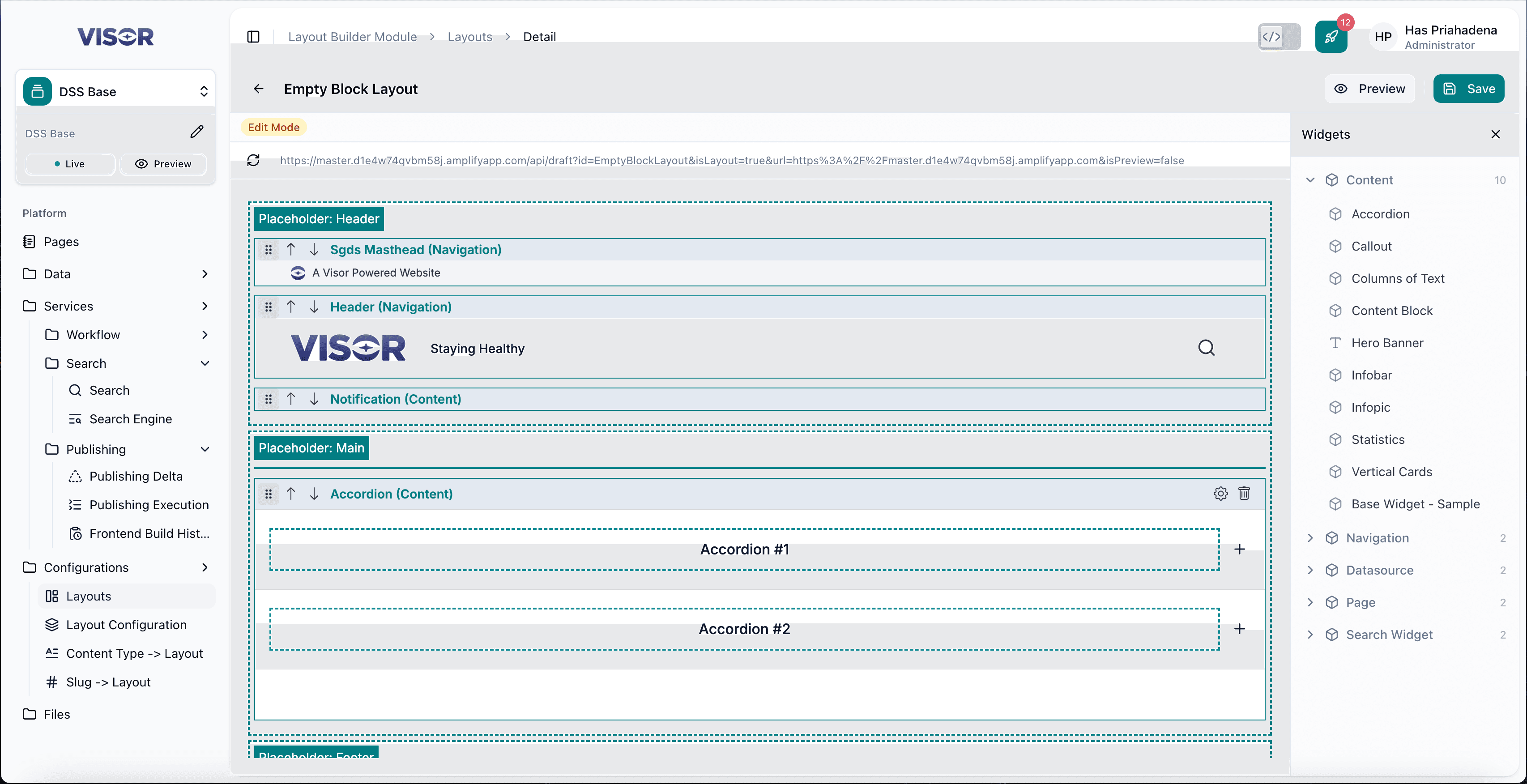
From the Layouts listing, click the layout you want to edit. You will be taken to the layout detail view, which shows a preview placeholder representing the layout structure.
Add widgets to the layout
In the layout editor, drag and drop widgets from the widget panel into the layout’s placeholder areas. Any widget placed here will appear on all pages that use this layout.
Save the layout
Click the ✓ (check) button in the top-right corner to save. The layout configuration is updated automatically to reflect the changes.