Organization and Sites
An organization is a client or company with its own sites, people and roles. This section is for Organization Admins, who can do everything at every site.
To reach the organization level, open the switcher at the top of the sidebar and choose your organization. The sidebar then shows Sites, Activity and an Access group with Users, Roles, Policies, Content Types and AI tools.
The Sites page
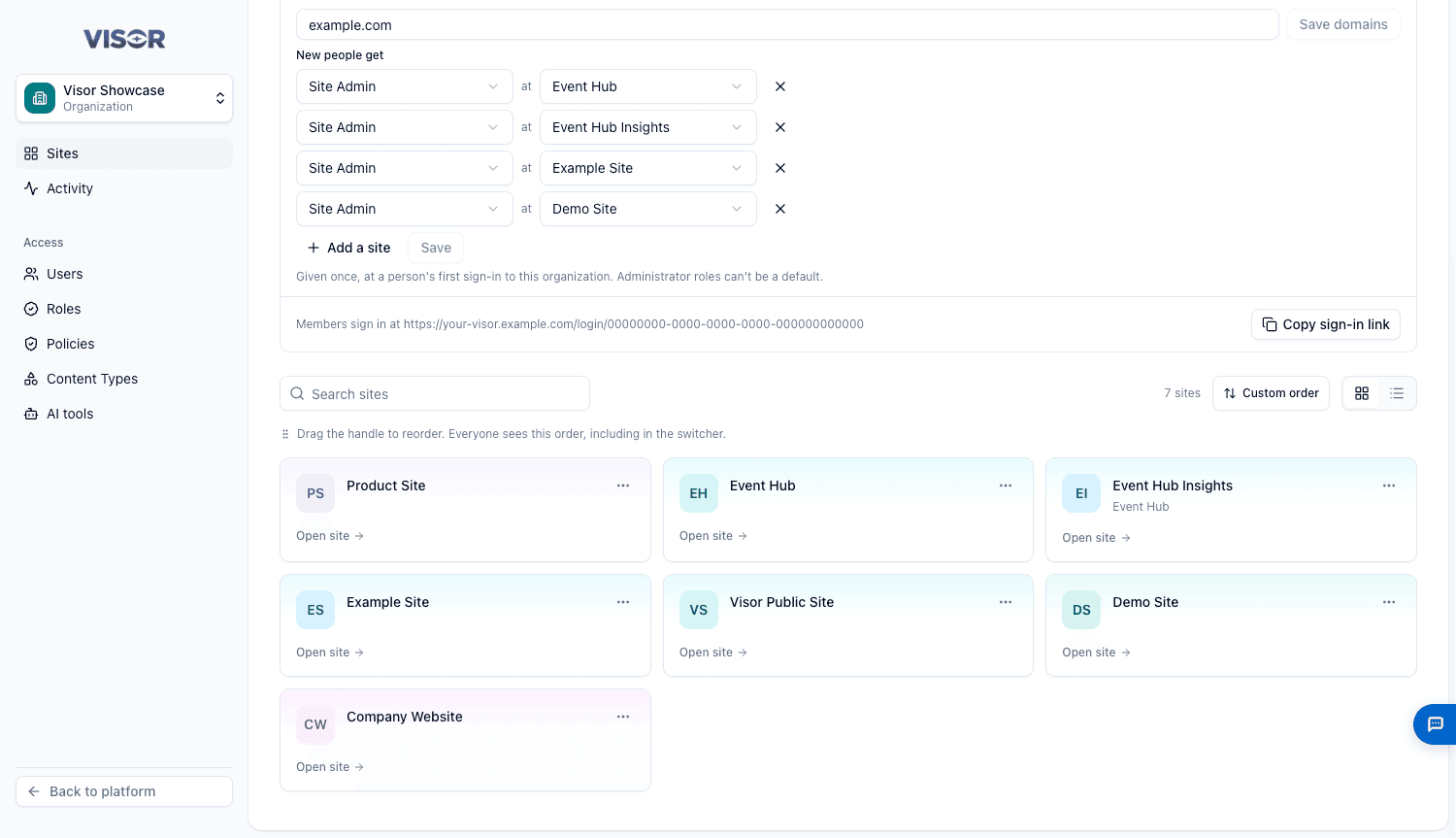
Sites lists the organization’s sites, as a grid or list, with a search. Drag the handle to change the order, which everyone sees, including in the switcher. Click a site to open it.
A site’s menu offers Open site, Members, Parent site…, Site details, Rename and Delete site.
Create a site
Open the form
Click New site.
Fill it in
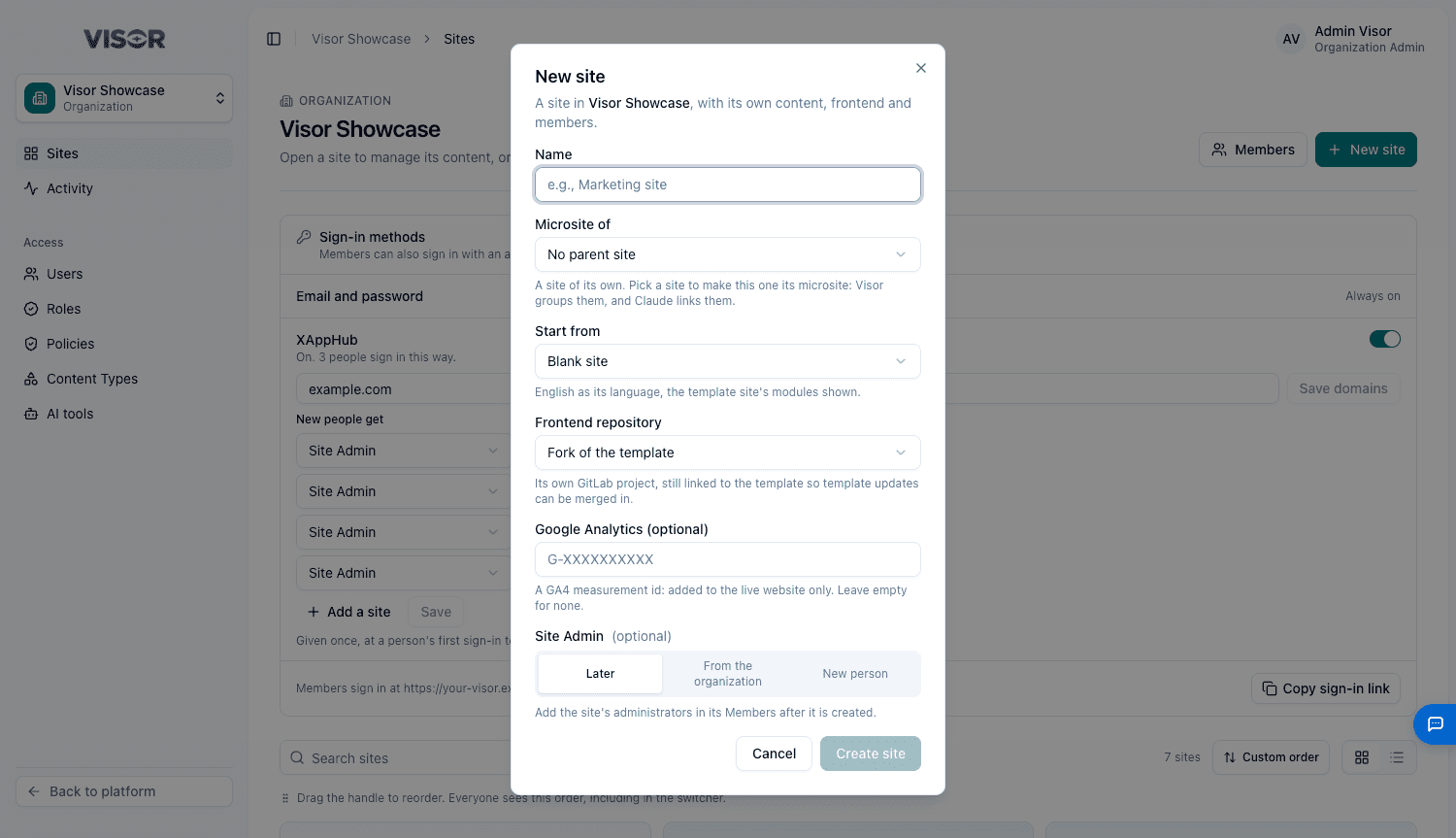
| Field | Choices |
|---|---|
| Name | For example, Marketing site. |
| Microsite of | Optional. Choose a parent site to group this one under it. Its content, members and frontend stay its own. |
| Start from | Blank site, or Copy of (a site), which copies its languages, colours, settings, visible modules, logo and favicon. Content, theme and addresses aren’t copied. |
| Frontend repository | Fork stays linked, so it can take template updates. Clone is fully independent. Each can start from the template or, with a copy, from that site’s frontend. |
| Google Analytics | Optional GA4 ID, added to the live website only. |
| Site Admin | Optional. Choose someone from the organization, create a new person, or add them later under Members. |
Create it
Click Create site, and keep the page open for up to a minute. If you created a new person, their sign-in details are shown once.
Wait for its setup
The site’s repository, hosting and first build usually take 5 to 10 minutes. Its pages open by themselves when it is ready, and everyone at the site sees this progress.
If the setup fails, or an older site has no configuration, Site Admins and Organization Admins see Set up this site. It is safe to repeat, because it completes only what is missing.
An AI tool on an organization connection can also create sites.
Group sites as microsites
Choose Parent site… in a site’s menu, then Microsite of. This groups them in Visor and helps AI tools link them. Nothing else changes, and deleting a parent leaves its microsites as sites of their own.
A microsite that shows the same content as its parent is a frontend instead.
Site admin tools
Site Admins need these tools to manage their site’s people, roles, policies and content types, and to see its activity. AI connections need them too.
New organizations turn them on by themselves. If the page shows Site admin tools are off, click Enable site admin tools. This adds Visor’s service account as an administrator. It acts only for those tools, records the person it acts for, and is hidden from your member lists.
When Site admin tools have an update appears, click Update site admin tools. Nobody loses access they use today.
Delete a site
A site can be deleted only once it is empty. Visor doesn’t delete content for you.
Open the dialog
In the site’s menu, click Delete site.
Empty the site
Still in this site lists its pages, files, layouts and content, each with Open. Delete them, then click Check again.
Confirm
Type the site’s name and click Delete site. It takes a minute or two, and Visor finishes even if you close the page.
| Deleting a site | |
|---|---|
| Removes | Its website, everyone’s roles at the site, its own roles and policies, settings, languages and publishing records. |
| Archives | Its code repository. |
| Keeps | People’s accounts, and its microsites as sites of their own. |
A Deploy in progress blocks the deletion.