Search Engine
What is Search Engine?
The Search Engine module defines the search entry points that frontend applications consume. Each search engine entry specifies:
- Which search engine to use for powering the search (currently Lunr Search is the supported engine).
- Which search mapping (configured in the Search module) is attached to it.
A search engine entry has a many-to-one relationship with search mapping collections — multiple search mappings can be associated with a single engine entry, giving the frontend a unified search endpoint backed by the collections you have indexed.
Before creating a Search Engine entry, make sure you have already configured at least one search mapping in the Search module. The mapping must exist before it can be attached here.
Navigating to Search Engine
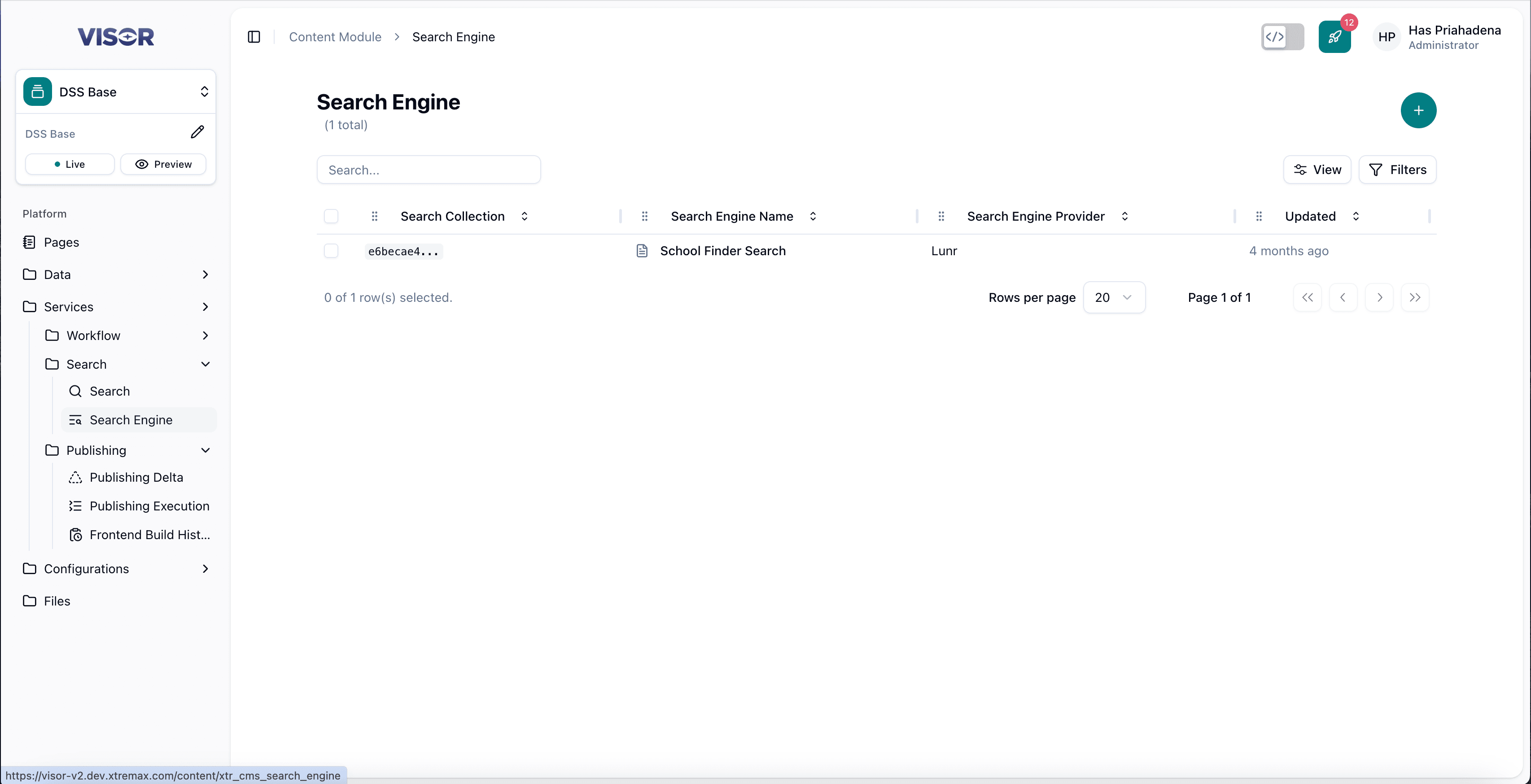
In the left sidebar, go to Services → Search → Search Engine. This opens the Search Engine listing page showing all existing search engine entries.
Create a Search Engine
Navigate to Search Engine
In the left sidebar, go to Services → Search → Search Engine. You will be taken to the Search Engine listing page.
Click the + button
In the top-right corner of the listing page, click the + button. You will be redirected to the Search Engine creation form.
Fill in the form
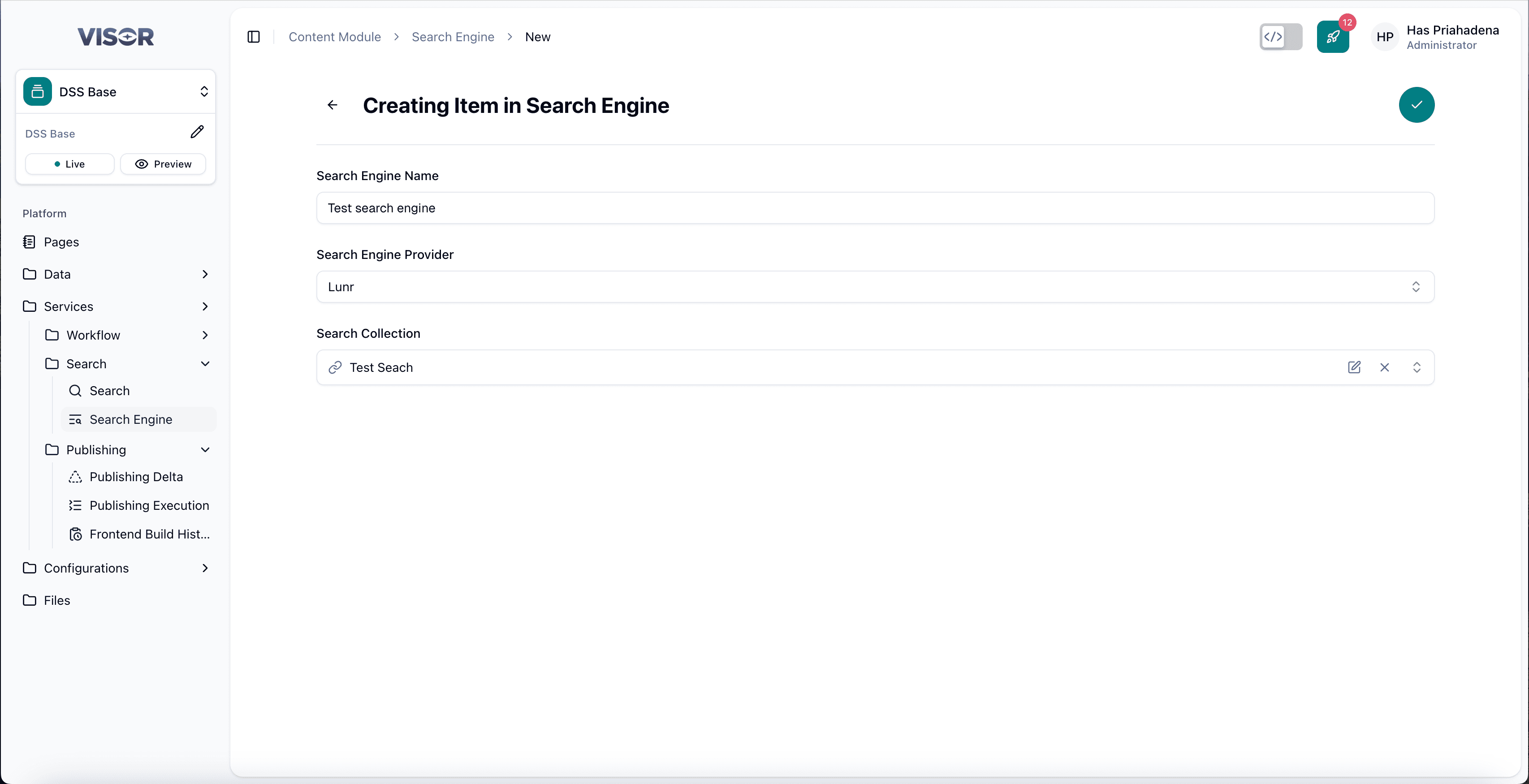
Complete the following fields:
| Field | Required | Description |
|---|---|---|
| Name | Yes | A descriptive name for this search engine entry (e.g., main_search). |
| Search Engine | Yes | The engine to use. Currently only Lunr is available. |
| Search Mapping | Yes | Select the search mapping collection(s) to attach to this engine entry. |
Save the entry
Click the ✓ (check) button in the top-right corner to save. The search engine entry is now active and ready to be consumed by the frontend application.
Edit a Search Engine
Open the entry from the listing
From the Search Engine listing, click the entry you want to edit. This opens the form.
Update the fields
Modify the Name, Search Engine, or Search Mapping as needed.
Save the changes
Click the ✓ (check) button in the top-right corner to save.
Delete a Search Engine
Deleting a search engine entry will make it unavailable to any frontend application consuming it. Ensure the entry is no longer in use before deleting.
From the Search Engine listing, tick the checkbox next to the entry you want to delete.
Click the trash icon in the top-right toolbar (Delete selected), then confirm the delete action.