User Guide
This guide covers everything you need to work inside Visor Studio — the CMS portal where content editors, project managers, and site administrators manage content, data, publishing workflows, and platform settings.
Before continuing with modules, log in to Visor Studio first using the credentials or AD access provided during onboarding.
What’s Covered
| Module | Description |
|---|---|
| Page Builder | Create and manage CMS pages, assign layouts, and build structured page content. |
| Dynamic Data | Manage custom data collections that power dynamic content and data-driven pages. |
| Services | Configure workflow definitions, workflow assignments, search, and publishing pipelines. |
| Configuration | Map content types and slugs to layouts; configure the drag-and-drop layout editor. |
| Files | Upload and manage media assets and file references used across your content. |
| Settings | Manage frontend registrations, site entries, service integrations, and platform-level config. |
Visor Studio Interface
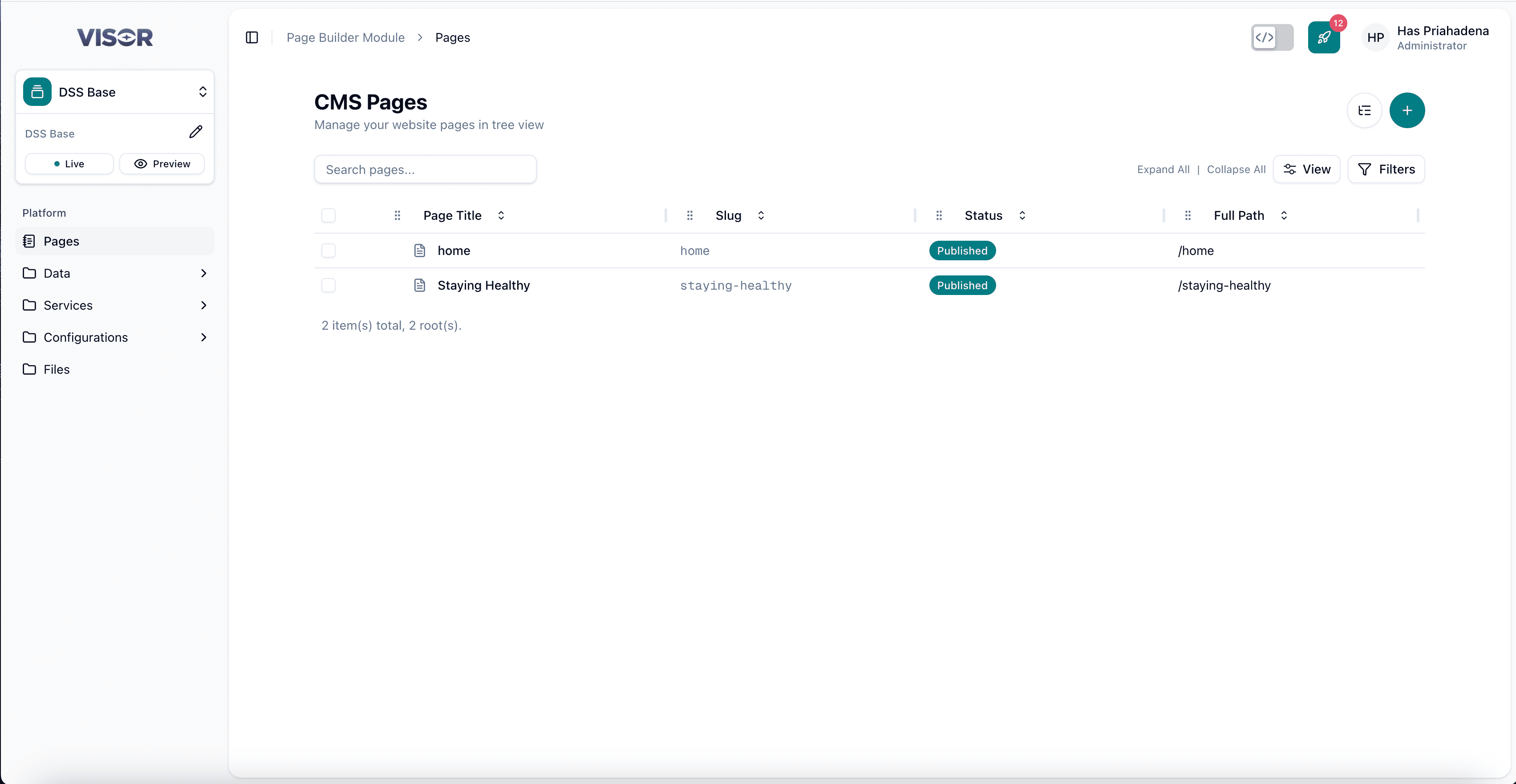
Before diving into individual modules, it helps to understand the layout of the Visor Studio interface. The screenshot below shows a typical page inside the platform.
Sidebar
The left sidebar is split into two areas:
Tenant & Frontend switcher (top)
| Element | Description |
|---|---|
| Tenant switcher | Displays the active tenant (e.g. DSS Base). Click the dropdown arrow to switch between tenants you have access to. |
| Frontend name | Shows the currently active frontend below the tenant. Click the pencil icon (✏️) to switch between different frontend configurations. |
| Live | Redirects to the published live site for the active frontend. |
| Preview | Redirects to the preview version of the active frontend. |
Module navigation (below)
The Platform section lists all available modules. Click any item to navigate to it:
- Pages — CMS page tree management (Page Builder)
- Data — Dynamic data collections
- Services — Workflow, search, and publishing
- Configurations — Layout and slug configuration
- Files — Asset uploads and file management
Header Bar
The top bar is consistent across all modules and provides global controls:
| Element | Description |
|---|---|
| Breadcrumbs | Shows your current location (e.g. Page Builder Module → Pages). |
Dev Mode (</>) | Toggles Dev Mode. When active, the Visor preview uses your local Next.js server (localhost:3000) instead of the live head. |
| Rocket button (🚀) | Triggers an SSG (Static Site Generation) build. Use this to rebuild and publish static frontend output. |
| User name & role | Displays your display name and role. Click to open the account menu. |
Clicking your name opens a dropdown with the following options:
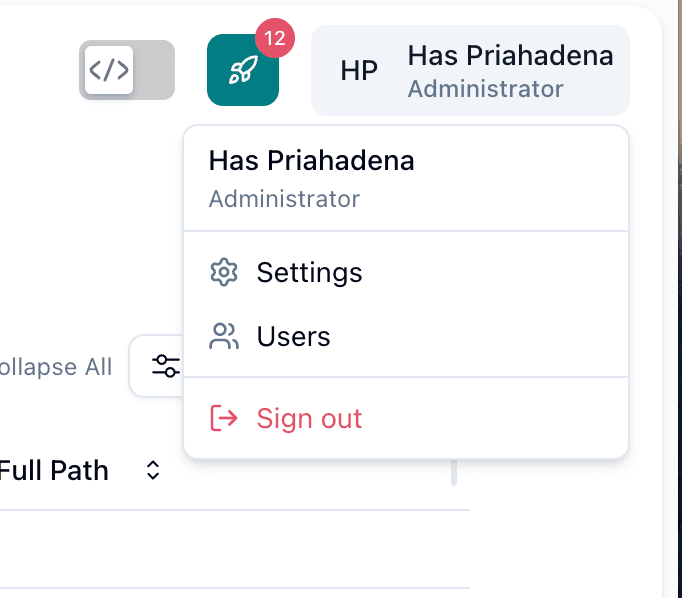
- Settings — Opens the platform-level settings panel
- Users — Manage user accounts
- Sign out — Log out of Visor Studio
Settings
Accessible from the user account dropdown, Settings contains configuration options that are separate from content modules. The sidebar inside Settings includes:
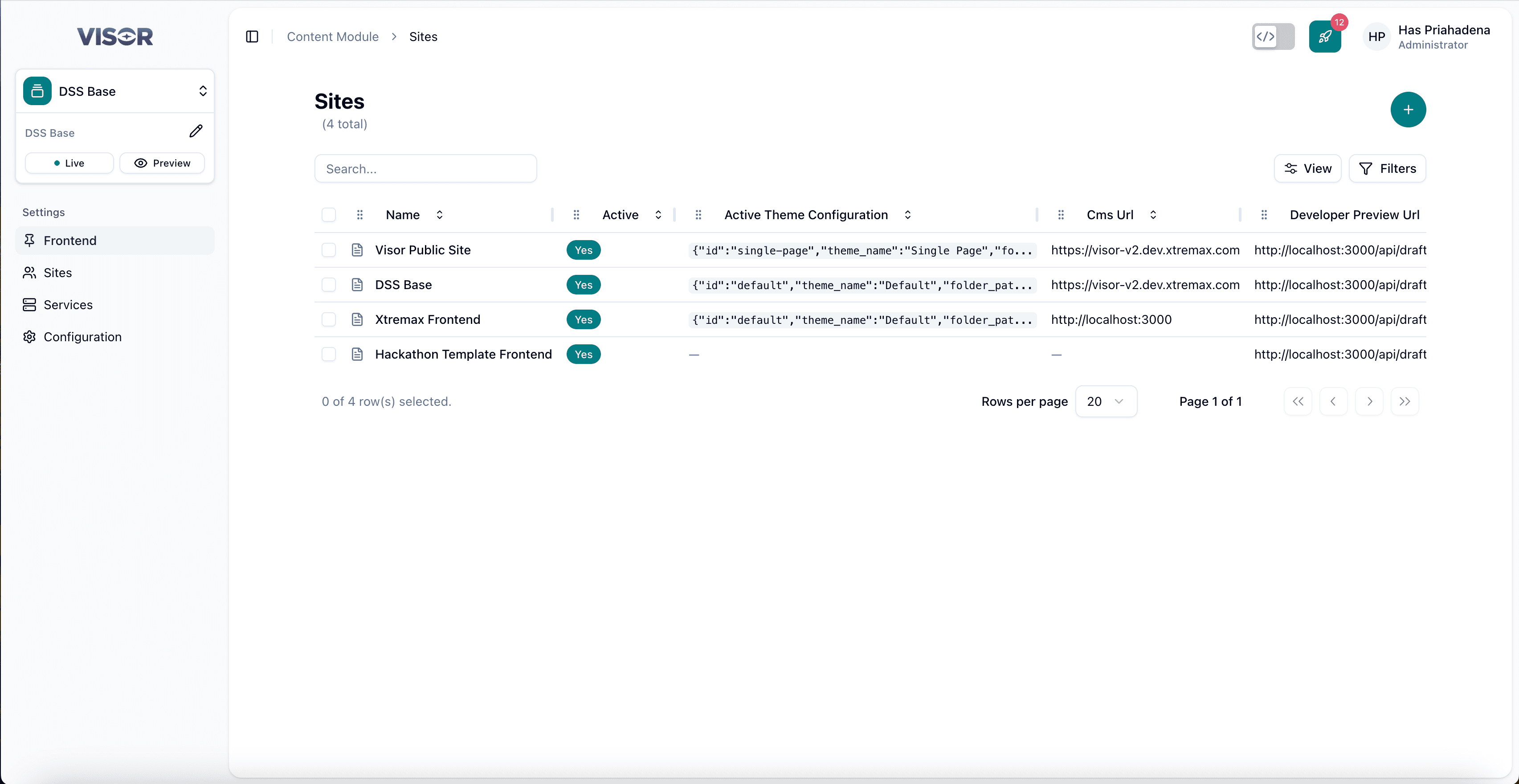
| Setting | Description |
|---|---|
| Frontend | Configure frontend registrations linked to this tenant. |
| Sites | Manage site entries, their active theme, CMS URL, and developer preview URL mapping. |
| Services | External service integrations (e.g. search). |
| Configuration | Global platform configuration options. |