Connect an AI Tool
You can connect an AI tool to your Visor site, then ask it in plain words to draft pages, add content, translate, publish and more. It connects through MCP (Model Context Protocol), the standard way for AI tools to work with other software.
The AI works as you, with only your rights at that site. Everything it makes is a draft until someone publishes it, and the connection can be cut at any time.
Before you start
- You need a role at the site.
- Your Visor must have AI connections turned on. If it doesn’t, AI tools says so.
- Your organization must have site admin tools enabled. If you see a message about this, ask an Organization Admin to enable them.
Connect
Open AI tools
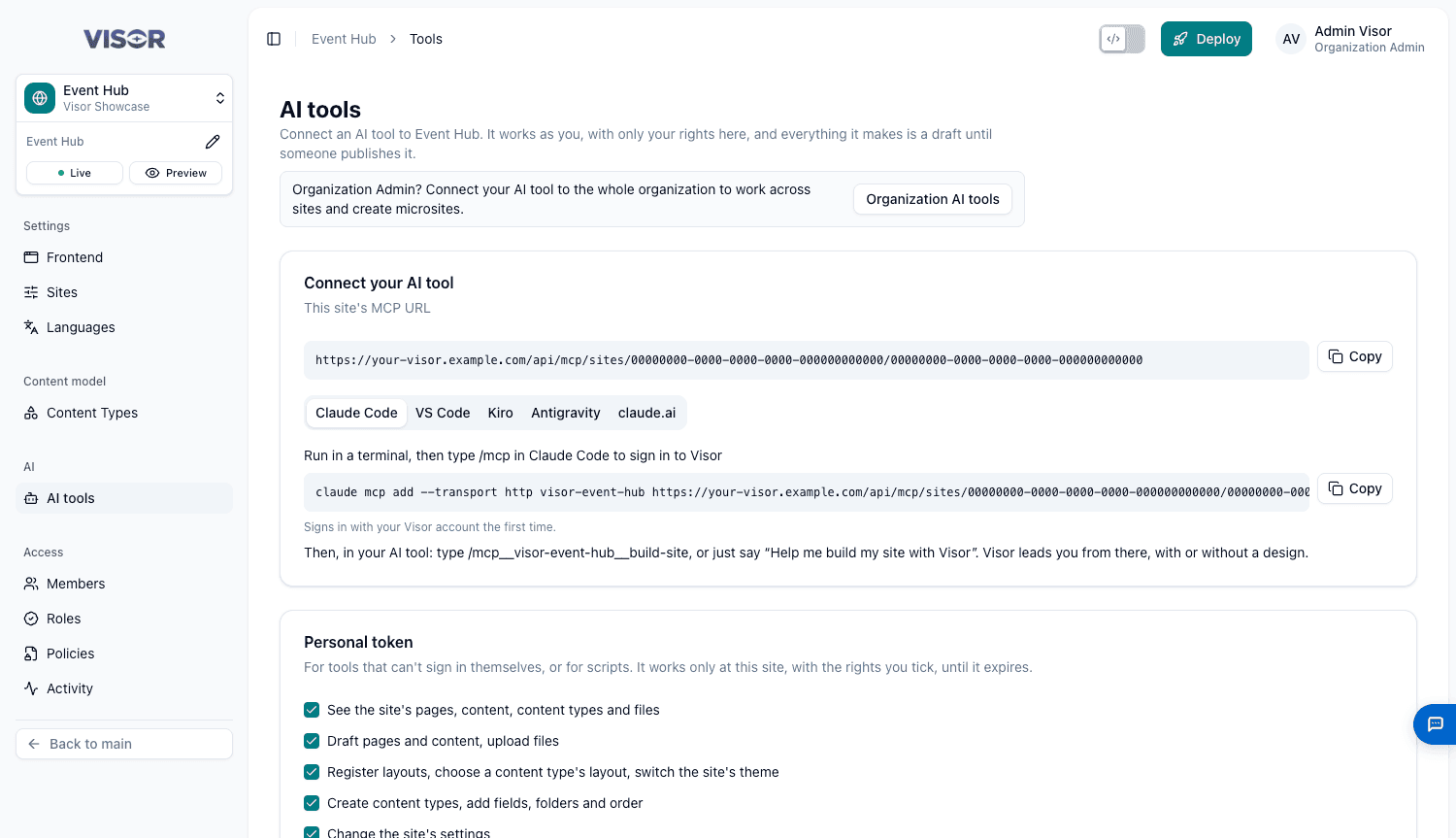
Open your site, click Settings at the bottom of the sidebar, then click AI tools in the AI group.
Copy your site’s settings
The Connect your AI tool card shows This site’s MCP URL and a tab for each tool. Each site has its own address, in this form:
https://<your-visor-address>/api/mcp/sites/<organization-id>/<site-id>Choose your tool’s tab and copy what it shows. The tab already has your address and server name filled in. The examples below only show the shape.
Add it to your tool
claude.ai
Signs in with your Visor account. Nothing to install.
- In claude.ai, open Settings → Connectors → Add custom connector.
- Paste the site’s MCP URL.
- Connect, and sign in to Visor when asked.
claude.ai has no terminal, so it works on content only. If you ask for something that needs new code, it writes a brief for a developer.
Choose what it may do
If your tool signs in with Visor, a page opens: Connect (your tool) to Visor. Tick what the AI may do under What it may do, and click Allow.
Only your own rights are offered. Anything else is listed under Not available to you here, with who can give it to you.
Start working
Say what you want in your AI tool:
- “Help me with my site’s content in Visor”
- “Help me build my site with Visor”
In Claude Code and VS Code you can also use the command shown on the tab, which looks like /mcp__visor-my-site__build-site or /mcp.visor-my-site.build-site.
Visor then leads the conversation. It welcomes you, says where the site stands and what you may do, and asks how you want to start.
Developers can skip the manual setup. The site’s starter kit already includes these settings for your tool.
Work across a whole organization
An Organization Admin can connect an AI tool to every site in an organization, and let it create new sites. See Connect to the whole organization.