Layout Configuration
What is Layout Configuration?
Layout Configuration stores the widget configuration data for each layout. Entries in this module are created automatically whenever a layout is saved in the Layouts module — each save writes or updates the layout’s widget arrangement as a JSON configuration entry.
You can also create configuration entries manually here if needed, giving you direct control over the JSON structure without going through the layout editor.
Layout configurations are stored as JSON. Make sure you understand the expected format before editing manually — an invalid structure may cause layout rendering issues on the frontend.
Navigating to Layout Configuration
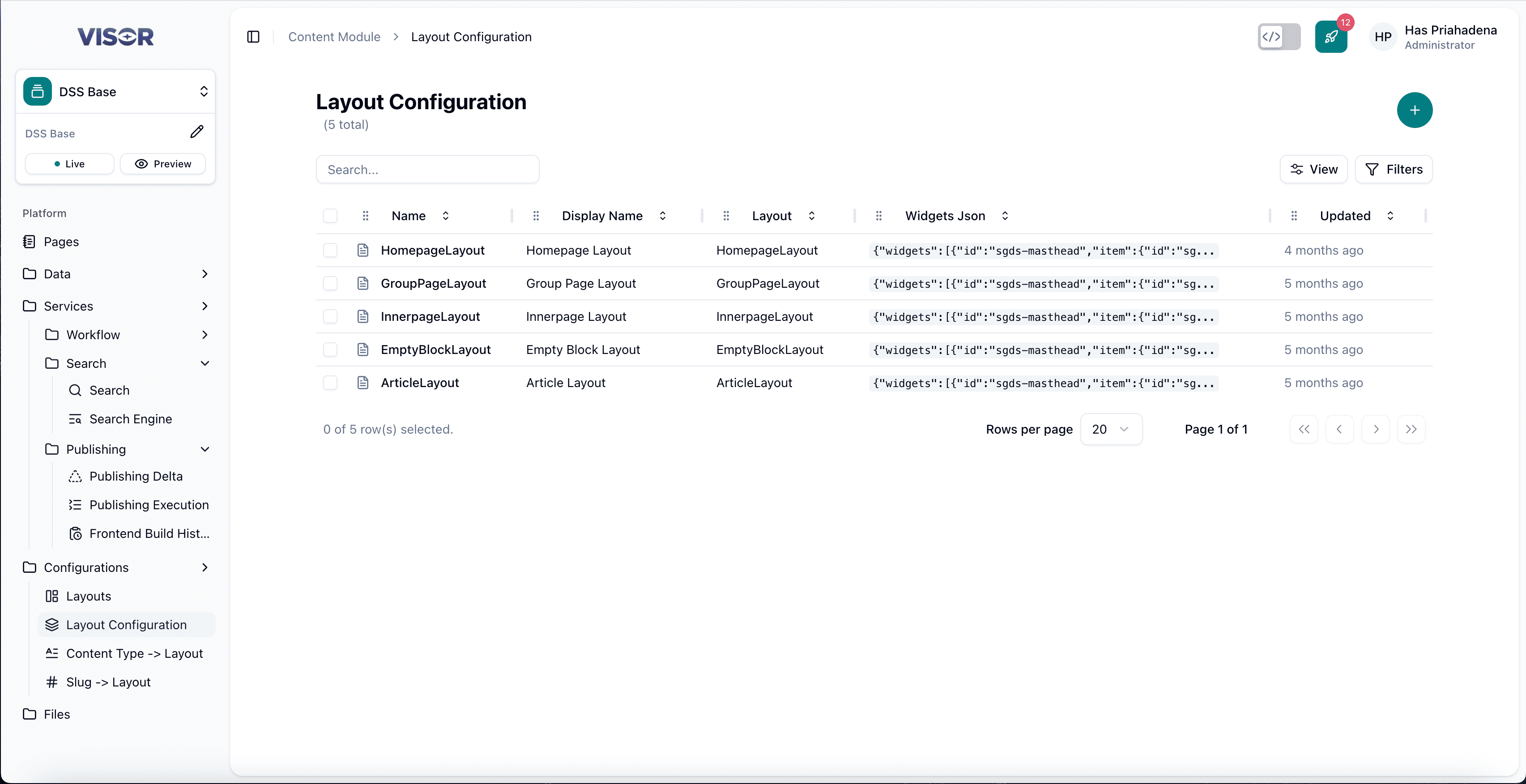
In the left sidebar, go to Configurations → Layout Configuration. This opens the listing page showing all existing layout configuration entries.
Create a Layout Configuration
Navigate to Layout Configuration
In the left sidebar, go to Configurations → Layout Configuration. You will be taken to the listing page.
Click the + button
In the top-right corner of the listing, click the + button. You will be redirected to the configuration form.
Fill in and edit the JSON
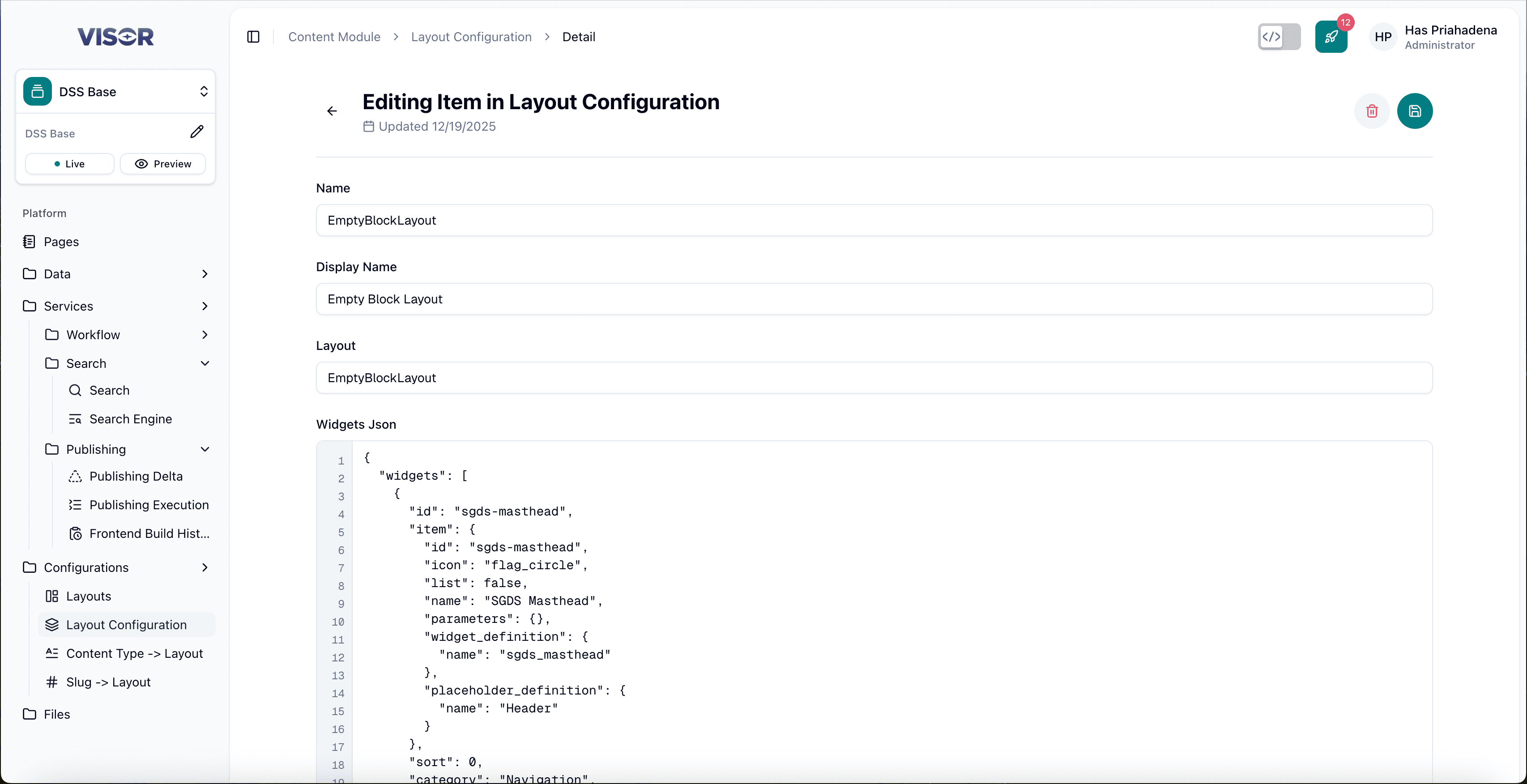
The form presents the layout configuration in JSON format. Define the widget structure for the layout directly in the JSON editor.
Ensure the JSON follows the expected layout configuration format. To edit widgets within an existing configuration, update the relevant fields directly in the JSON.
Save the configuration
Click the ✓ (check) button in the top-right corner to save.
Edit a Layout Configuration
Open the configuration from the listing
From the Layout Configuration listing, click the entry you want to edit. This opens the configuration form with the current JSON.
Edit the JSON
Update the widget configuration directly in the JSON editor.
Save the changes
Click the ✓ (check) button in the top-right corner to save.
Delete a Layout Configuration
There are two ways to delete a layout configuration entry.
Deleting a layout configuration will remove the widget setup for the associated layout. Pages using that layout may be affected.
Method 1: Delete from the listing page
From the Layout Configuration listing, tick the checkbox next to the entry you want to delete.
Click the trash icon in the top-right toolbar (Delete selected), then confirm the delete action.
Method 2: Delete from the configuration form
Open the entry from the listing. In the top-right action bar, click the trash icon (Delete item), then confirm the delete action.