Page Builder
Page Builder is the core module for content editors in Visor Studio. It provides a built-in drag-and-drop interface for assembling page content using widgets, and it serves as the central configuration point for all page data — including slugs, layouts, status, and content blocks.
Every page rendered by the frontend head originates from this module. Editors work here to build, update, preview, and publish page content without writing code.
Pages Listing
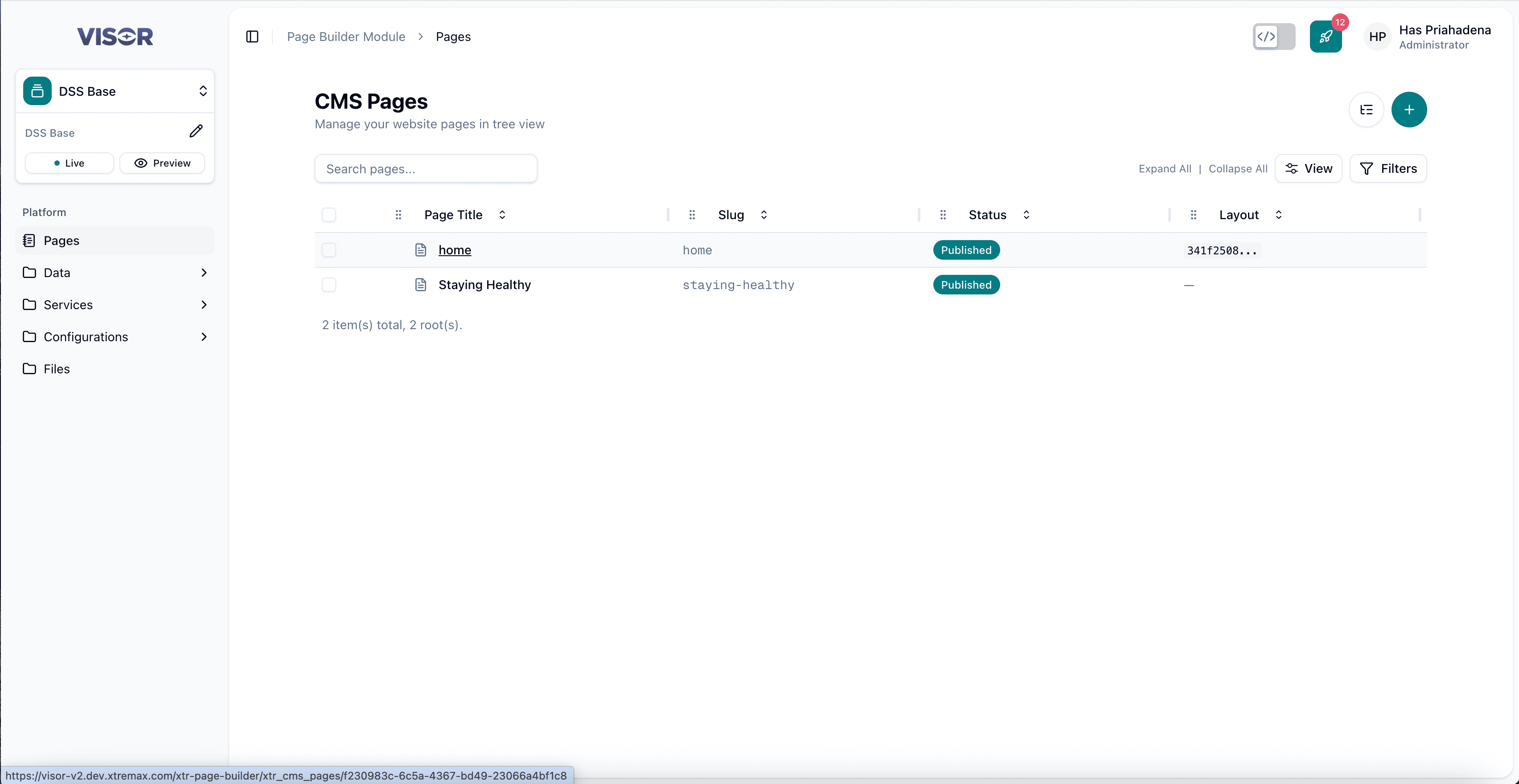
When you open Page Builder from the sidebar, the default view is the CMS Pages listing. This shows all pages registered under the active tenant as a tree structure.
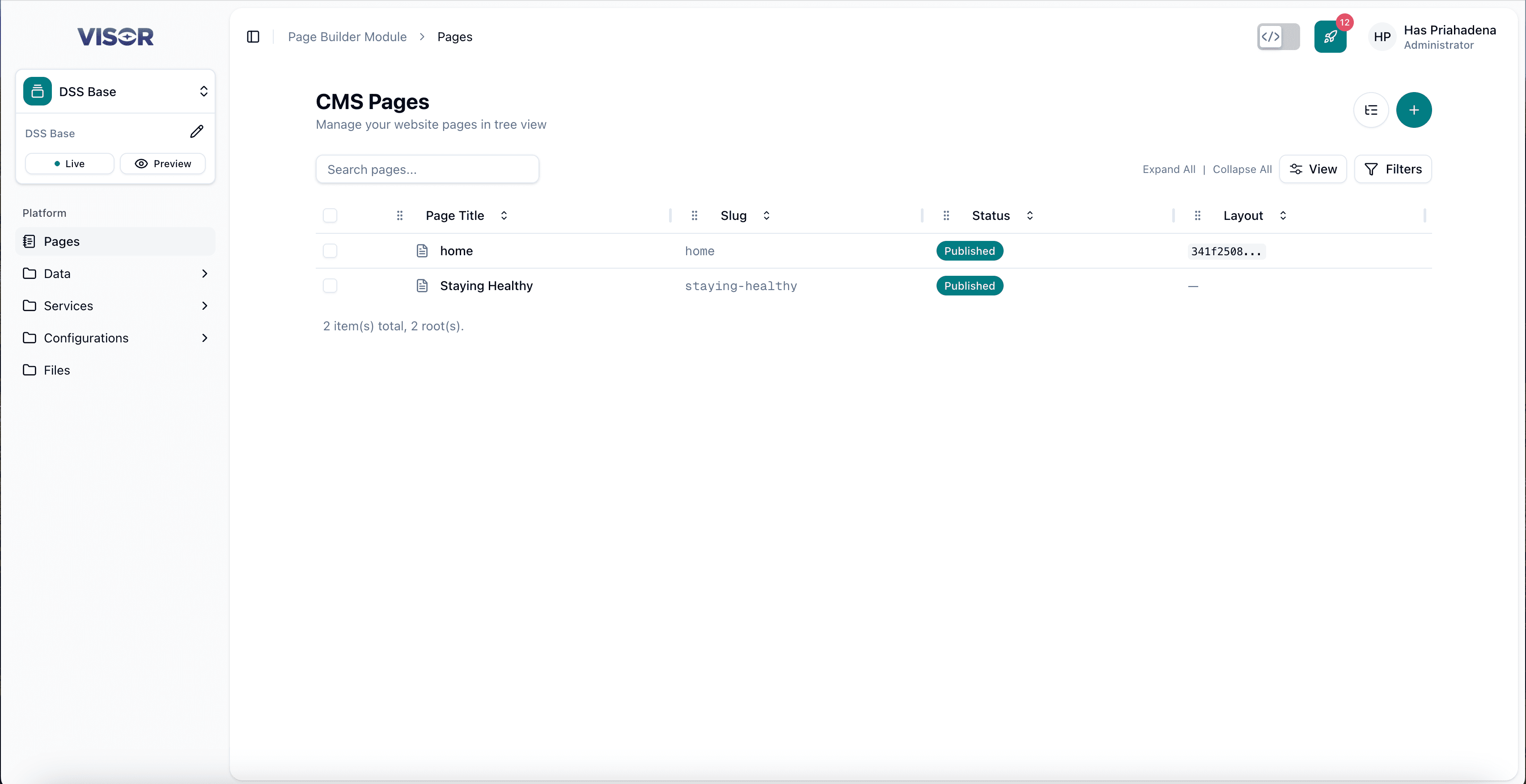
Each row in the list shows:
| Column | Description |
|---|---|
| Page Title | The display name of the page. Click the title to open the page in detail/preview view. |
| Slug | The URL-friendly identifier used to build the page path (e.g. home, staying-healthy). |
| Status | Current publish state — Published (live) or Draft (not yet published). |
| Layout | The layout configuration UUID assigned to the page. Shown truncated; — means no layout assigned. |
The toolbar at the top-right provides:
- Reorder icon — Opens the page reorder view to drag and rearrange the page hierarchy.
- + button — Creates a new page.
- View / Filters — Controls how the list is displayed and filtered.
Reordering Pages
Clicking the reorder icon in the top-right of the listing opens the Reorder Pages view. Here you can drag and drop pages to rearrange their order and hierarchy.
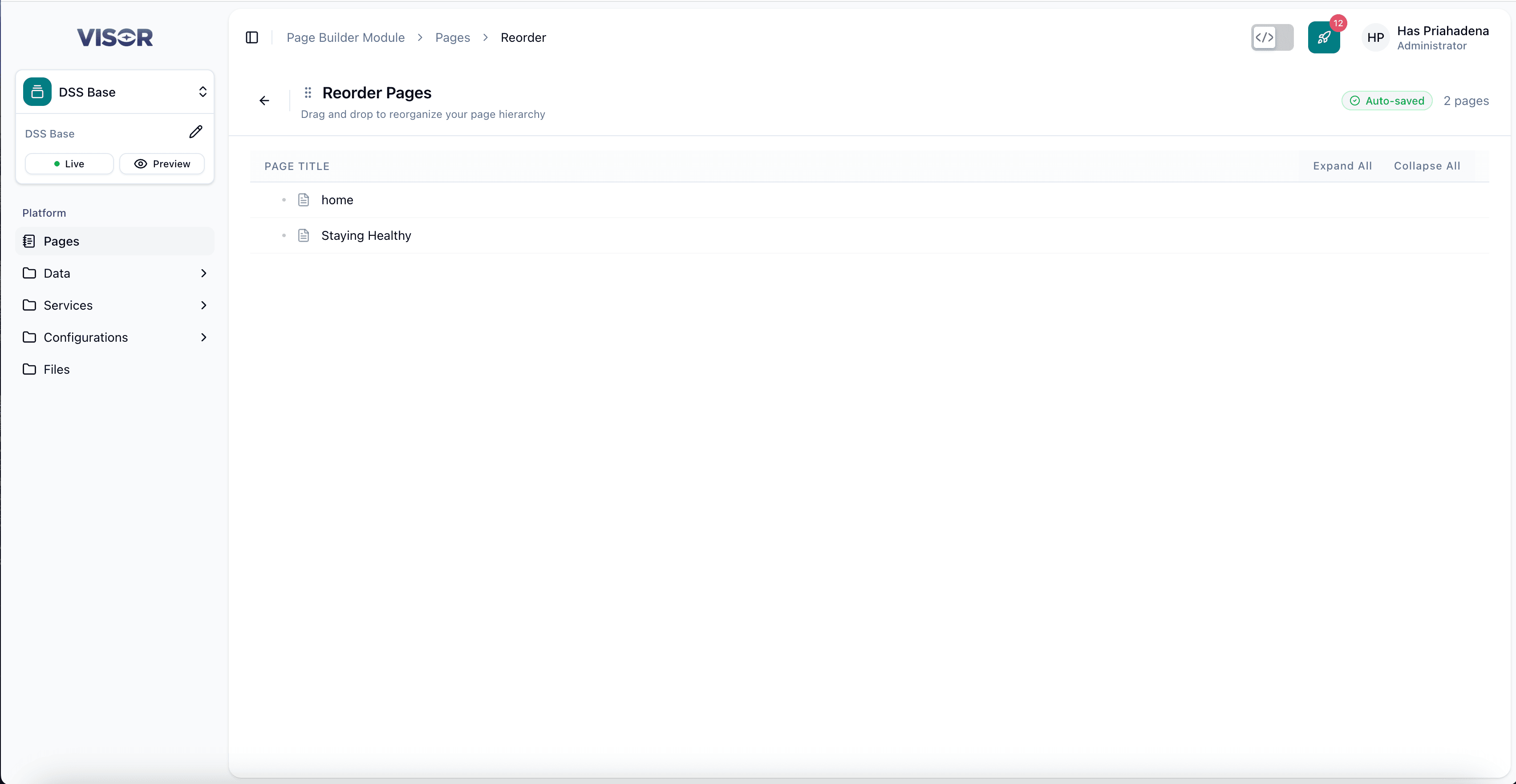
Changes in the reorder view are auto-saved automatically — you will see an “Auto-saved” indicator in the top-right. Use the back arrow to return to the pages listing when done.
Preview Mode
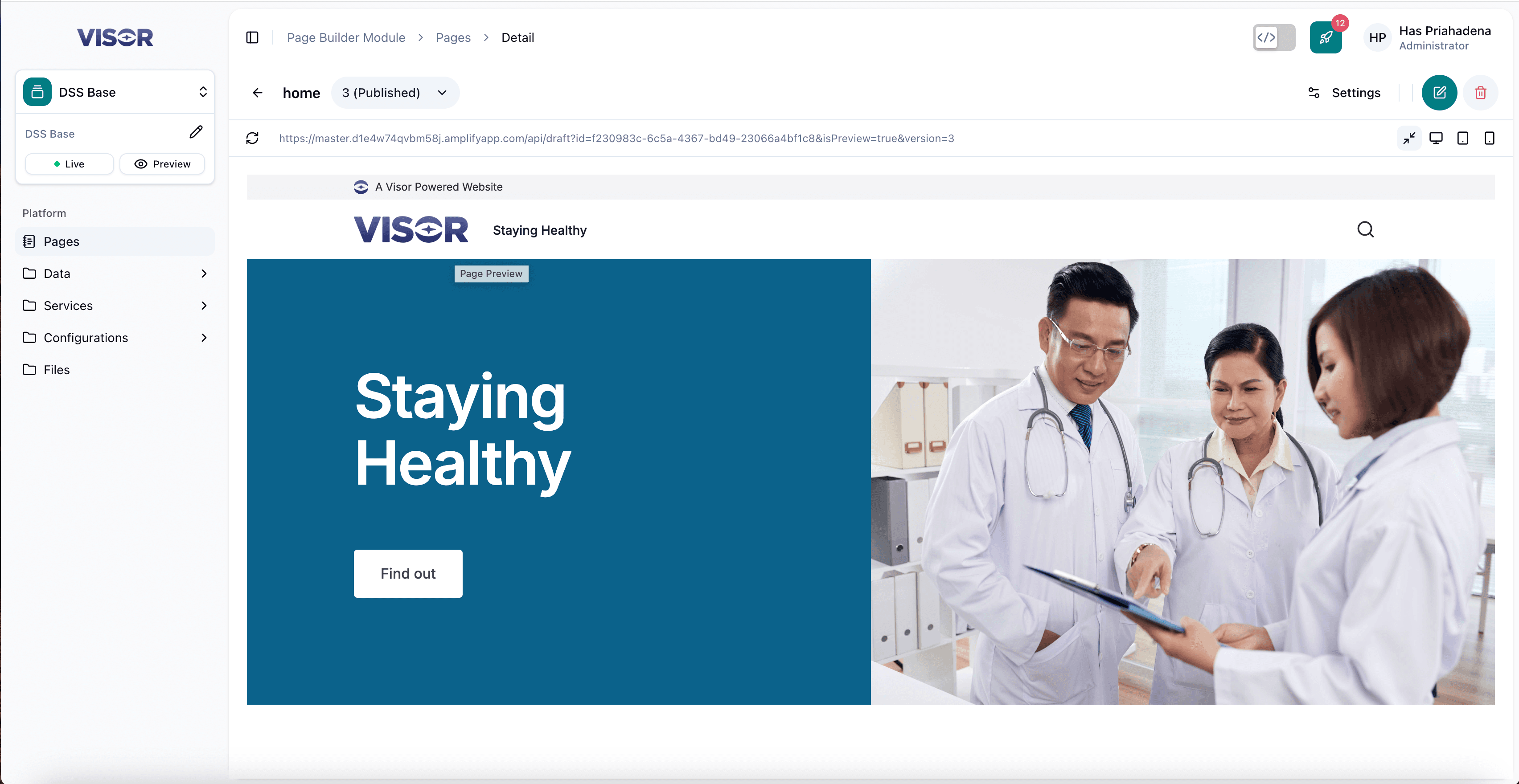
Clicking a page title in the listing opens the page detail view in Preview Mode by default. This shows you a live preview of how the page currently looks on the frontend, rendered inside the Visor Studio editor frame.
If Dev Mode is active in the header bar, the preview will use your local Next.js server (localhost:3000) instead of the deployed head. Make sure your local server is running before opening a page in preview.
Create a Page
Open the create form
From the CMS Pages listing, click the + button in the top-right corner of the page.
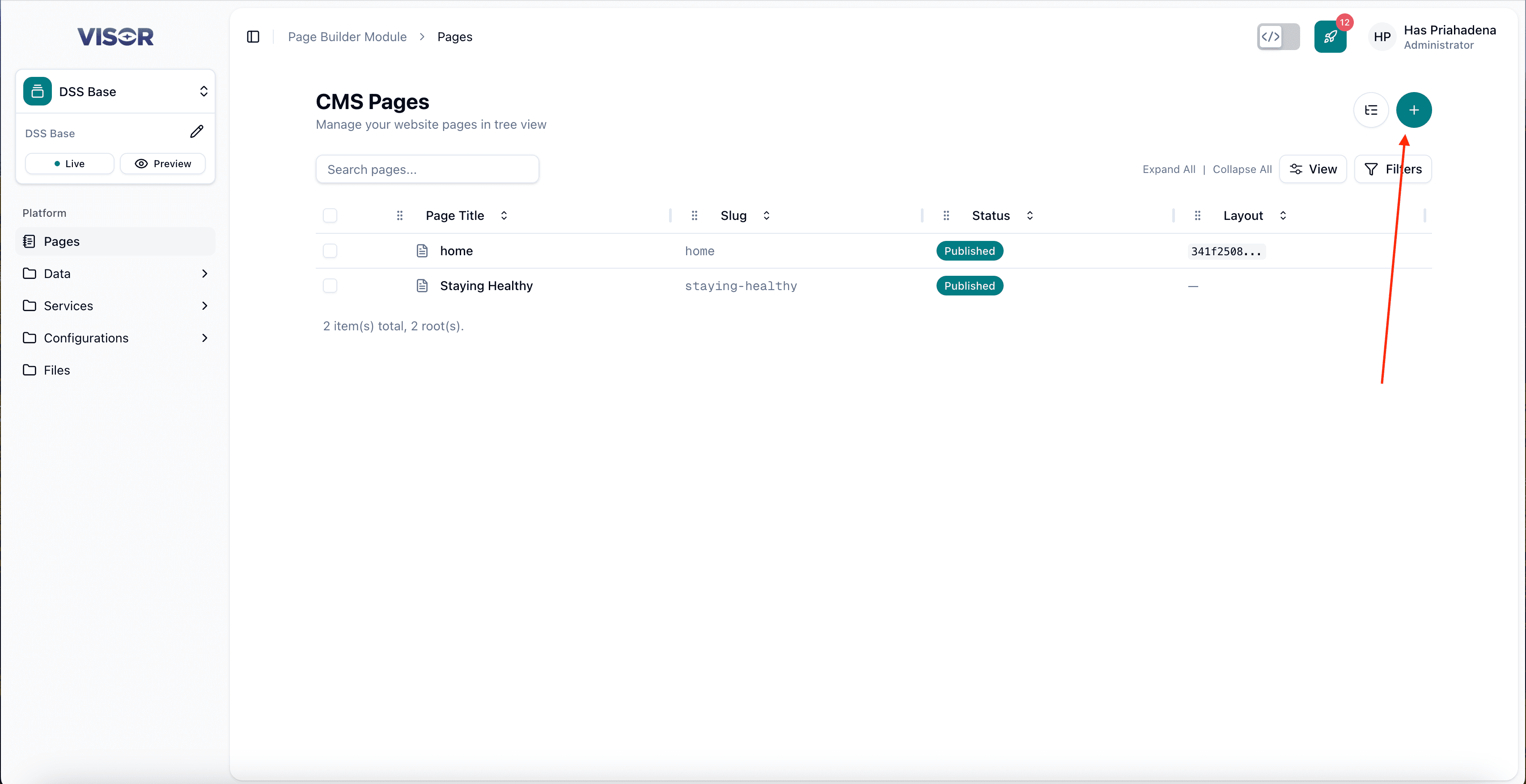
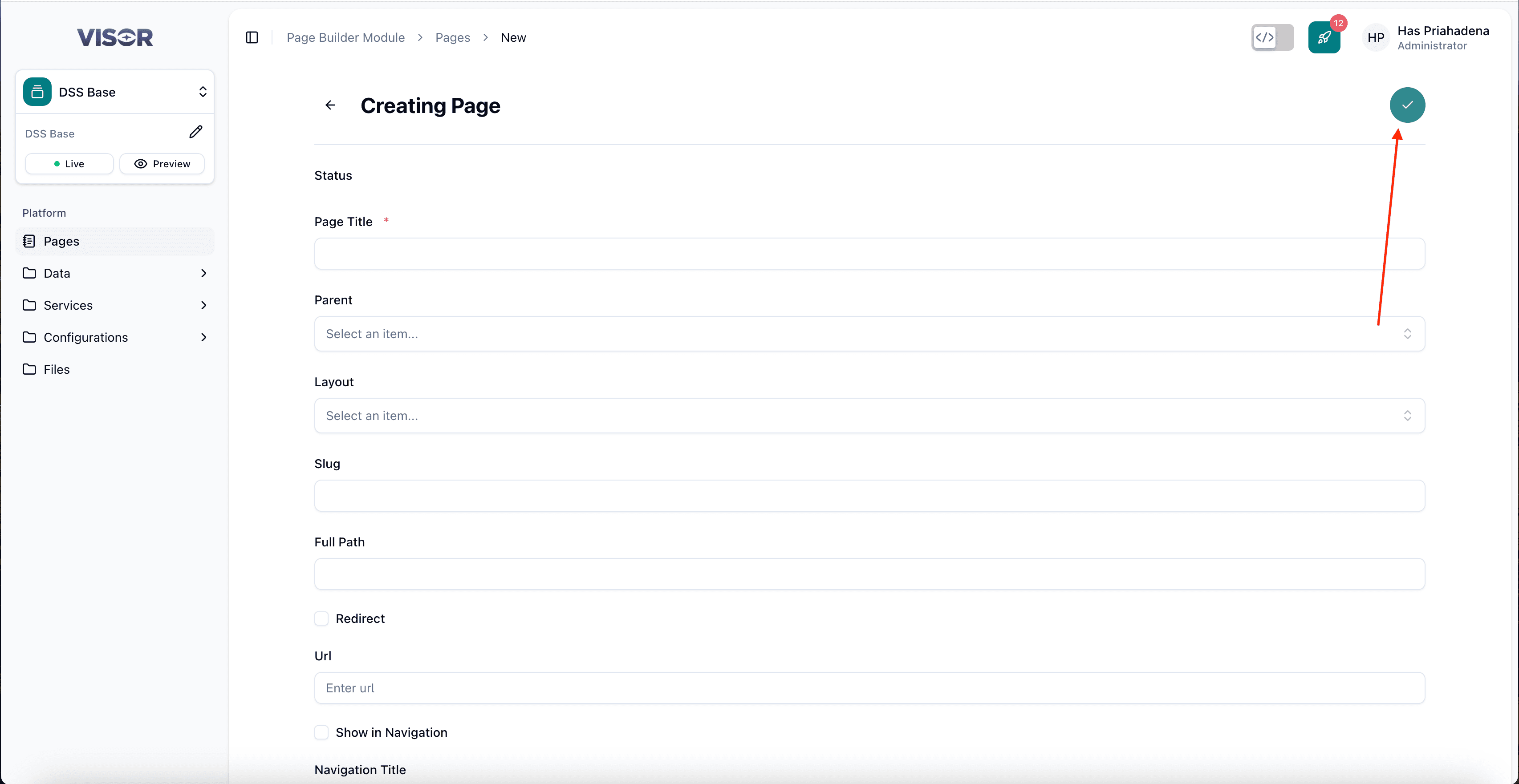
This opens the Creating Page form.
Fill in the page details
Complete the form fields:
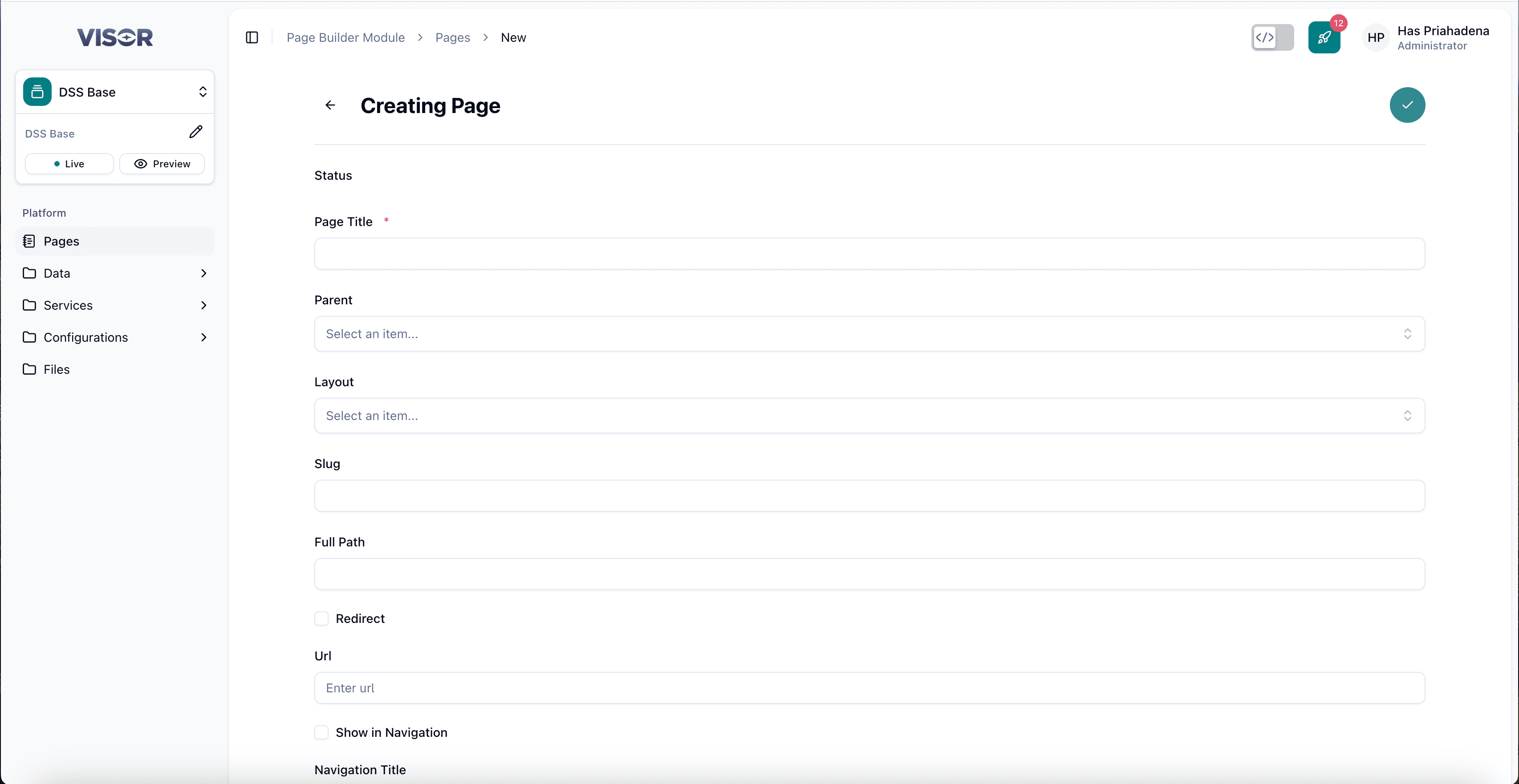
| Field | Required | Notes |
|---|---|---|
| Page Title | Yes ★ | The display name of the page. This is the only mandatory field. |
| Parent | No | Select a parent page if this page should be nested under another. Leave empty for a root-level page. |
| Layout | No | Assign a layout configuration to the page if applicable. |
| Slug | — | Auto-generated by the system based on the Page Title. You do not need to fill this in manually. |
| Full Path | — | Auto-generated by the system based on the slug and parent hierarchy. |
| Redirect | No | Check this if the page should act as a redirect. Enables the URL field. |
| Show in Navigation | No | Tick this checkbox to ensure the page appears in the site navigation after publishing. |
| Navigation Title | No | Override the navigation label if it should differ from the Page Title. |
Make sure to tick Show in Navigation before saving if you want the page to appear in the frontend navigation menu after it is published.
Save the page
Click the ✓ (check) button in the top-right corner of the form to save and create the page.
The page will be created and you will be taken to the page detail view where you can start adding content.
Edit a Page
Open from listing page
From CMS Pages listing, click one of the page titles (for example, home).
You will be redirected to that page’s detail screen in Preview Mode.
Preview mode
Confirm the page opens in Preview Mode first.
Enter edit mode and place widgets
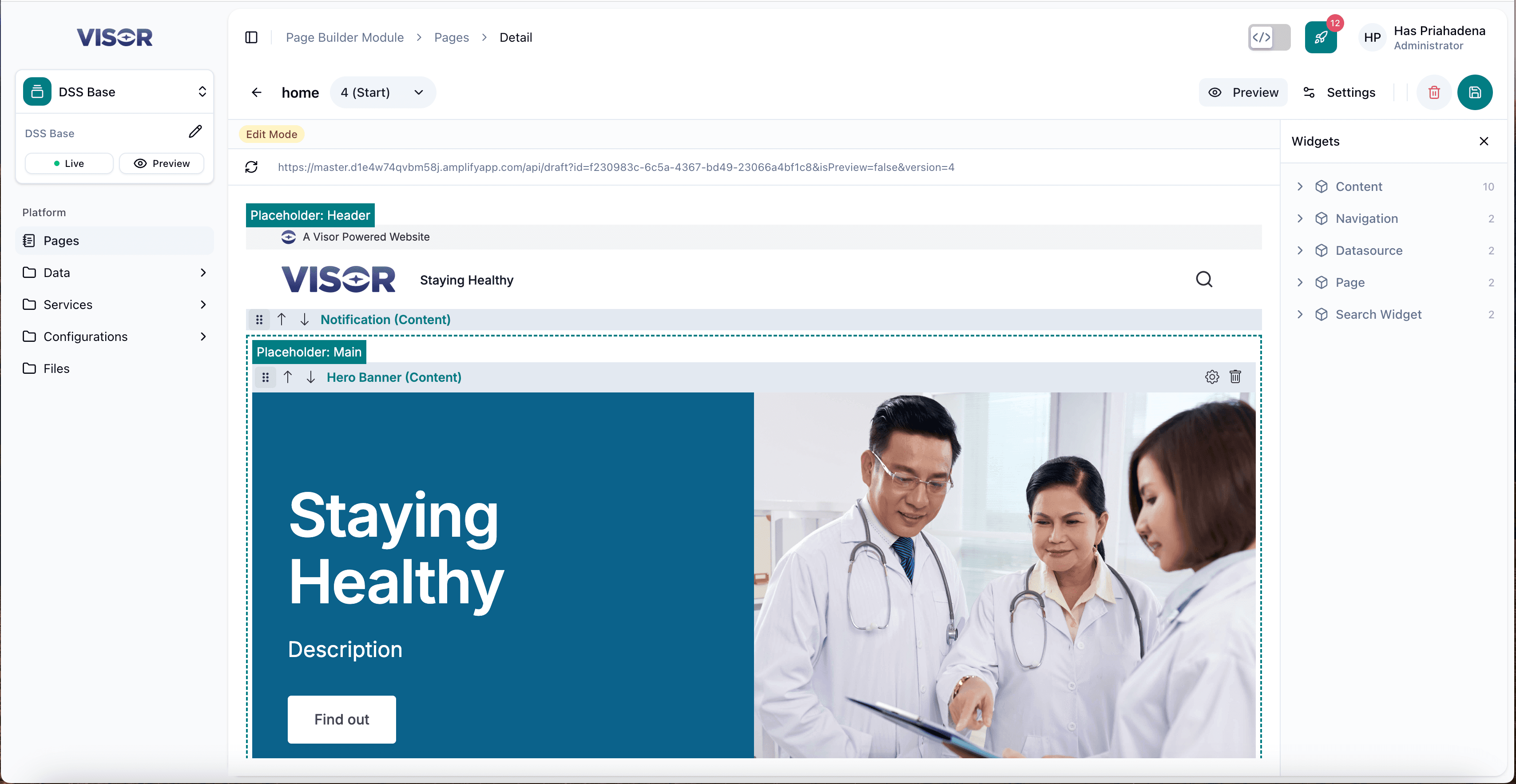
At the top-right, click the pencil icon.
- If the page status is Published, click Edit again to enter editable mode.
- If the page is not published, one click on the pencil icon is enough.
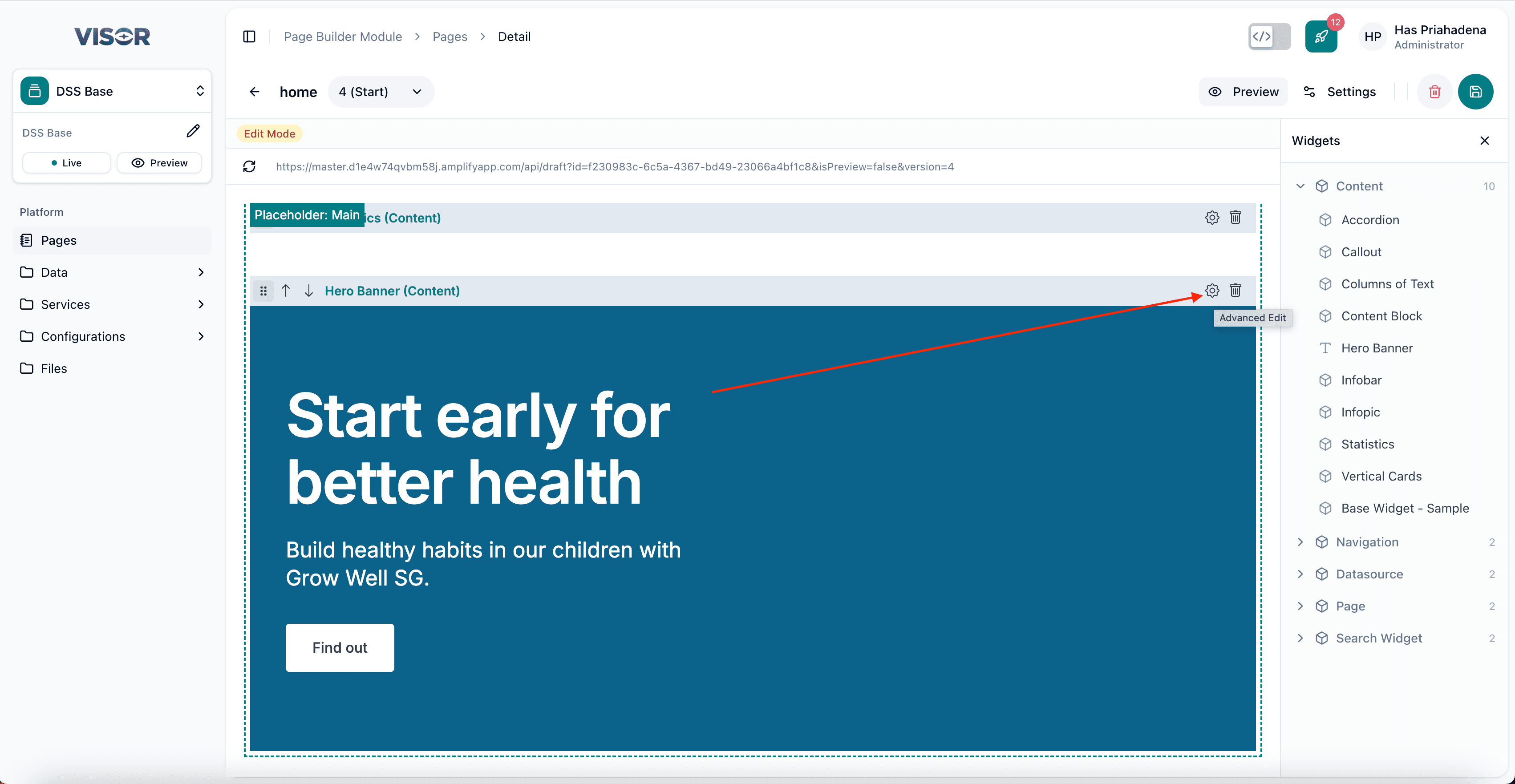
Once active, the canvas shows placeholder bars and the Widgets list for drag-and-drop editing.
In the right Widgets panel, expand Content and locate Hero Banner.
Drag the widget into the target placeholder area (for example, Placeholder: Main).
After dropping it, a new Hero Banner block appears at the bottom of that placeholder.
Open widget configuration
On the inserted widget row, click the gear icon on the placeholder bar.
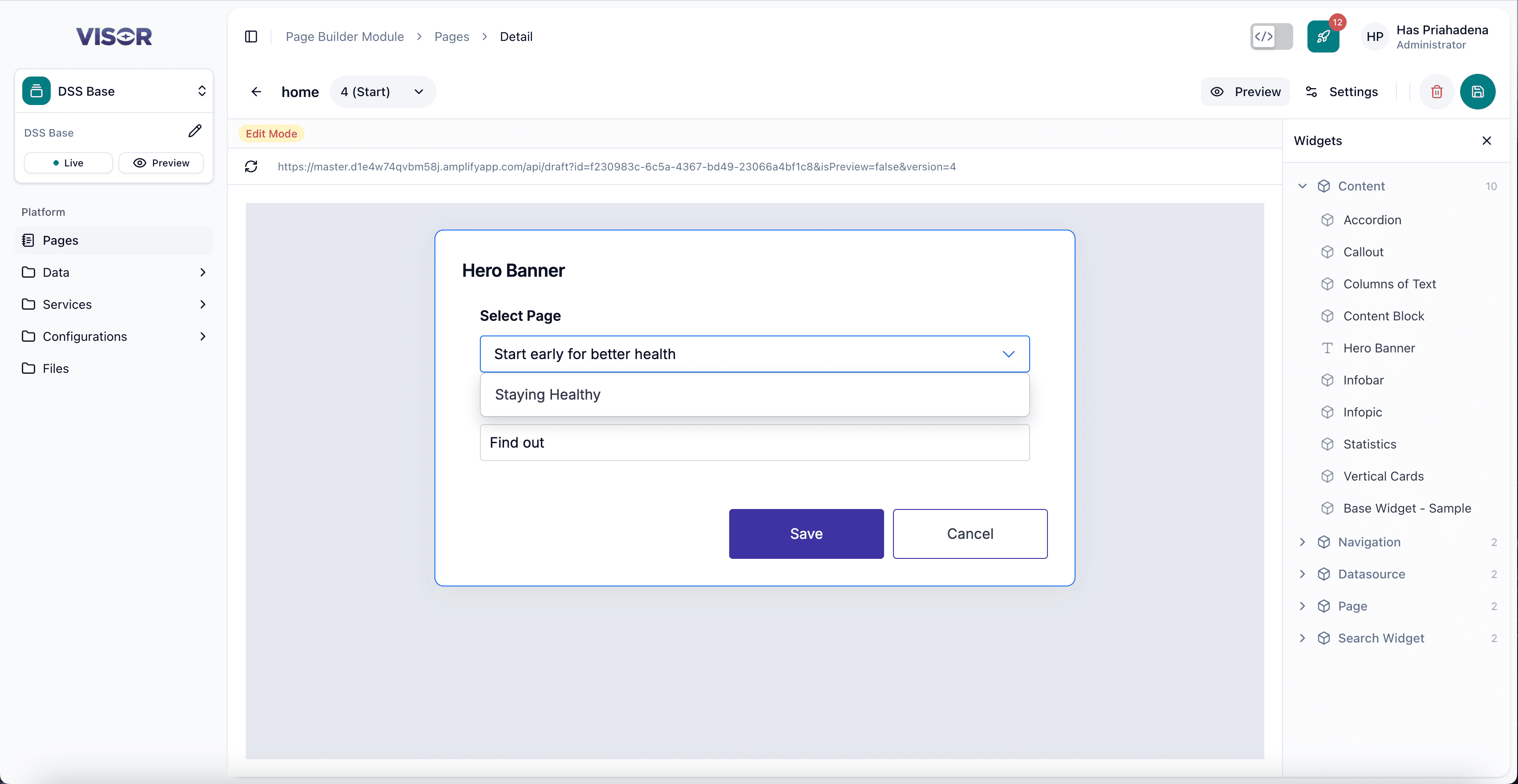
This opens the Hero Banner configuration popup.
Configure widget form
In the popup, use Select Page to choose the page you want to use as the banner source, then click Save.
Final result
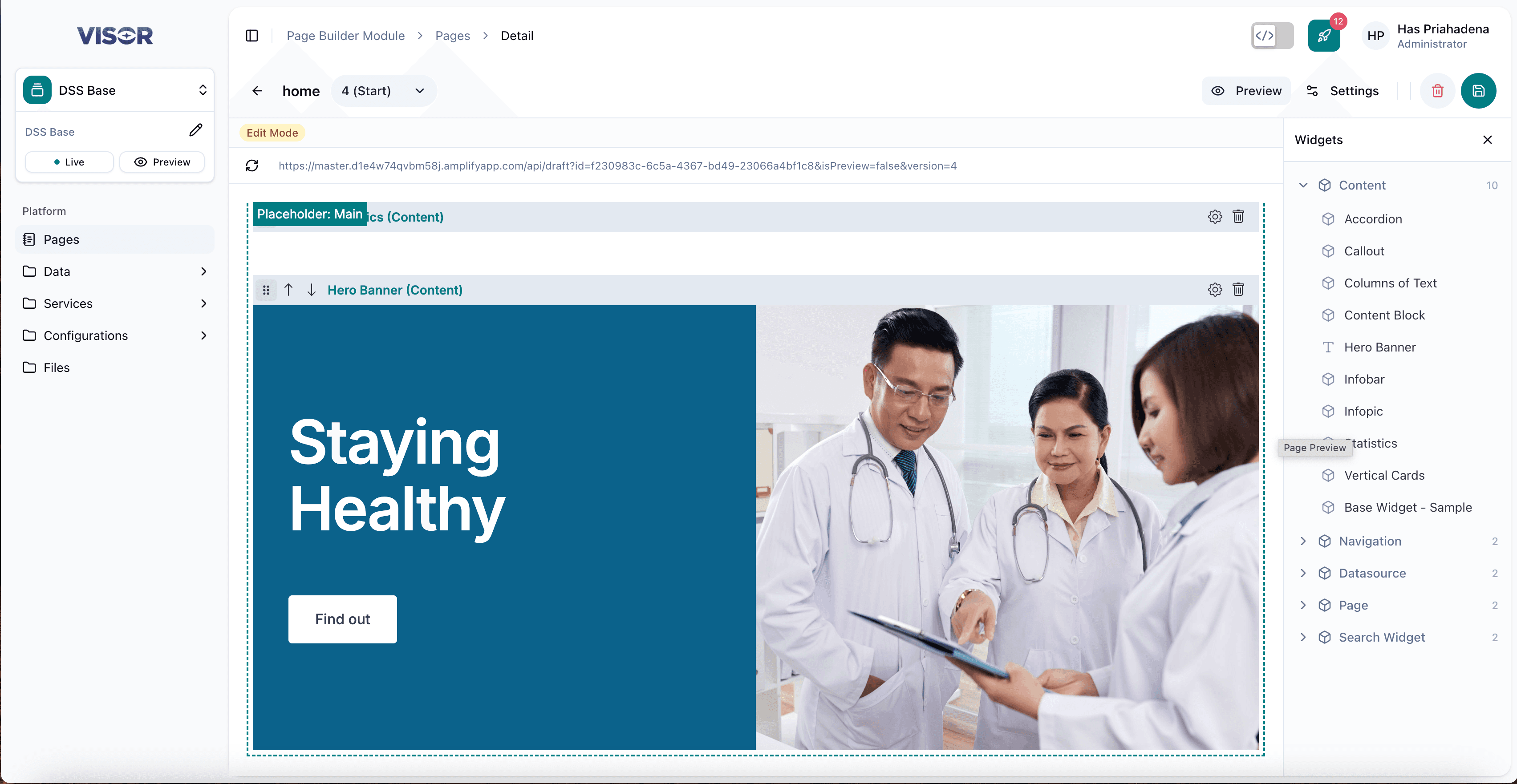
After saving, the Hero Banner updates and shows the image/content based on the page you selected.
Publishing Item
After you edit page content, the updates are stored in versioned records first. To reflect changes in the main collection, you need to publish the item.
Check current status in preview
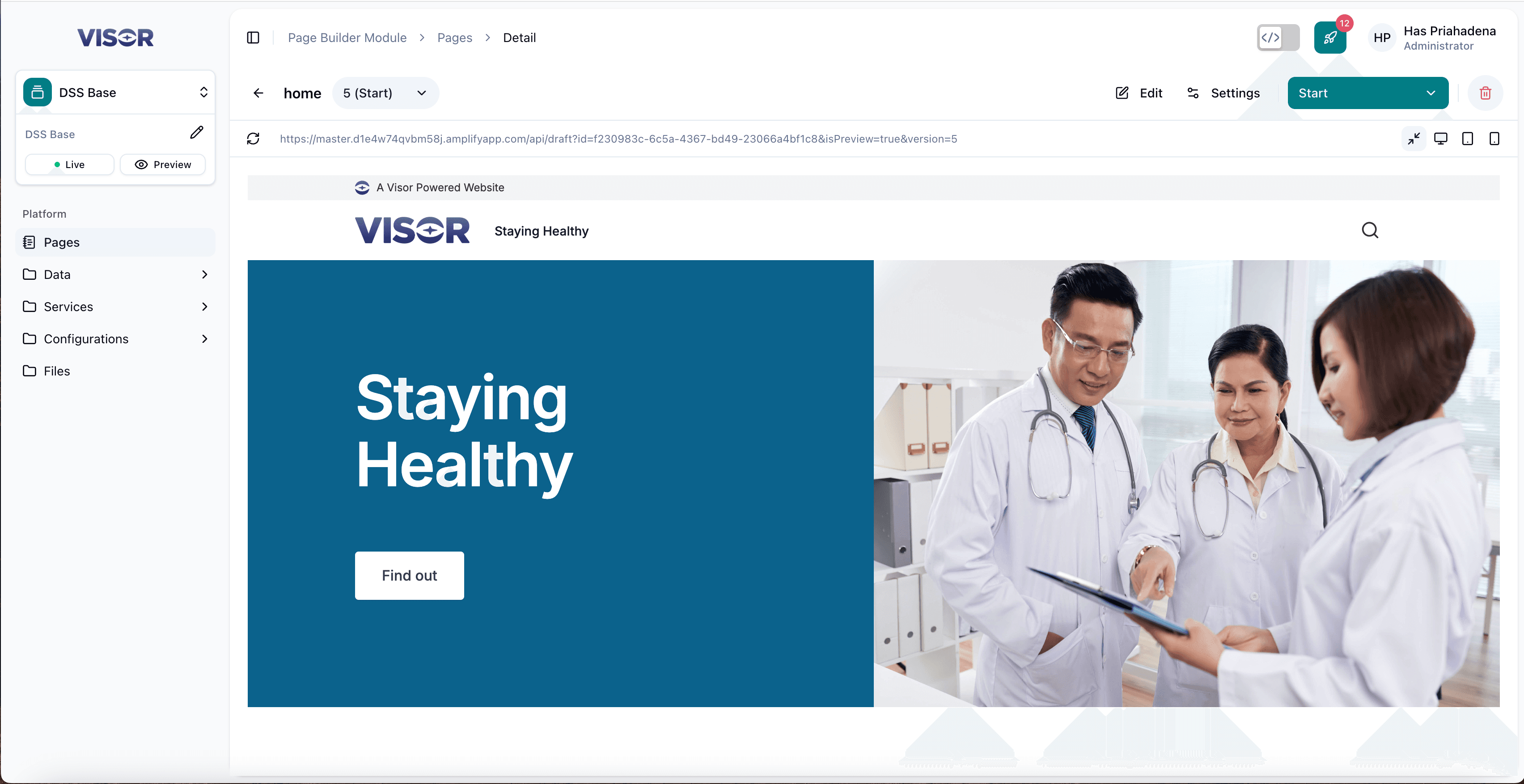
Open the page in Preview Mode and look at the top-right status dropdown. It shows the current state (for example, Start).
Publish through status transition
Click the status dropdown and transition the page to another state (for example, Published).
When the transition completes, the page is promoted to the main version.
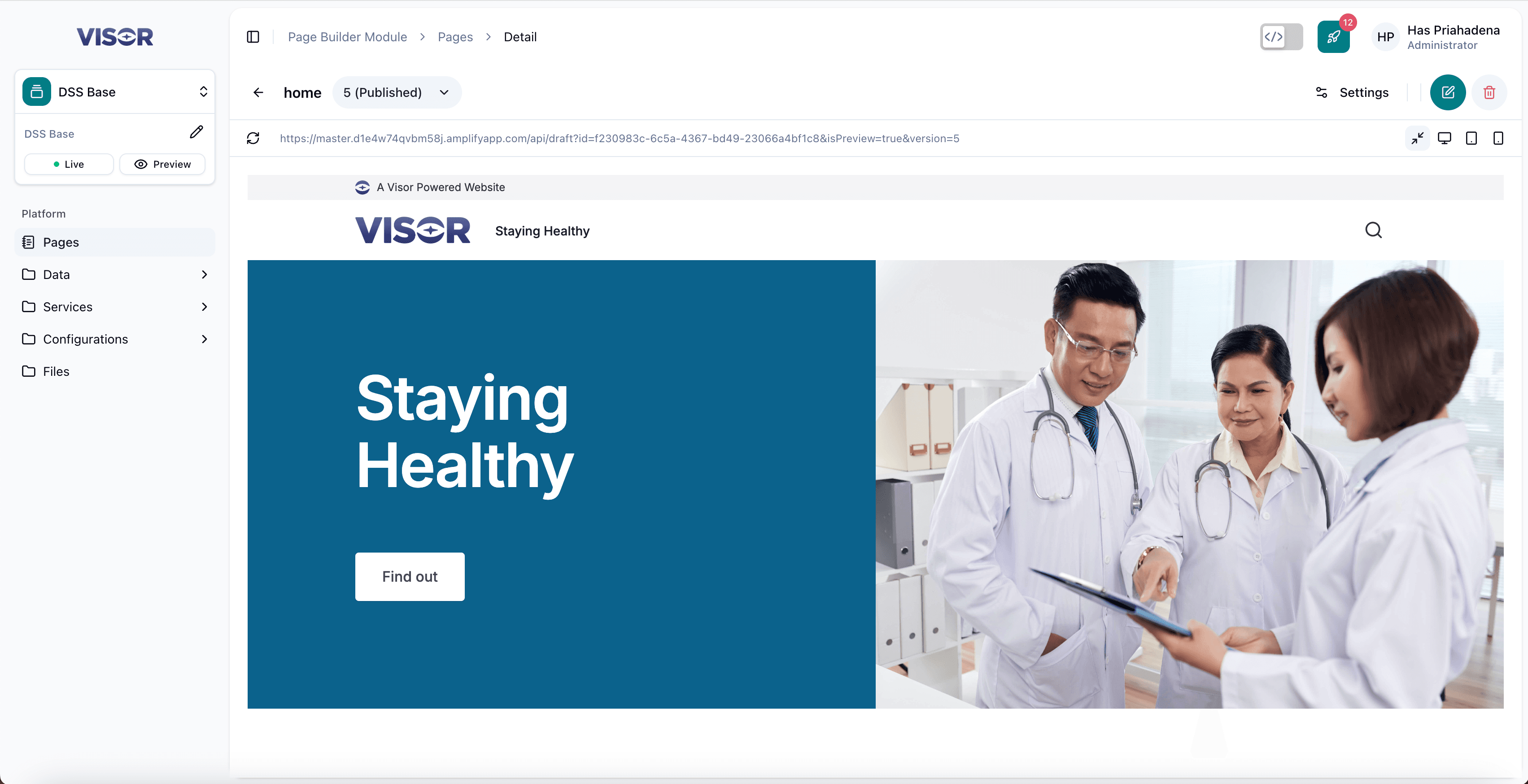
Publish from settings mode
You can use the same status transition method in Setting Mode to publish the item.
Delete a Page
There are two ways to delete a page in Page Builder.
Deleting a page is permanent. Make sure you select the correct page before confirming deletion.
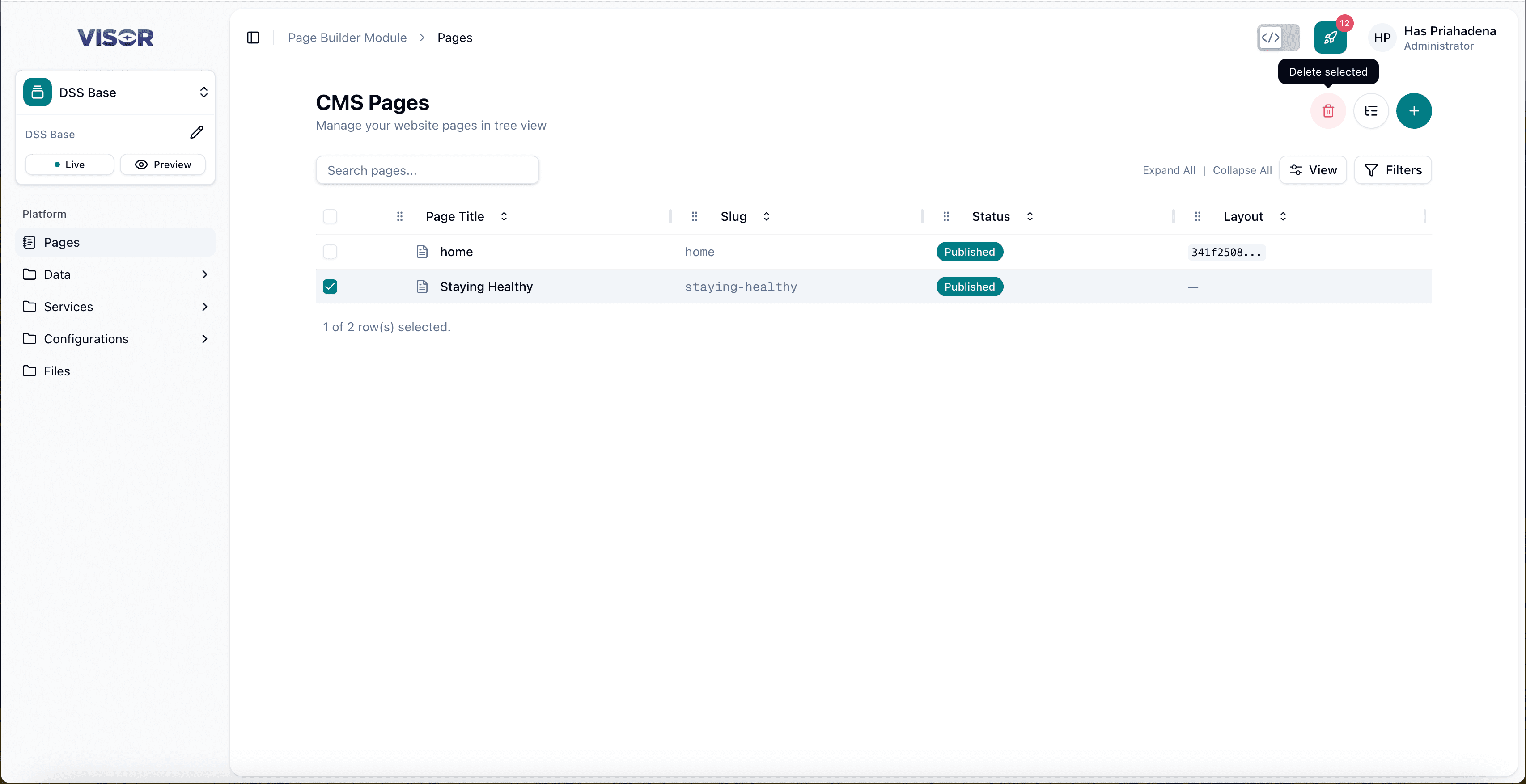
Method 1: Delete from listing page
Open CMS Pages and tick the checkbox for the page you want to delete.
Click the trash icon in the top-right toolbar (Delete selected), then confirm the delete action.
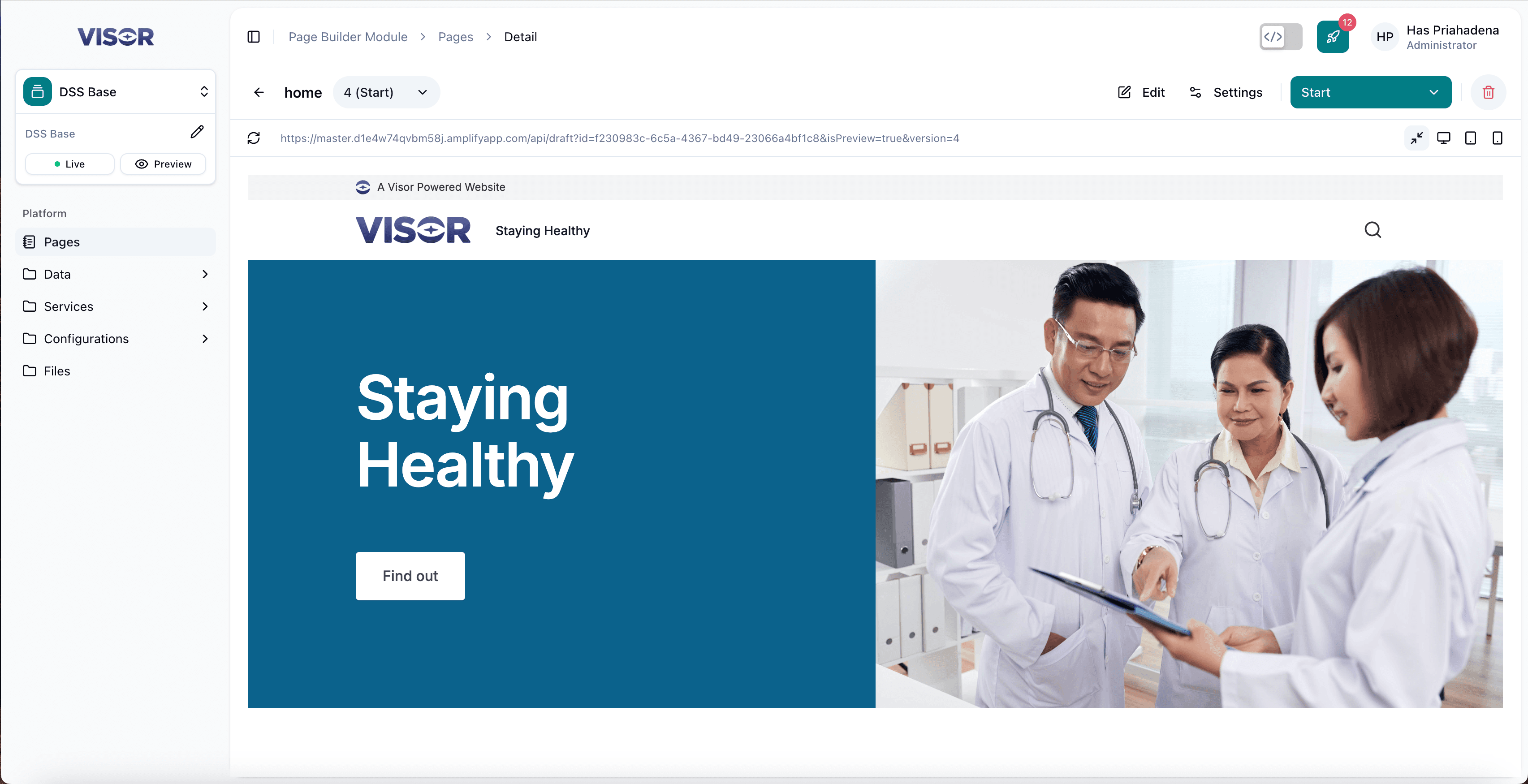
Method 2: Delete from preview or edit mode
Open the page detail screen from the listing page (preview mode or edit mode).
At the top-right action bar, click the trash icon, then confirm the delete action.
Setting Mode
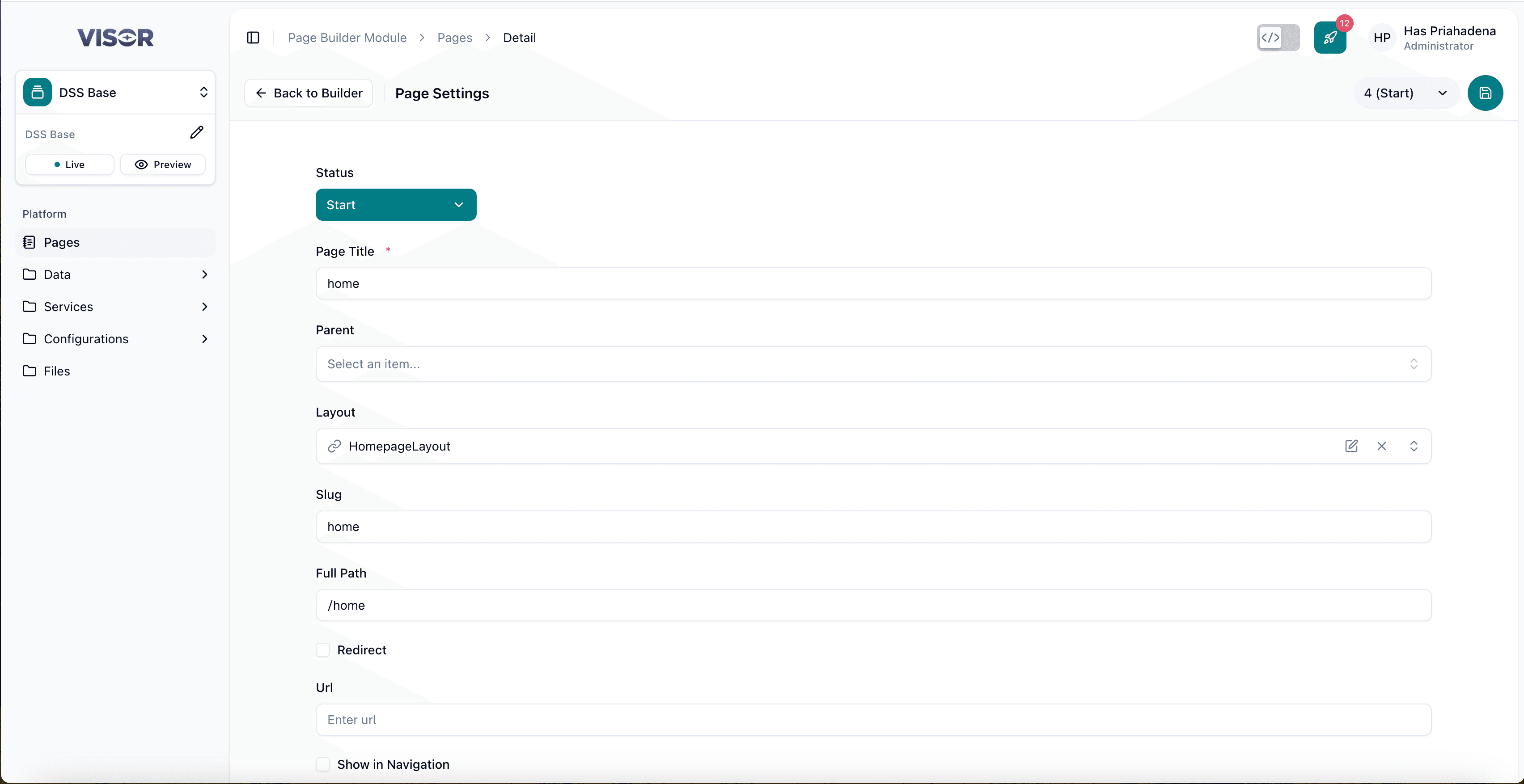
Use Setting Mode to update page-level fields such as title, parent, layout, navigation options, and other metadata.
Open a page from listing
From CMS Pages listing, click one page item (for example, home).
Open Settings from preview
The page opens in Preview Mode. Click Settings in the top-right action bar.
You will be redirected to the page form.
Scenario A: Page status is Published
If the page is Published, form fields are disabled.
Create a new version first to enable editing, then update the fields you need.
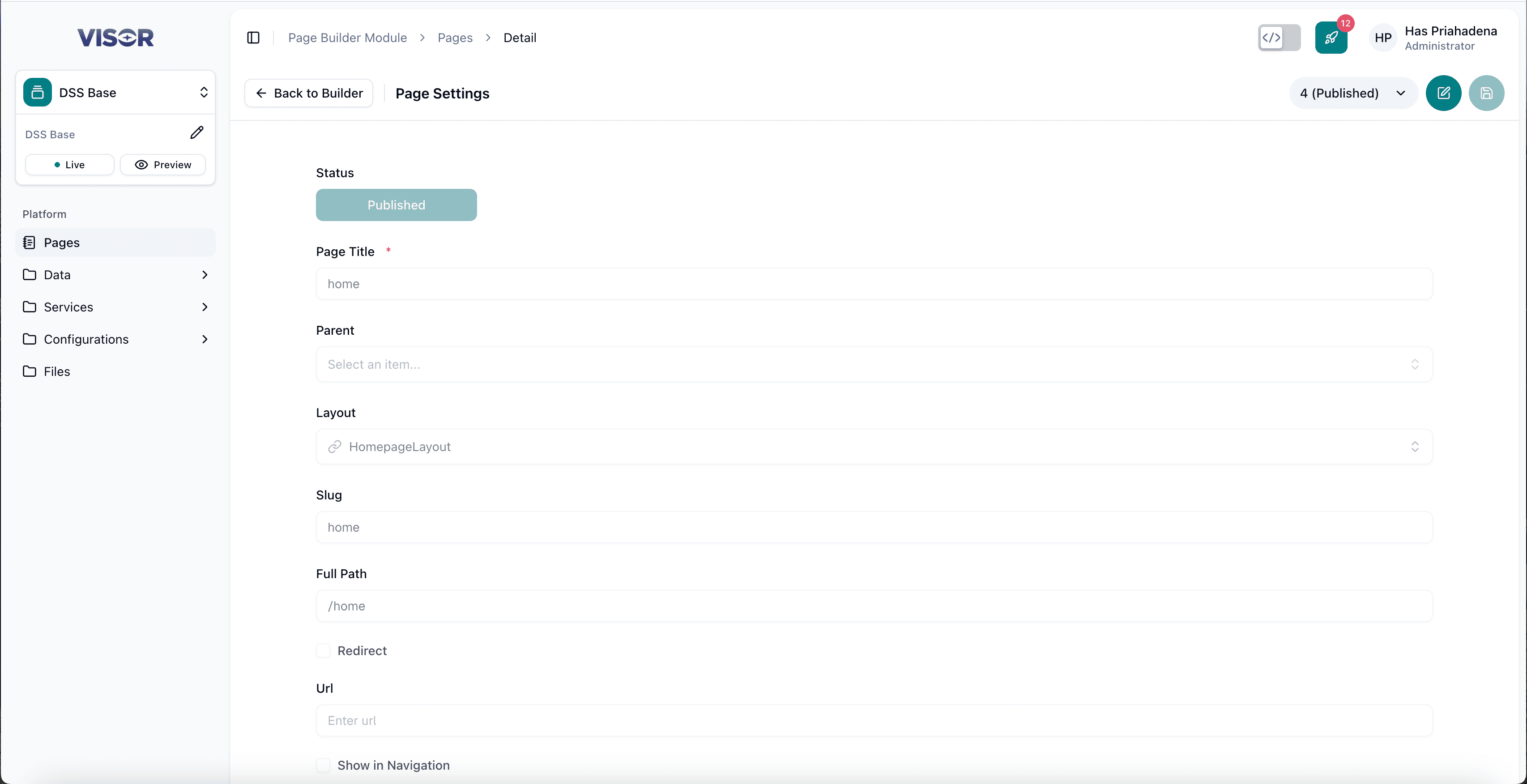
Scenario B: Page status is not Published
If the page is not published, the fields are editable directly.
The form fields are similar to the Create a Page form, so you can update any value as needed.
Save updates
After editing the required fields, save the form to create or update the current version.
FAQ
Q: What happens if item that I am editing has been updated/saved by another user?
A: If another user saves changes to the item while you are still editing, you will see a warning message when you try to save your changes.
Q: What happens if item that I am editing has been published by another user while I am still in edit mode?
A: If another user publishes the item while you are still editing, you will see a warning message when you try to save your changes. You can choose to either discard your changes or create a new version based on the latest published state.