Content Types
A content type is a kind of structured content, such as Articles, Events or Products. You design it here, and editors then add items to it. Everything is done in Visor, with no code and no other tool.
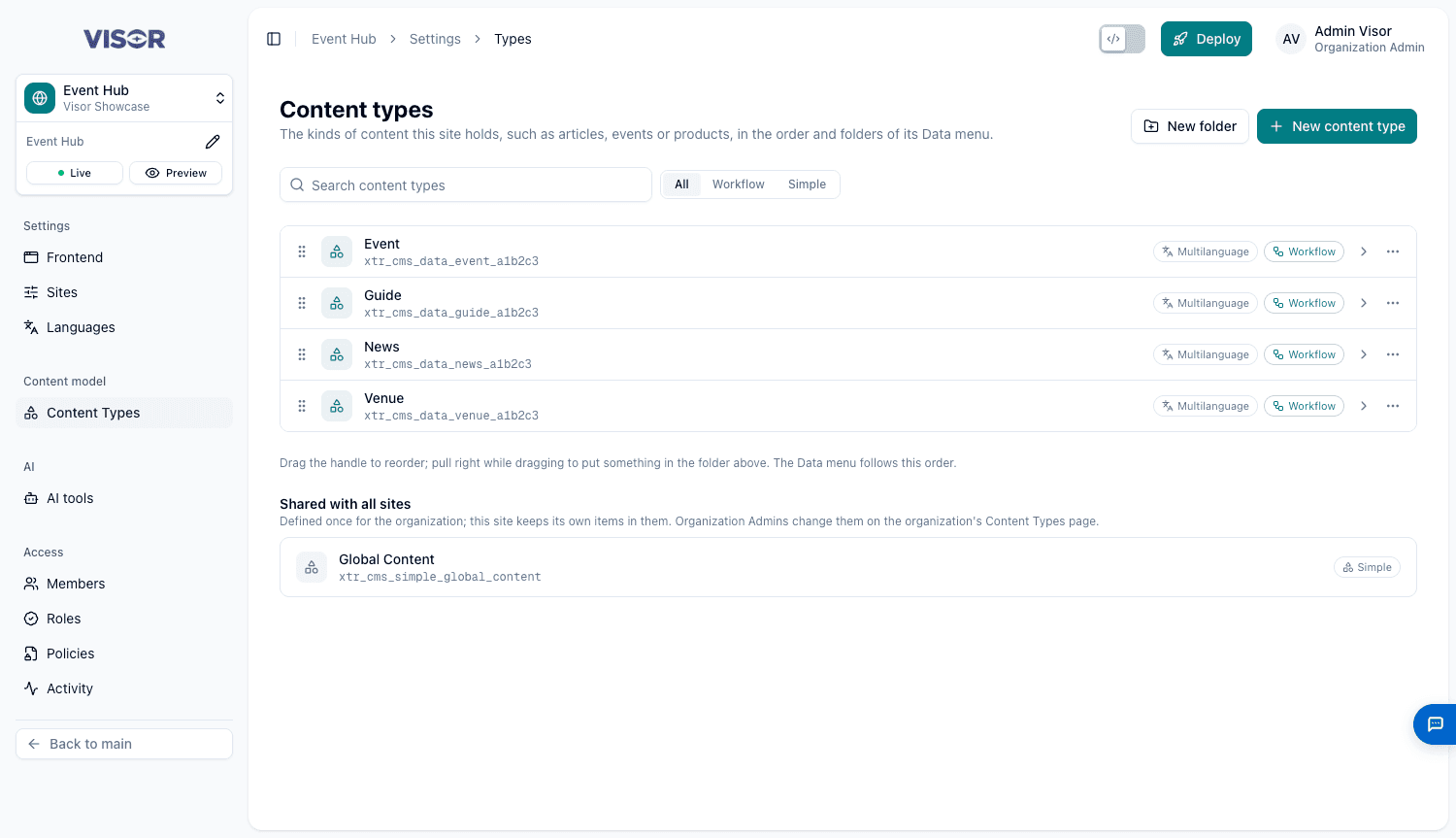
Open Settings → Content Types, in the Content model group.
| Action | Content Designer | Site Admin | Organization Admin |
|---|---|---|---|
| Create types, add and edit fields, folders and order | Yes | Yes | Yes |
| Remove fields, delete types | No | Yes | Yes |
| Choose what Visor Users may do | No | Yes | Yes |
| Create types shared with all sites | No | No | Yes |
Create a content type
Open the form
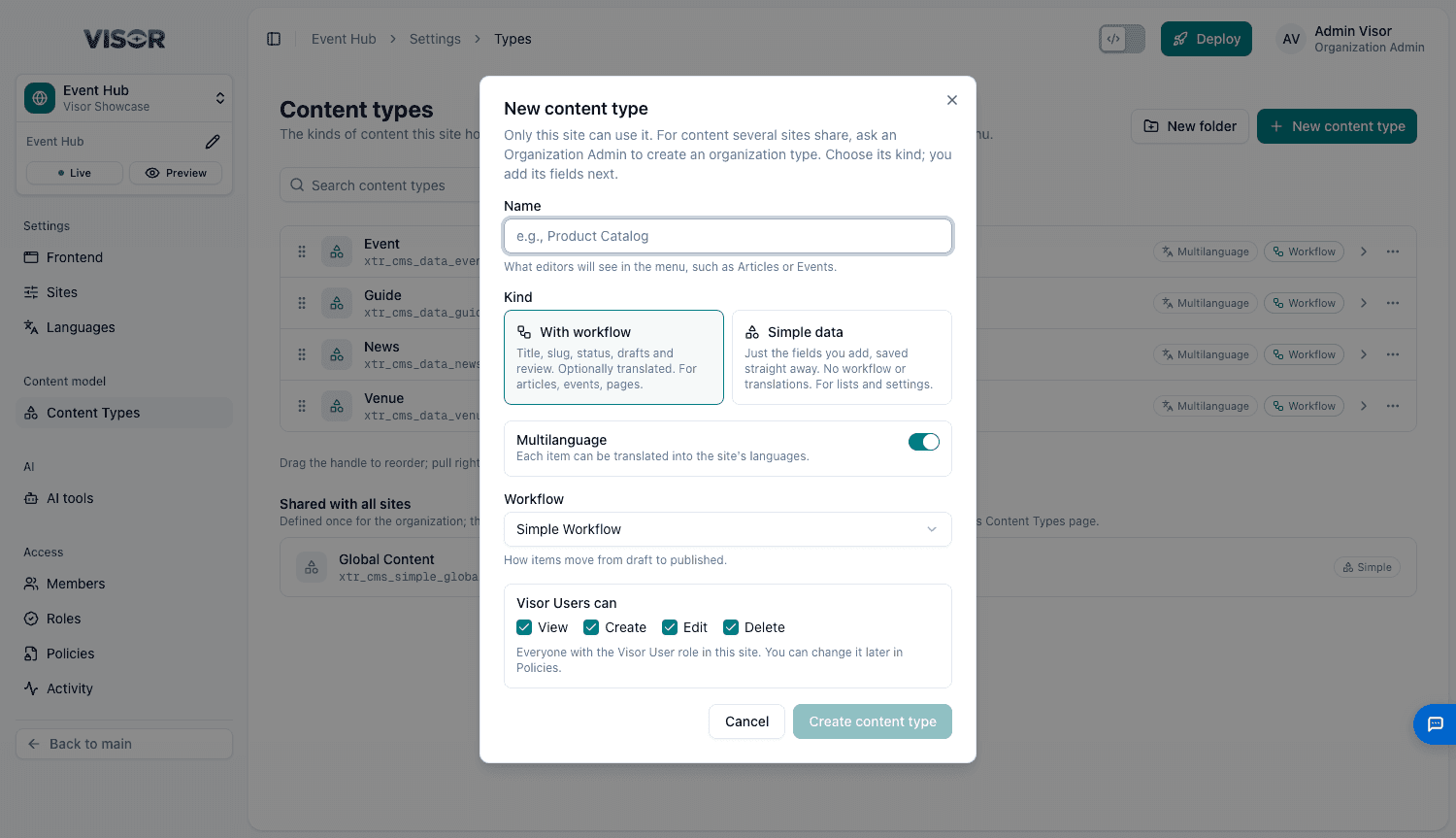
Click New content type.
Name it
Enter what editors will see in the menu, such as Articles. Visor makes the technical name for you, and refuses a name too close to an existing type.
Choose its kind
You can’t change this later.
| Kind | For | Includes |
|---|---|---|
| With workflow | Articles, events, anything needing review | Title, slug, status, drafts and review. Optionally translated. |
| Simple data | Lists and settings | Just the fields you add, saved straight away. Its first text field becomes the item’s label. |
Set the options
For With workflow, choose:
- Multilanguage: on by default, so each item can be translated.
- Workflow: how items move from draft to published.
Choose a Folder if you have any. Site Admins can also set what Visor Users can do: View, Create, Edit and Delete.
Create it
Click Create content type. It appears in the menu, ready for its fields.
Add fields
Open the field picker
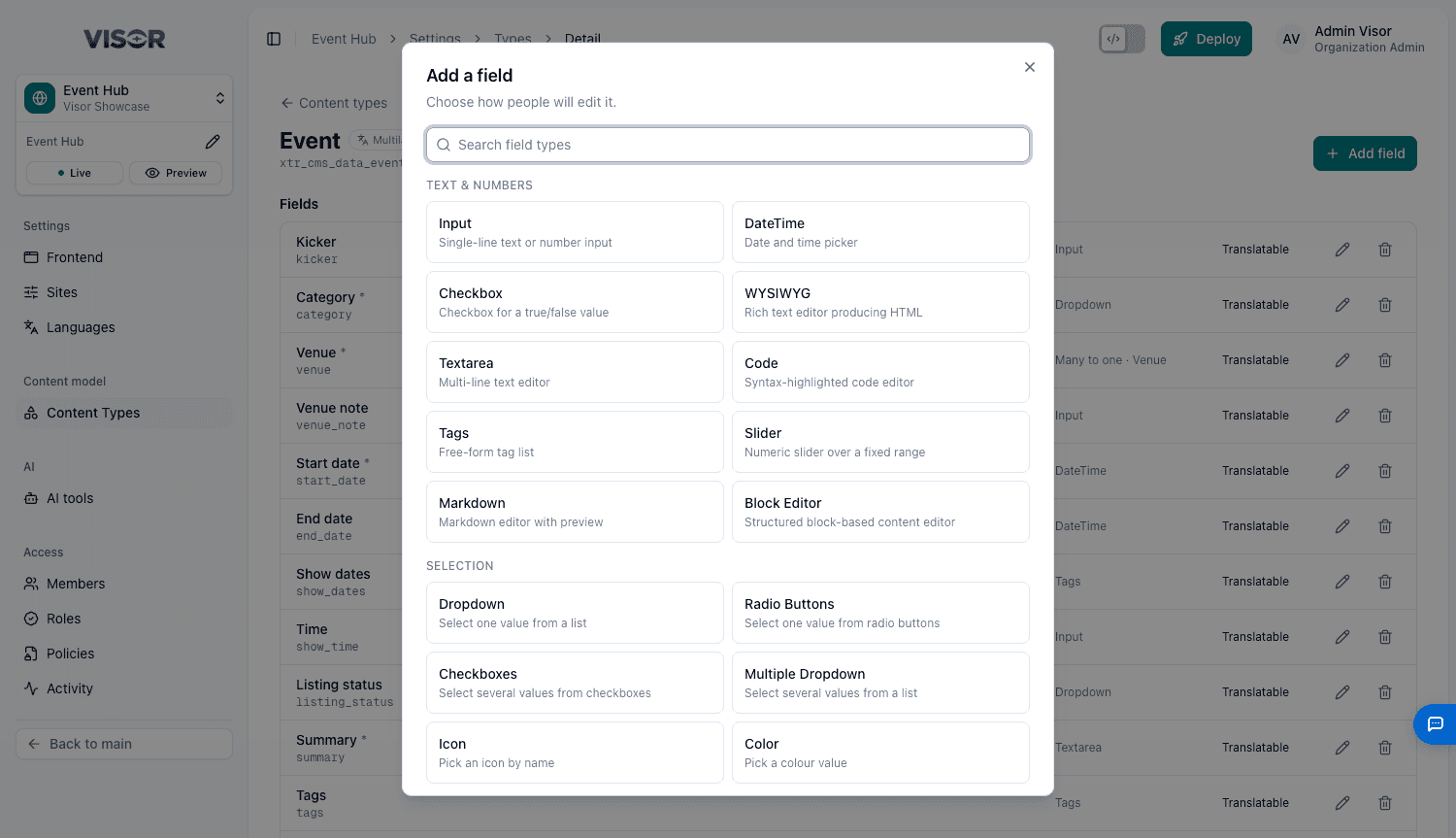
On the type’s page, click Add field, then search or browse. Fields are grouped into Text & numbers, Selection, Relational and Presentation.
Fill it in
| Setting | Notes |
|---|---|
| Name (English) | Also generates the Field key, which can’t change later. |
| Name in Bahasa Indonesia | Optional, shown when Visor’s interface is in that language. |
| Help text | Optional. |
| Required | Tick if editors must fill it in. |
Add it
Click Add field.
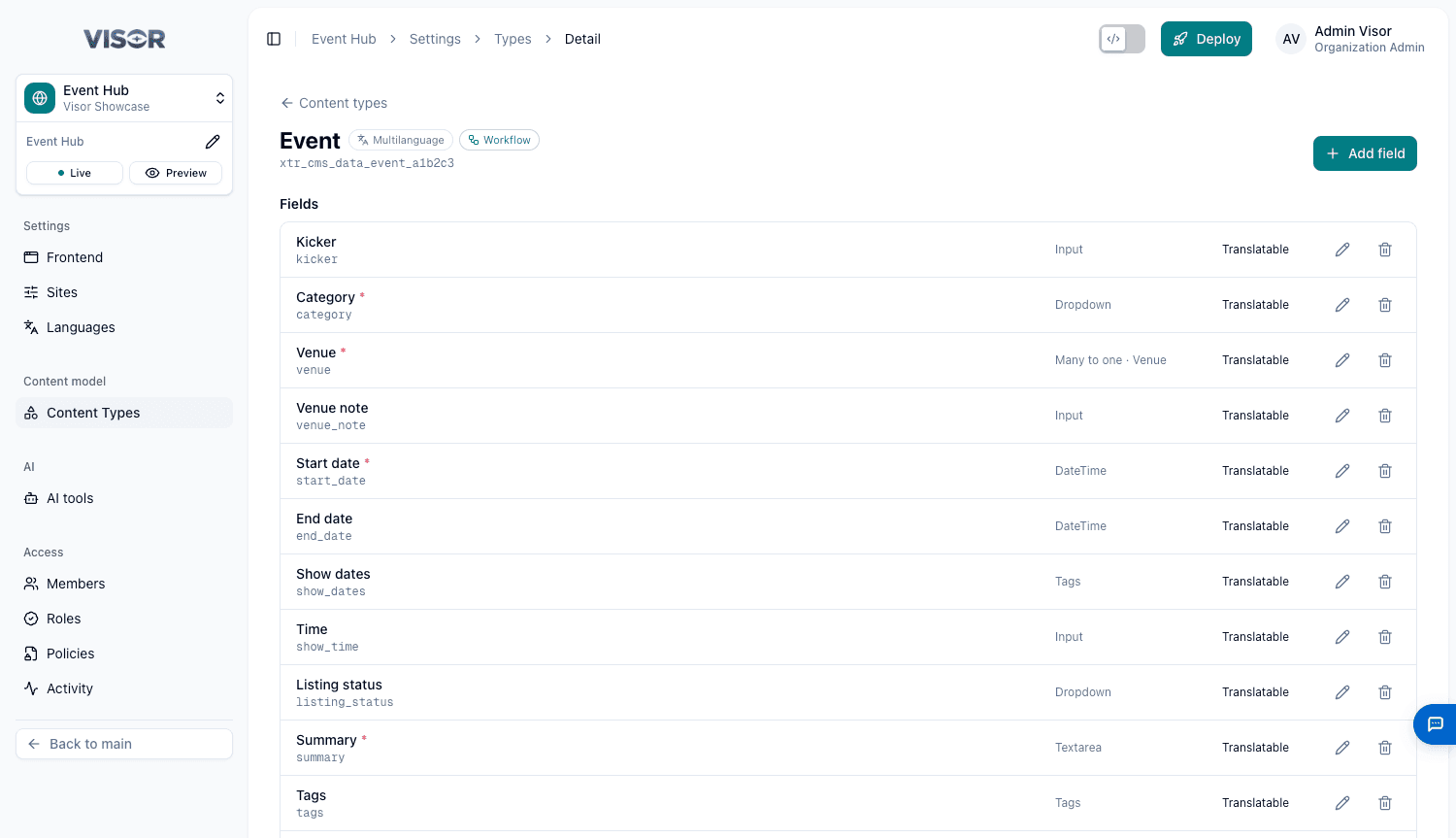
On a multilanguage type, each language has its own value for every field.
Link to other content
| Field | Use | Example |
|---|---|---|
| Link to one item | Pick one page or item. | A related page. |
| Link to many items | Pick several pages or items. | Related articles. |
| List of child items | Items of another of this site’s types that belong to this one. | FAQ entries. |
| Links to mixed types | One list mixing pages and items of several types. | Featured content. |
Rows on an item
A connected AI tool can add a repeater, which holds rows of fields on one item, such as an itinerary’s days. The Add field picker doesn’t offer this.
Change or remove a field
- Edit (pencil): change its names and help text. Its key and what it stores stay as they are.
- Remove (bin): Site Admins only. The field and all its values are deleted, in every language, and this can’t be undone.
Organise types
Drag the handle to reorder. Pull right while dragging to put a type in the folder above. The Data menu follows this order.
New folder groups types in the menu. Folders can be nested 3 levels deep, and deleting one moves its contents up without deleting any.
Control who may use a type
The Access section on a type’s page summarises who can do what. To change what Visor Users may do, click Change, which opens the site’s Policies. The change applies straight away, and nobody needs to sign in again.
Delete a type
Under Danger zone, click Delete content type, then type its name to confirm.
This deletes all of its items and can’t be undone. The workflow history and activity log are kept. Once pages, widgets or the site’s code use a type, removing it breaks them.
Types shared with all sites
An Organization Admin can create a type for the whole organization, on the organization’s Content Types page. It appears in every site’s menu with the same name and fields, and each site keeps its own items. Deleting one deletes its items in every site.
On a site’s page they are listed under Shared with all sites, read-only.
Limits
| Limit | Value |
|---|---|
| Content types per site | 50 |
| Own fields per type | 50 |
| Folders per site | 30 |
| New types per person per hour | 10 |
| Field changes per person per hour | 60 |
| Types deleted per person per hour | 10 |
These apply to everyone, including Organization Admins. Over a limit, Visor says when you can try again.
Let an AI tool help
A connected AI tool can create a type with all its fields after one approval. See What Your AI Can Do. Deleting is done in Visor.
To show a content type on the website, see Content Types in Code.