Sites
What is Sites?
The Sites module is the core tenant data store. Each site entry represents a tenant — holding its configuration including the CMS URL, developer preview URL, active theme, and frontend linkage. Before spinning up a new frontend, you must first create a site entry to establish the tenant.
The Settings modules are accessible to Admin roles only.
Create a Site before creating a Frontend. The frontend configuration depends on an existing site entry.
Navigating to Sites
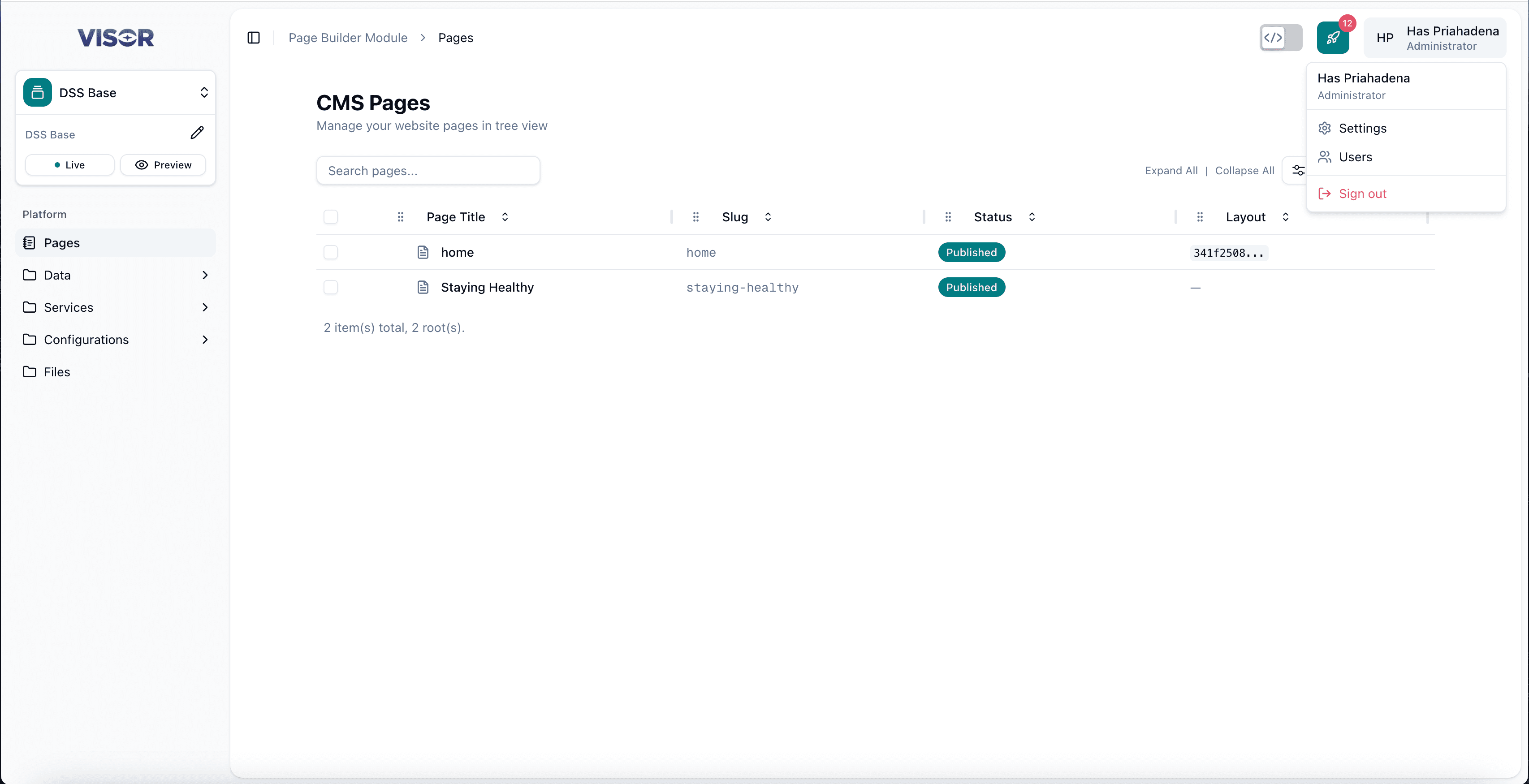
Click your account name or avatar in the top-right corner of Visor Studio, then select Settings from the dropdown.
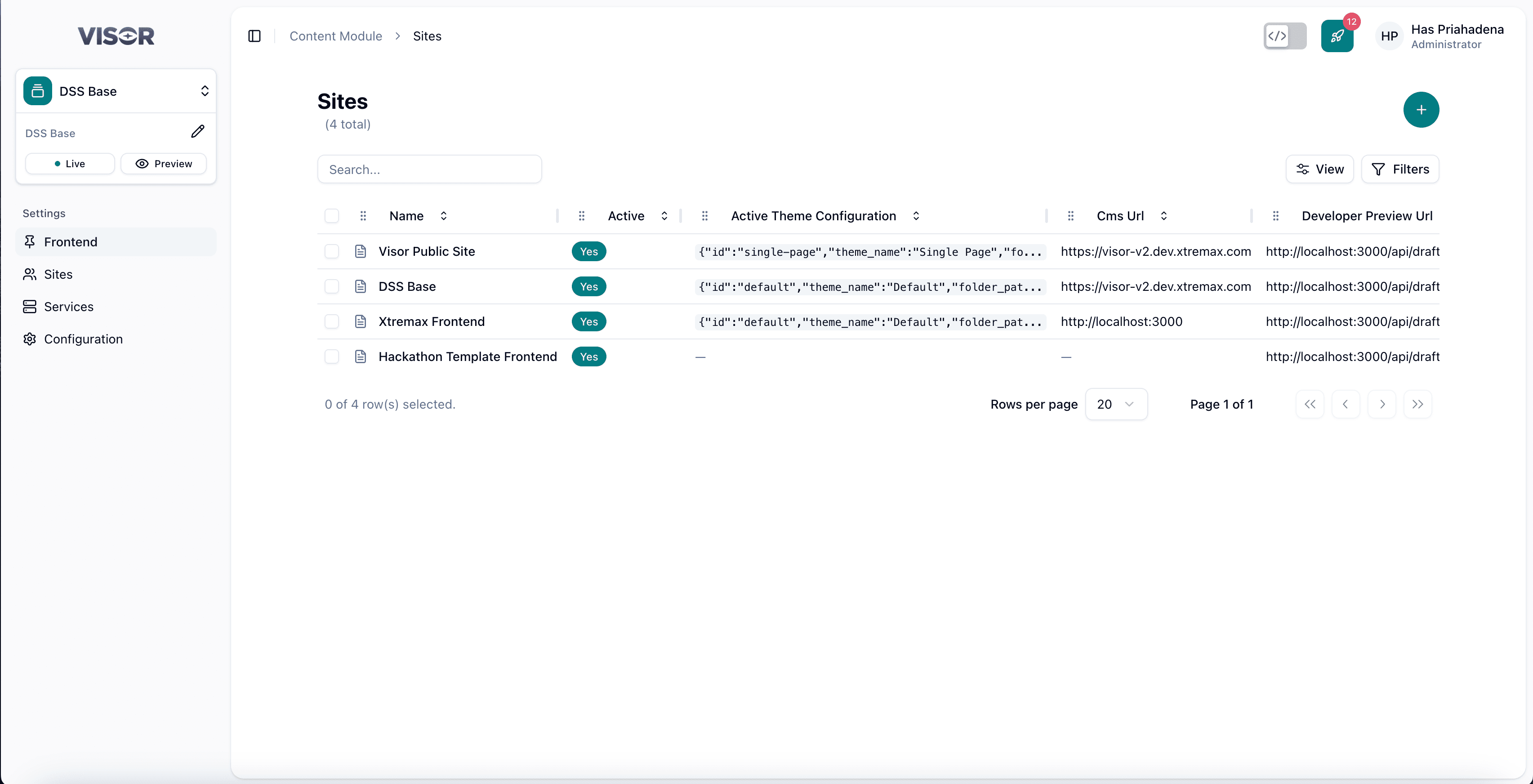
Once in Settings, the Settings modules will appear in the left sidebar. Click Sites.
Create a Site
Navigate to Sites
From Settings, click Sites in the sidebar. You will be taken to the Sites listing page.
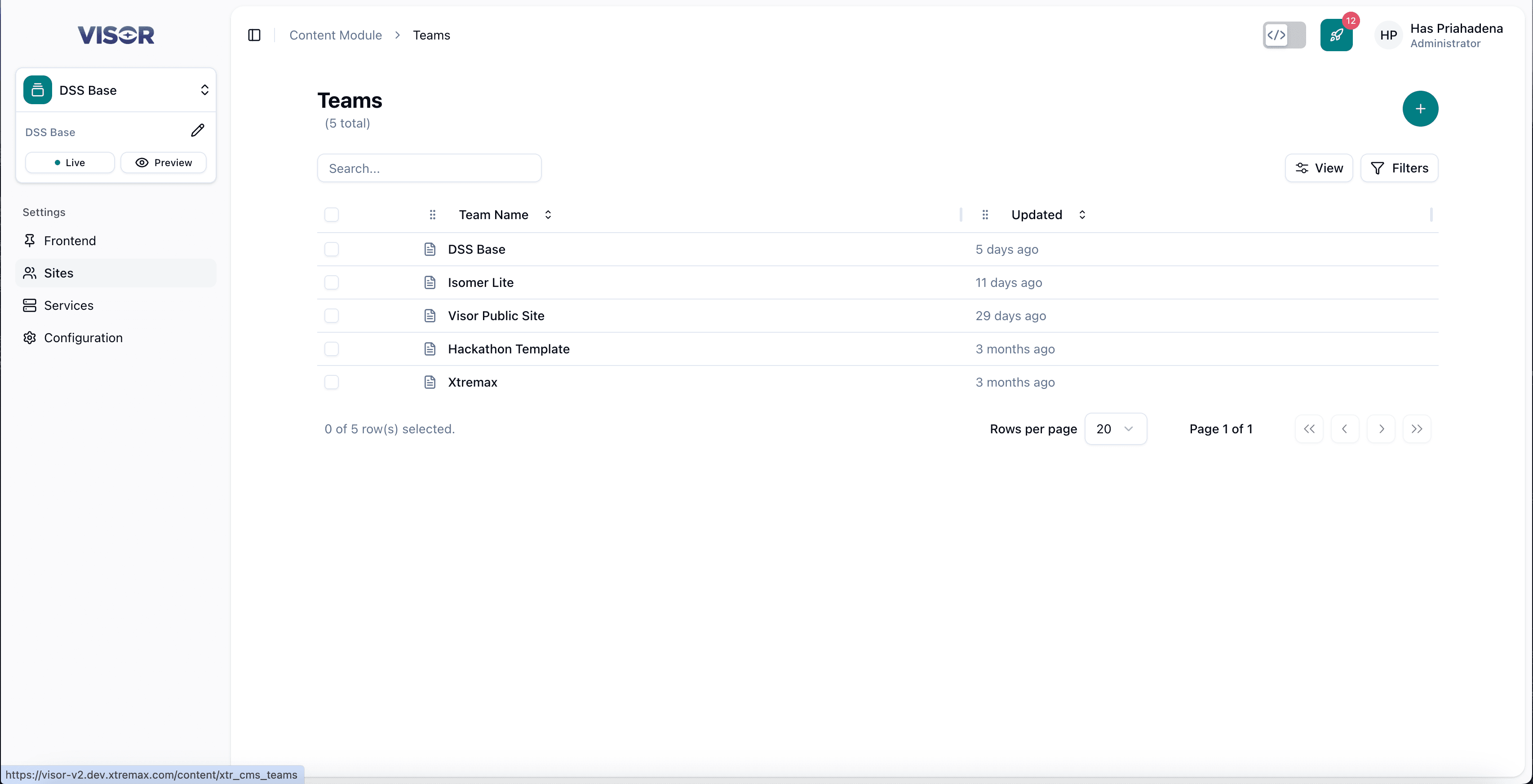
Click the + button
In the top-right corner of the listing, click the + button. You will be redirected to the site creation form.
Fill in the form and save
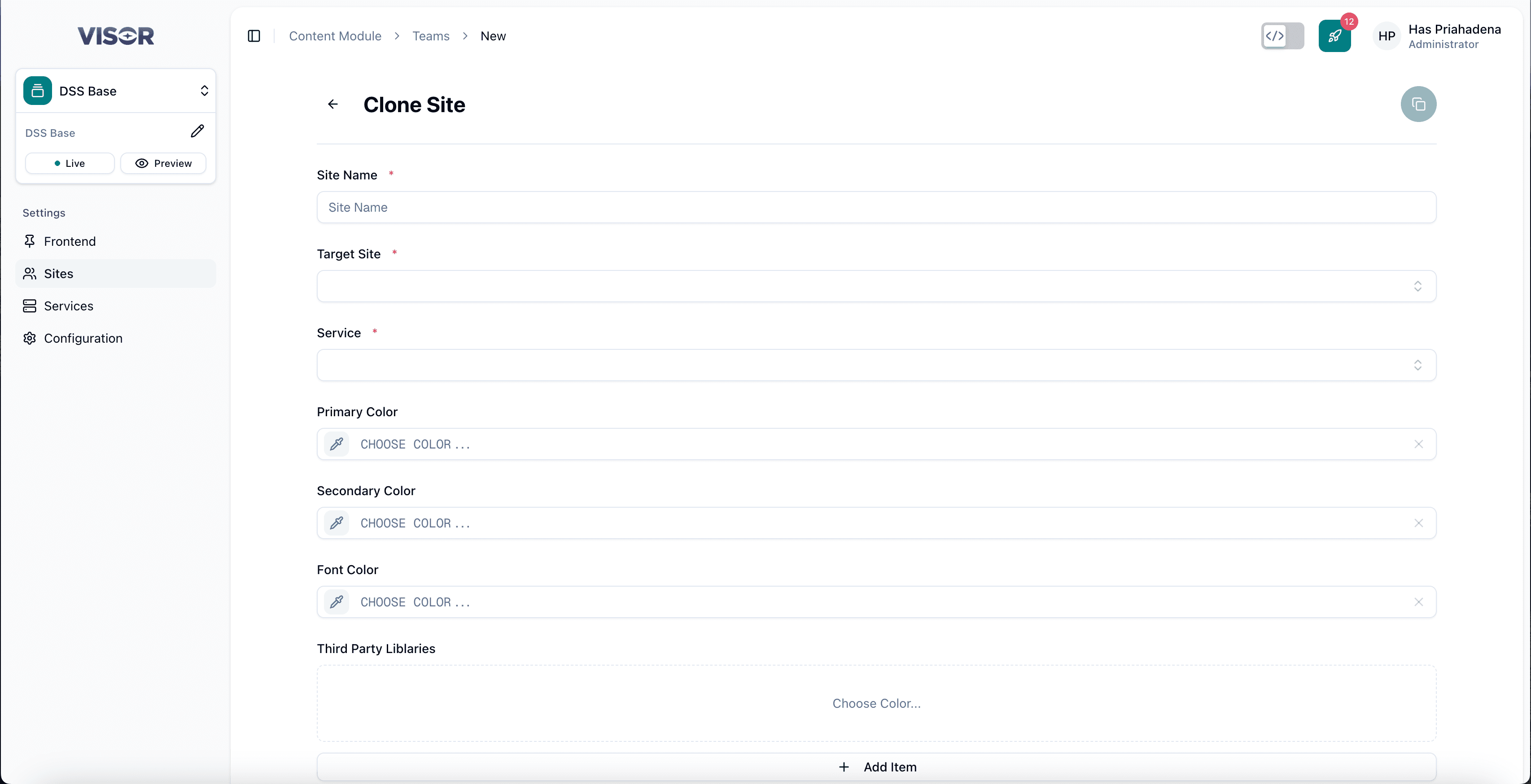
Complete the required fields for the site (name, CMS URL, developer preview URL, theme, and any other configuration). Once filled, click the clone icon in the top-right corner to save the new site.
Edit a Site
Open the site from the listing
From the Sites listing, click the site entry you want to edit. You will be taken to the site detail page.
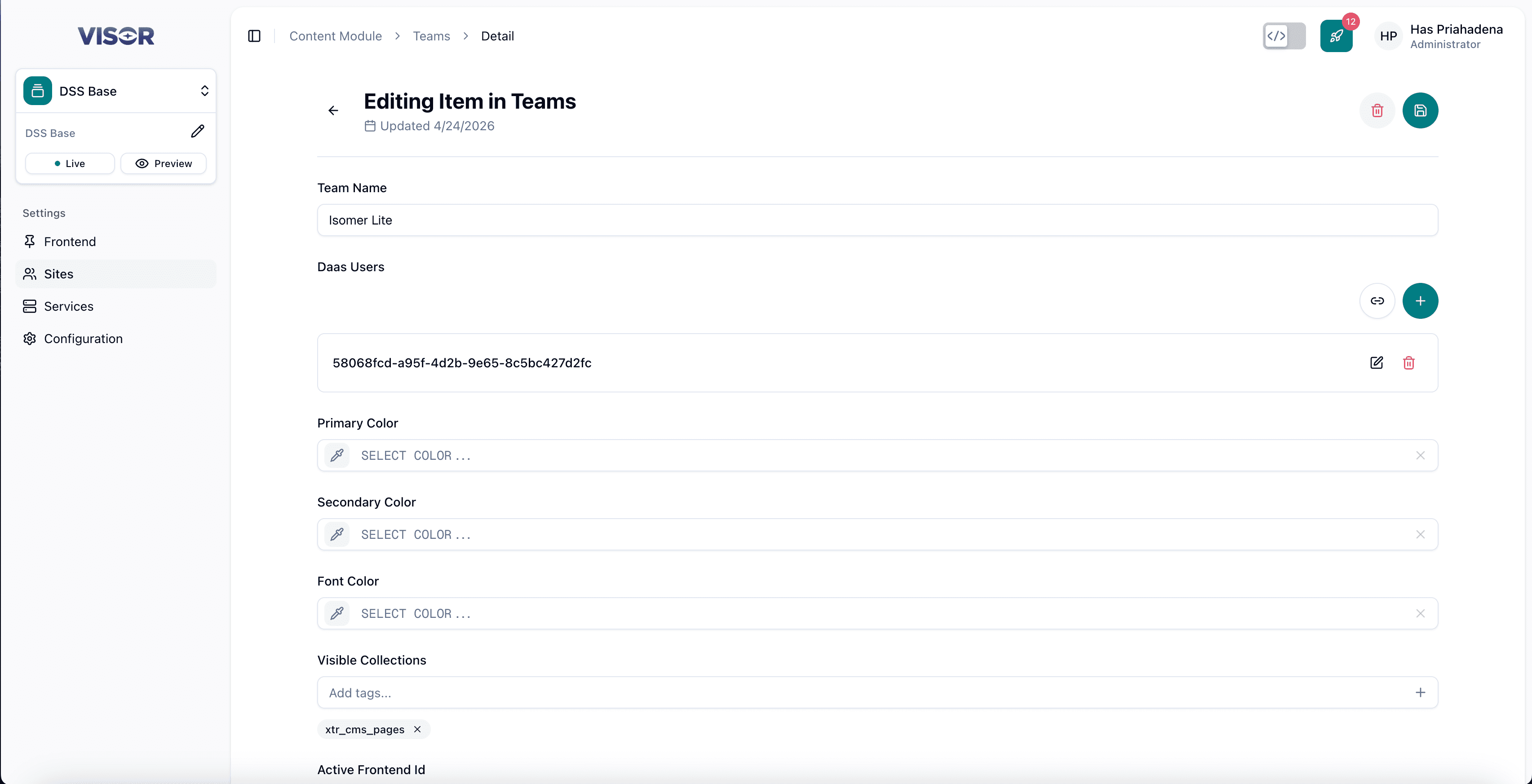
Update the fields
Edit the configuration fields as needed.
Save the changes
Click the ✓ (check) button in the top-right corner to save.
Delete a Site
There are two ways to delete a site.
Deleting a site will remove the tenant data and all associated configuration. Any frontends linked to this site will be affected. This action is irreversible.
Method 1: Delete from the listing page
From the Sites listing, tick the checkbox next to the site you want to delete.
Click the trash icon in the top-right toolbar (Delete selected), then confirm the delete action.
Method 2: Delete from the detail page
Open the site entry from the listing. In the top-right action bar, click the trash icon (Delete item), then confirm the delete action.