Theme Configuration
A theme sets a website’s colours, fonts and shapes. Each frontend has its own theme. Anyone who works at the site can change it.
Change the theme
Open Theme Configuration
Click the pencil icon next to the frontend’s name in the sidebar.
Choose the frontend and theme
Under Theme Settings, choose Select Frontend and Select Theme. The preview updates straight away, using the site’s Home page. Use the icons to view it as Desktop, Tablet or Mobile.
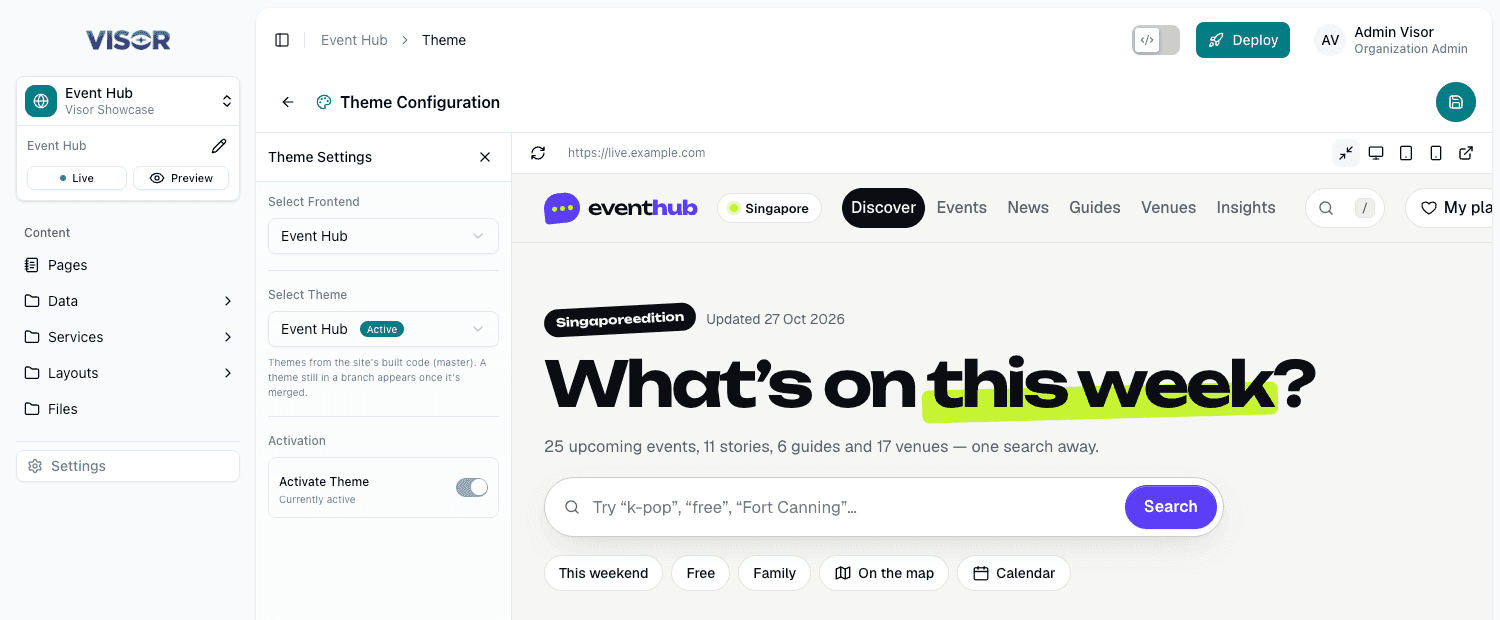
Activate it
Turn on the Activate Theme switch.
Save
Click the round Save icon at the top right. Nothing changes until you do.
The live website shows the new theme from its next Deploy.
Saving also makes the selected frontend the active one, even if the theme didn’t change. This affects what everyone at the site works with in Visor. This page is the only place to switch the active frontend.
Which themes you can choose
The list shows themes in the site’s built code. A theme still in a branch appears once it is merged and the preview has rebuilt.
In Developer mode, your local themes are listed with a Local badge. You can preview them, but you can’t activate them until they are merged.
To add a theme, see Theme.
If you can’t change it
If Visor can’t reach the site’s preview to check its themes, only a Site Admin can switch: Visor can’t check this site’s preview for its themes, so a Site Admin switches its theme. If no themes are listed, none have been merged and built yet.