Workflow Assignment
What is a Workflow Assignment?
A Workflow Assignment links a Workflow Definition to a content collection, activating the workflow’s states and transitions for that collection. Once assigned, editors working on entries in that collection will be guided through the states defined in the linked Workflow Definition.
You can create multiple assignments — a single definition can be assigned to multiple collections, and a collection can technically have more than one assignment. In practice, however, each collection should have only one active Workflow Assignment. If a collection has multiple assignments, only the first item will be used.
Avoid creating duplicate assignments for the same collection. If multiple assignments exist, only the first one will take effect.
Navigating to Workflow Assignment
In the left sidebar, go to Services → Workflow → Workflow Assignment. This opens the listing page showing all existing assignments.
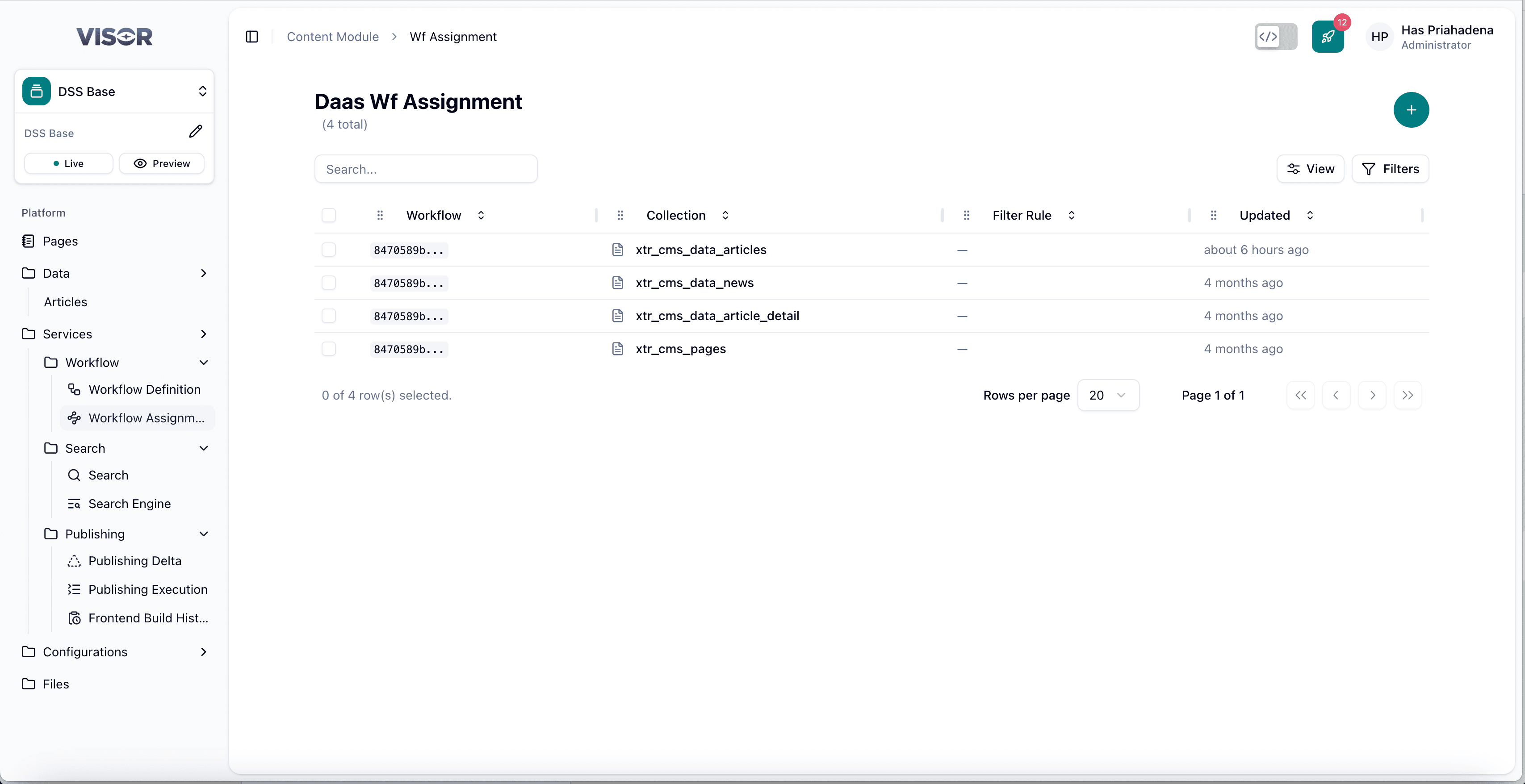
Each row in the table shows:
| Column | Description |
|---|---|
| Workflow | The ID of the linked Workflow Definition. |
| Collection | The content collection this assignment applies to. |
| Filter Rule | An optional filter that scopes the assignment to a subset of the collection. |
| Updated | When the assignment was last modified. |
Create a Workflow Assignment
Navigate to Workflow Assignment
In the left sidebar, go to Services → Workflow → Workflow Assignment. You will be taken to the assignment listing page.
Click the + button
In the top-right corner of the listing page, click the + button to open the creation form.
Fill in the assignment fields
Complete the form fields:
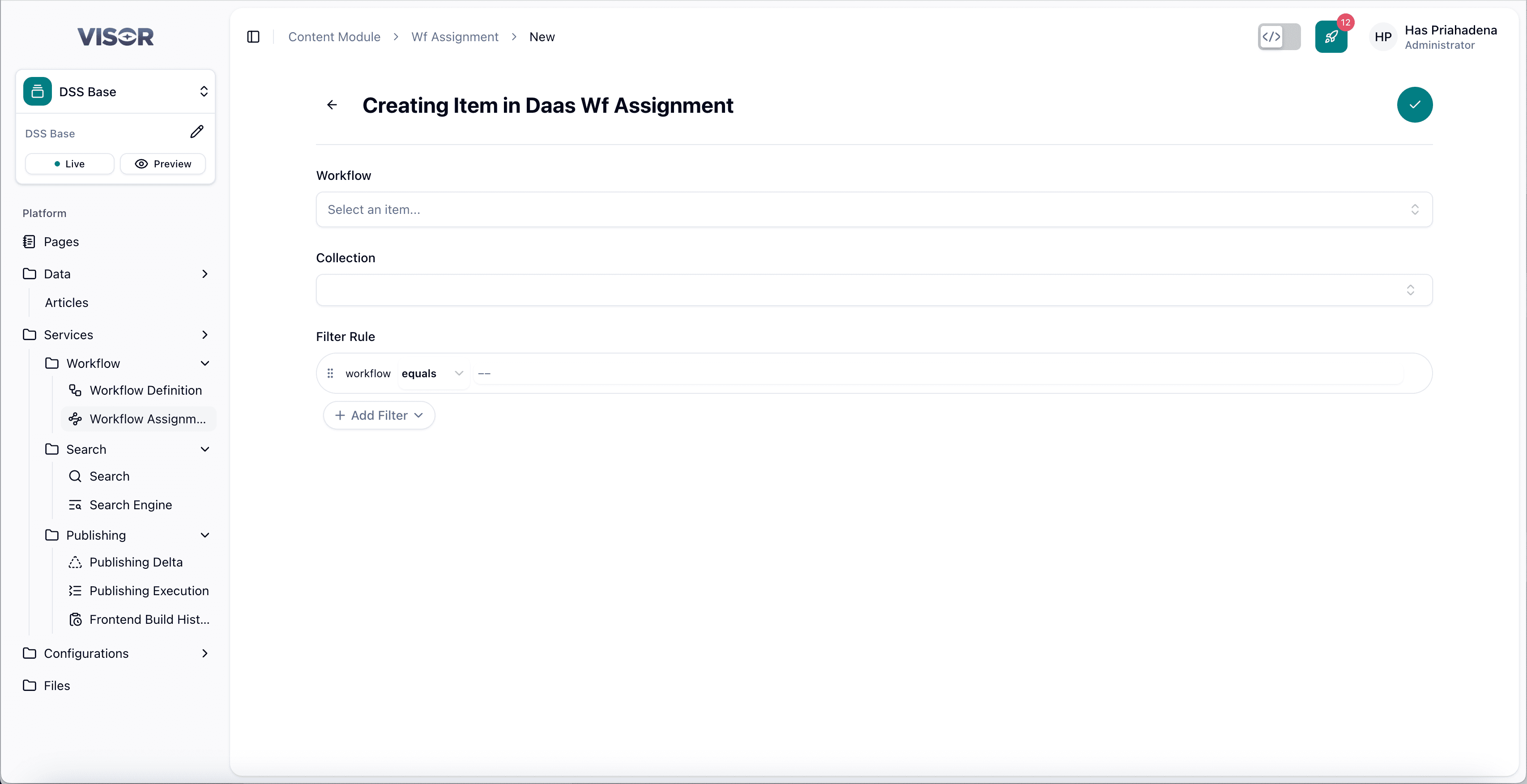
| Field | Required | Description |
|---|---|---|
| Workflow | Yes | Select the Workflow Definition to assign. |
| Collection | Yes | Select the content collection to link the workflow to. |
| Filter Rule | No | Add filter conditions to scope the assignment to specific entries within the collection. Leave blank to apply to the entire collection. |
The Filter Rule is useful when you need different workflows for different subsets of a collection (e.g., by category or content type). In most cases, leave it blank.
Save the assignment
Click the ✓ (check) button in the top-right corner to save the assignment. The workflow will now be active for entries in the selected collection.
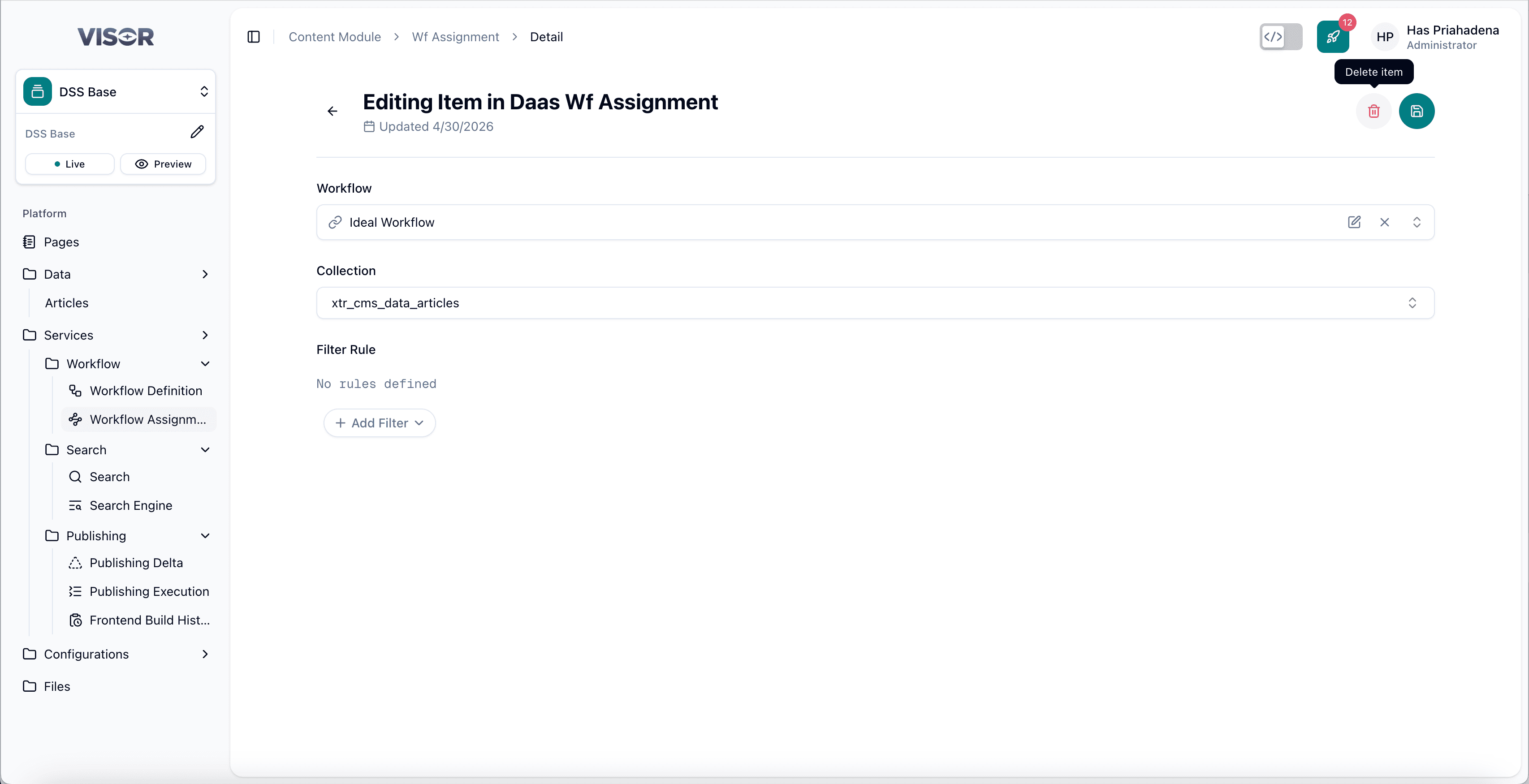
Edit a Workflow Assignment
Open the assignment from the listing
From the Workflow Assignment listing, click the assignment row you want to edit. This opens the detail form.
Update the fields
Modify the Workflow, Collection, or Filter Rule as needed.
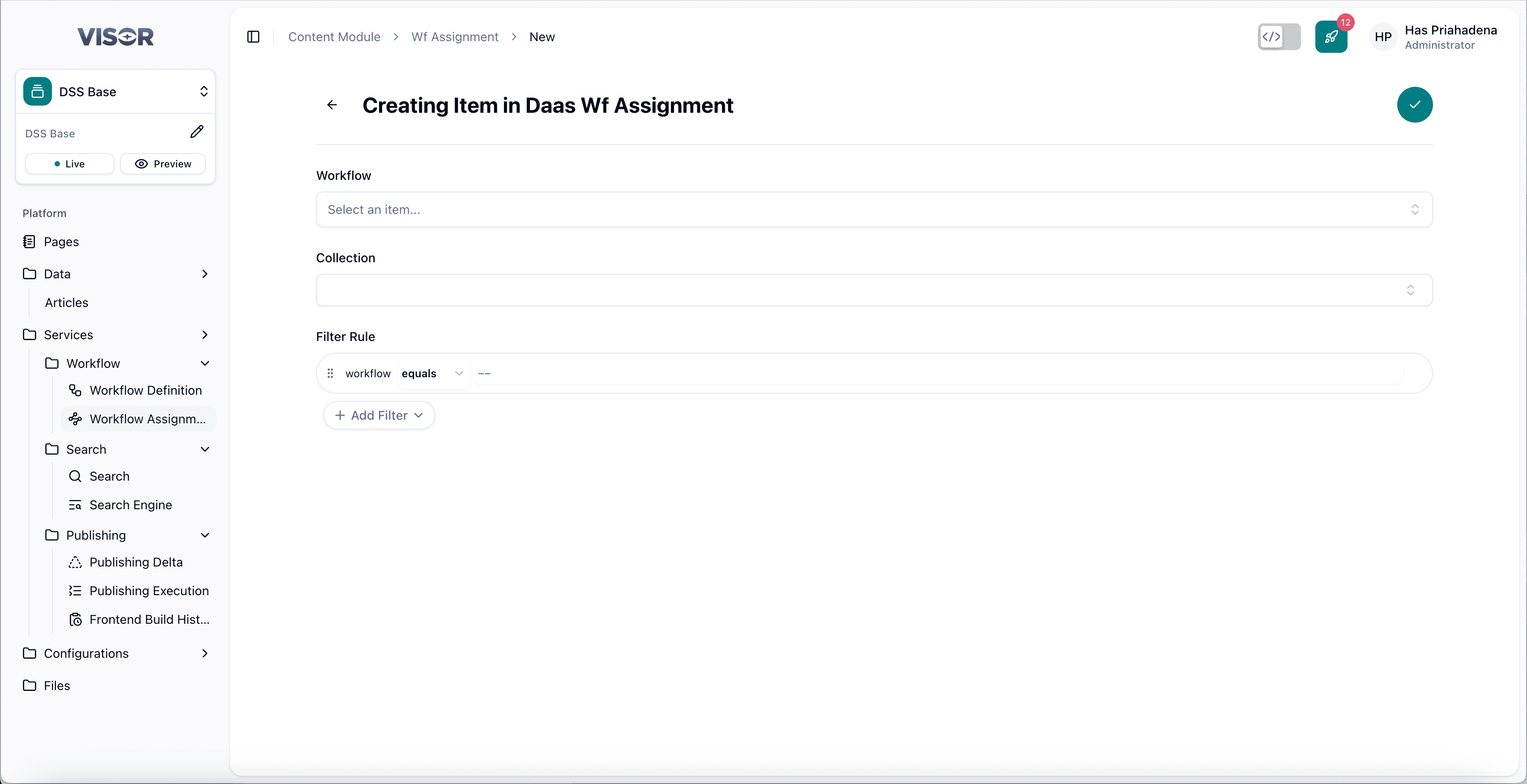
Save the changes
Click the ✓ (check) button in the top-right corner to save.
Delete a Workflow Assignment
There are two ways to delete a workflow assignment.
Deleting a workflow assignment will remove the workflow from the linked collection. Editors will lose access to workflow state transitions for entries in that collection.
Method 1: Delete from the listing page
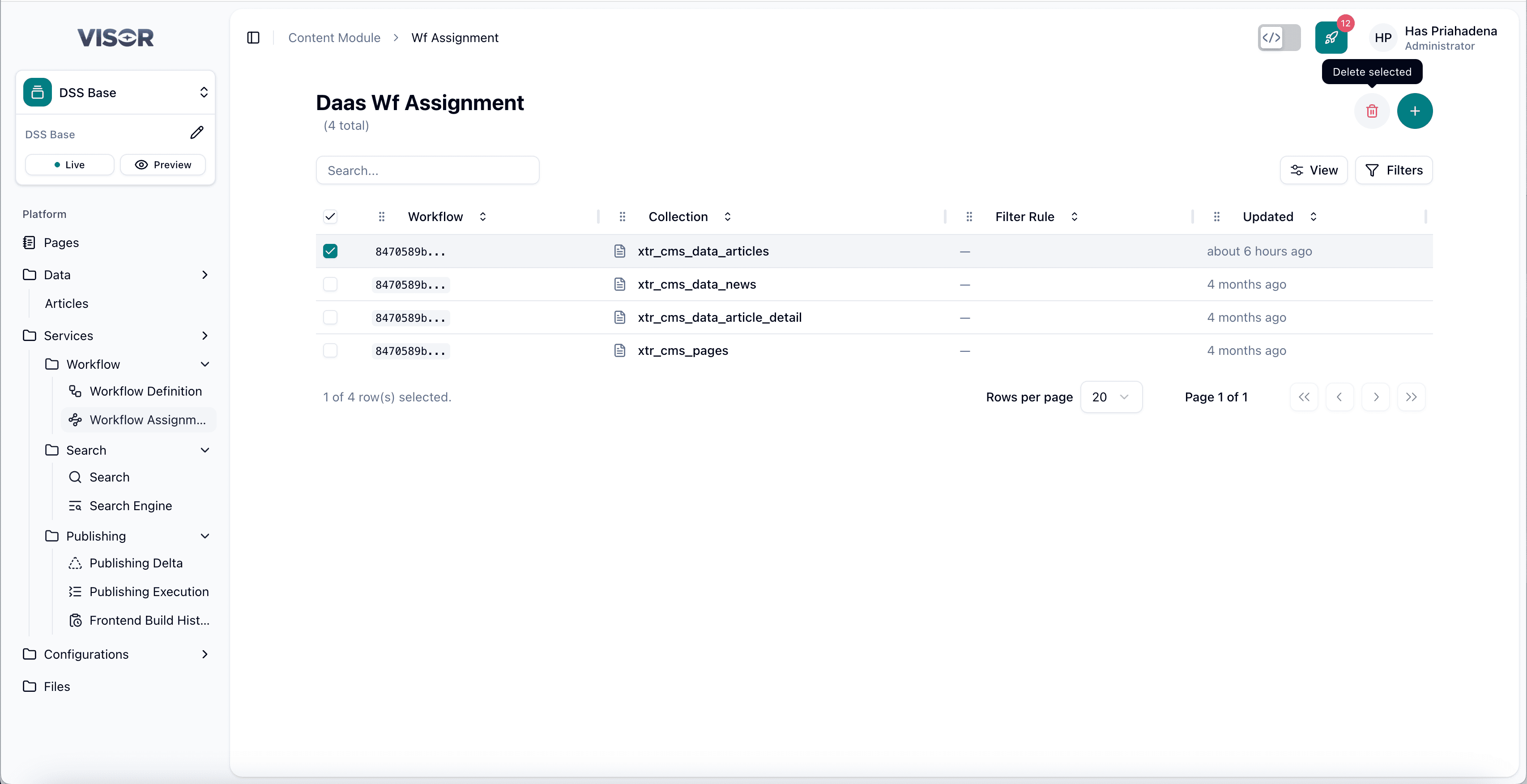
From the Workflow Assignment listing, tick the checkbox next to the assignment you want to delete.
Click the trash icon in the top-right toolbar (Delete selected), then confirm the delete action.
Method 2: Delete from the assignment form
Open the assignment from the listing. In the top-right action bar, click the trash icon (Delete item), then confirm the delete action.