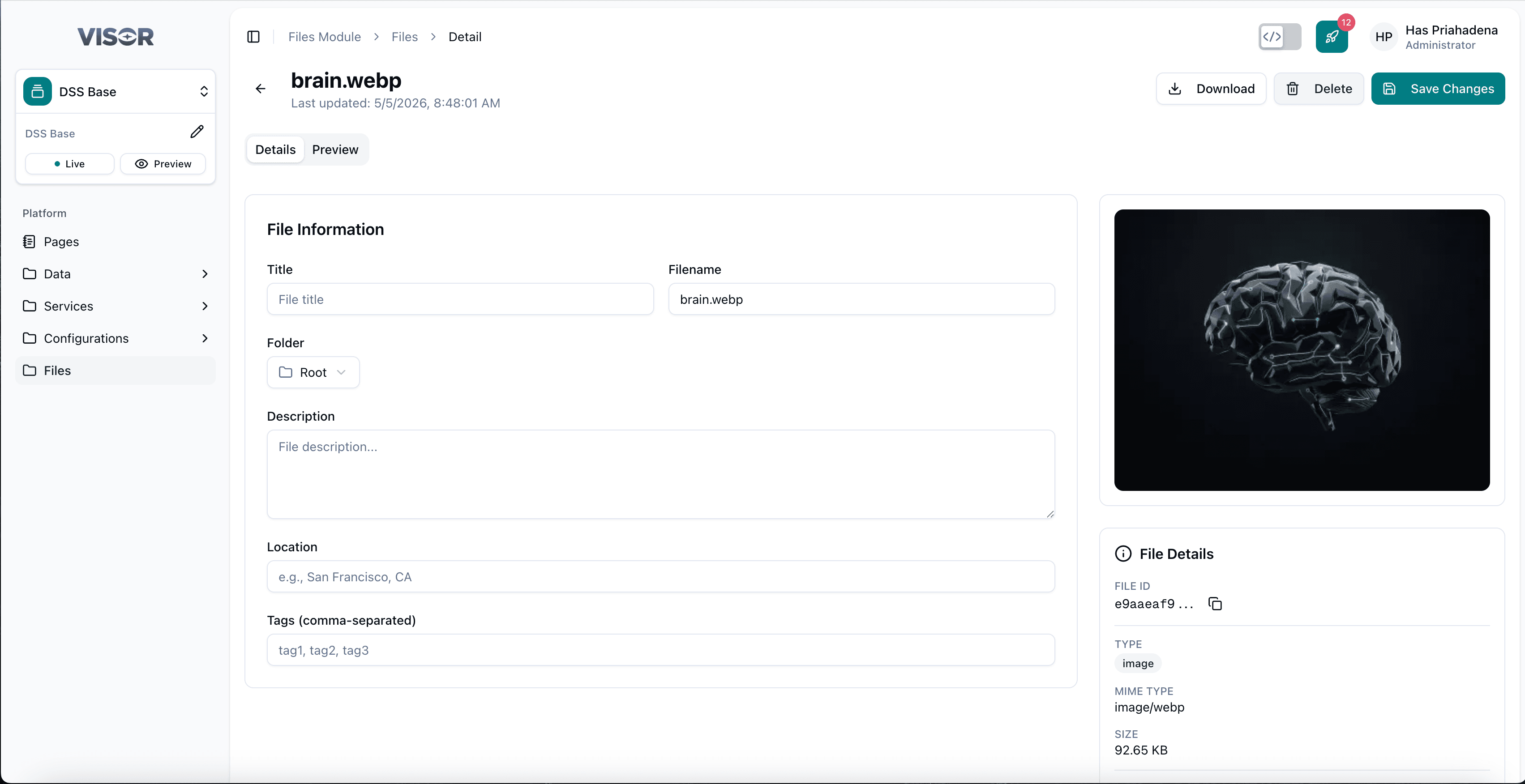
Files
What is the Files Module?
The Files module is used to manage digital assets used across the platform. You can upload any file type — images, audio, documents, videos, and more. Uploaded files are available to reference from content entries and page builder widgets across Visor Studio.
Navigating to Files
In the left sidebar, click Files. This opens the Files listing page, which displays all uploaded assets as a card grid.
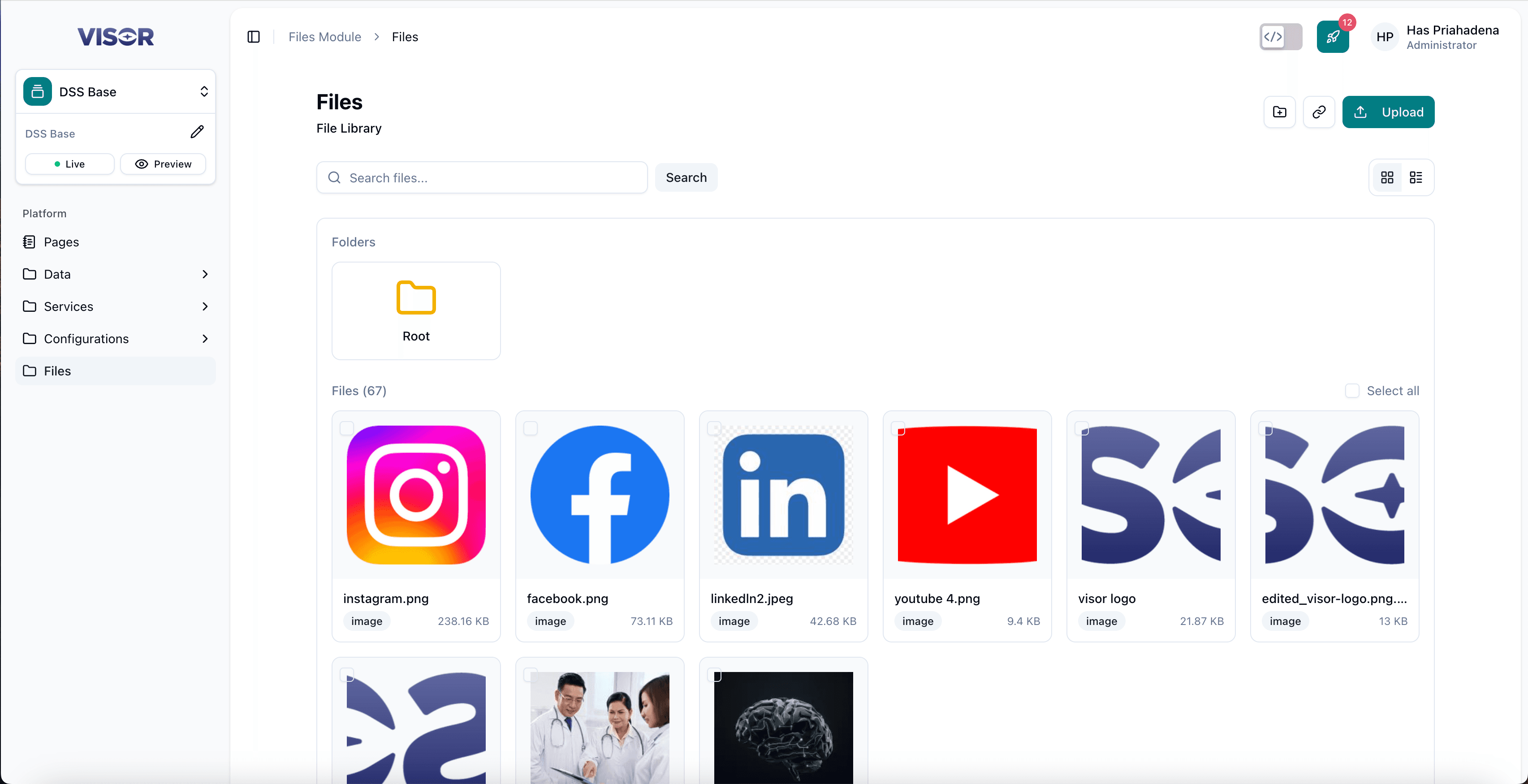
Upload a File
Navigate to Files
In the left sidebar, click Files. You will be taken to the file cards listing.
Click the Upload button
In the top-right corner, click the Upload button. A file picker will open prompting you to select the file(s) you want to upload.
Select your file
Choose the file from your device. Supported formats include images, audio, documents, and any other file type.
Wait for the upload to complete
A loading indicator will appear while the file is being uploaded. Once complete, the file will appear as a new card in the listing.
Edit a File
Open the file from the listing
From the Files listing, click the file card you want to edit. You will be redirected to the file detail page.
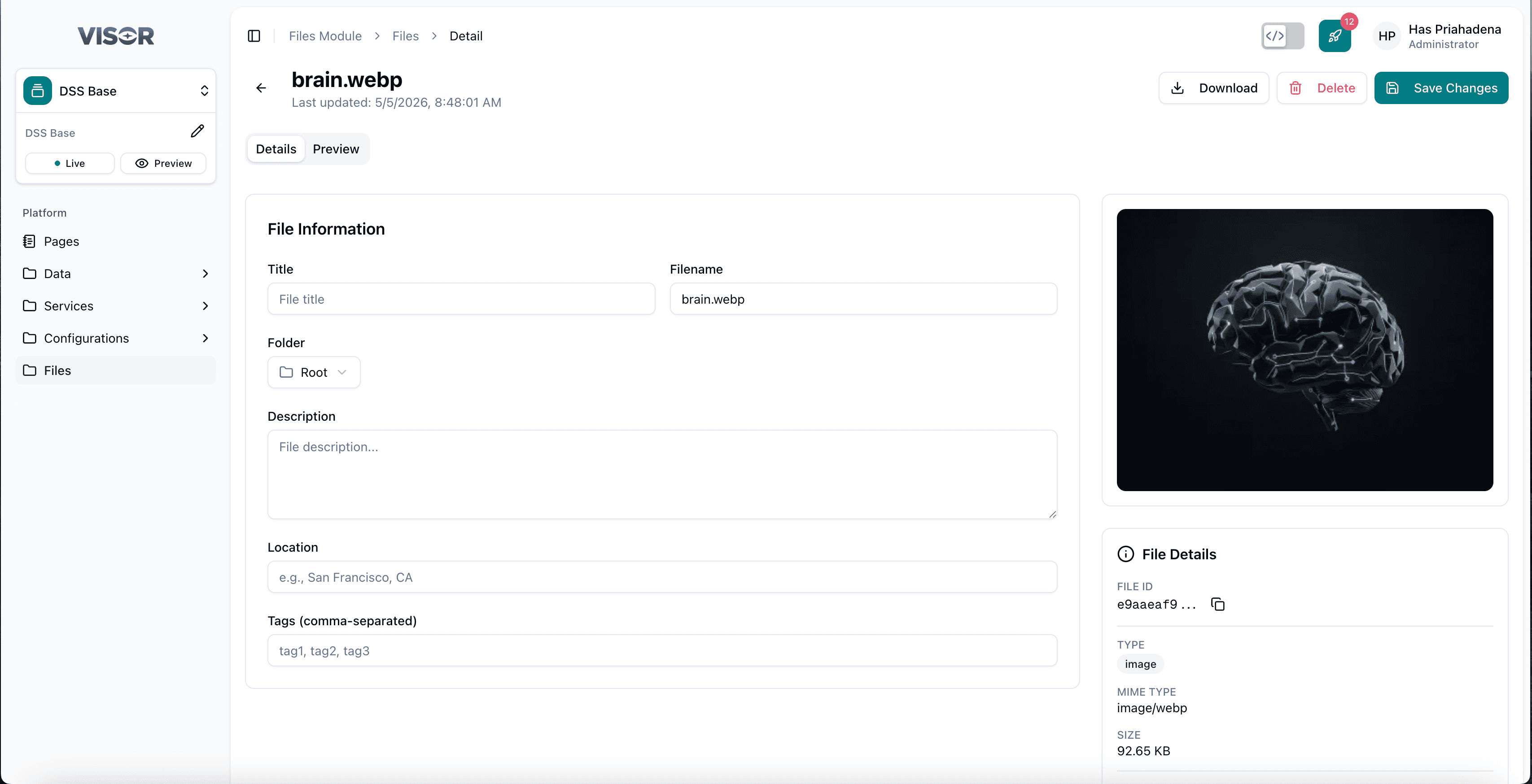
Update the fields
Edit the available fields (such as name or metadata) as needed.
Save the changes
Click the ✓ (check) button in the top-right corner to save.
Delete a File
There are two ways to delete a file.
Deleting a file is permanent. Make sure the file is not being referenced by any content entries or pages before deleting.
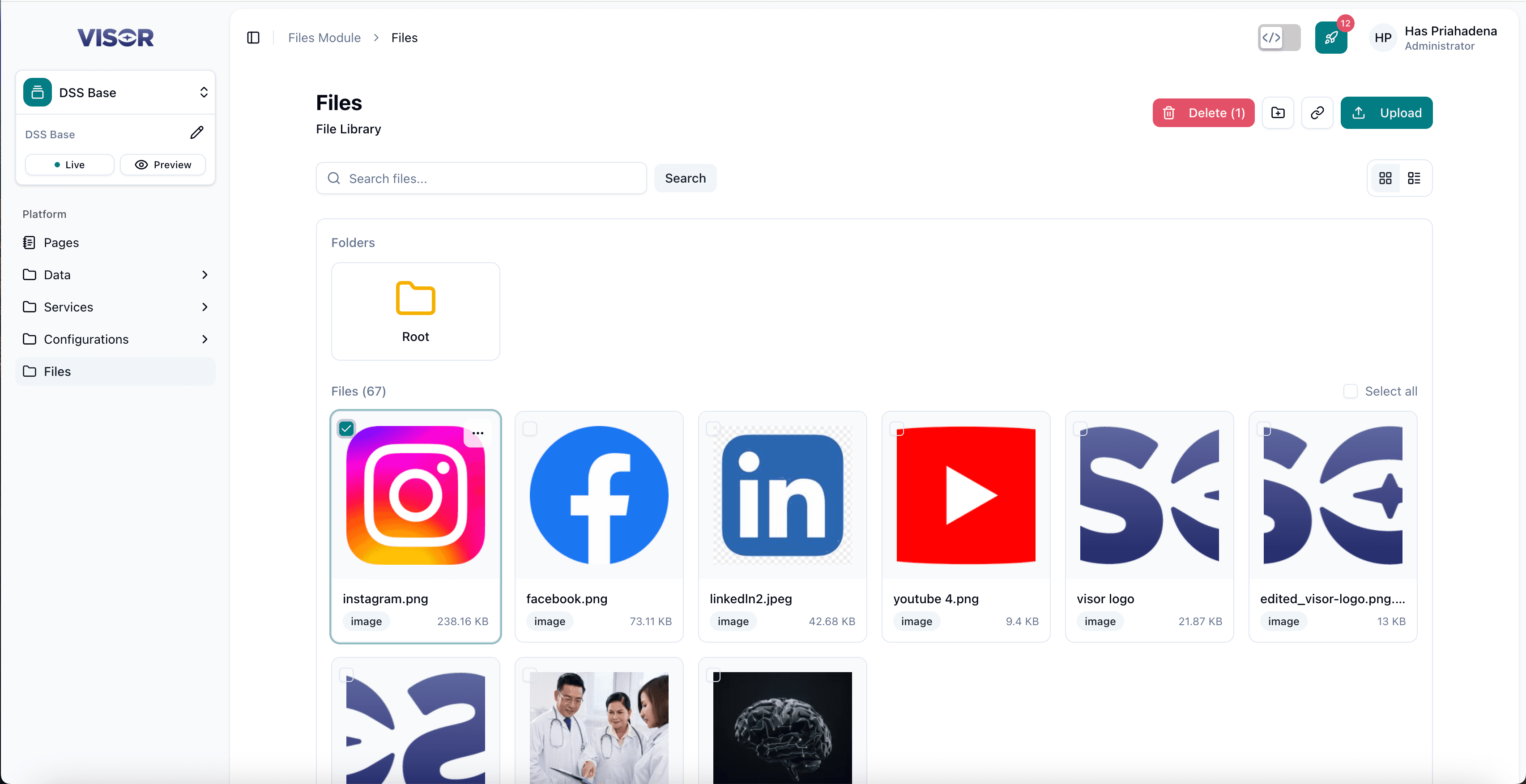
Method 1: Delete from the listing page
From the Files listing, select the file card(s) you want to delete.
Click the trash icon in the toolbar, then confirm the delete action.
Method 2: Delete from the file detail page
Open the file from the listing. In the top-right action bar, click the trash icon (Delete item), then confirm the delete action.